Move your WhatsApp number and finish your switch
The last step is connecting your WhatsApp number to ChatSales. Pick your case and we show you only those steps; at the end, go through the checklist before you cancel your previous platform.
Find WhatsApp Business API
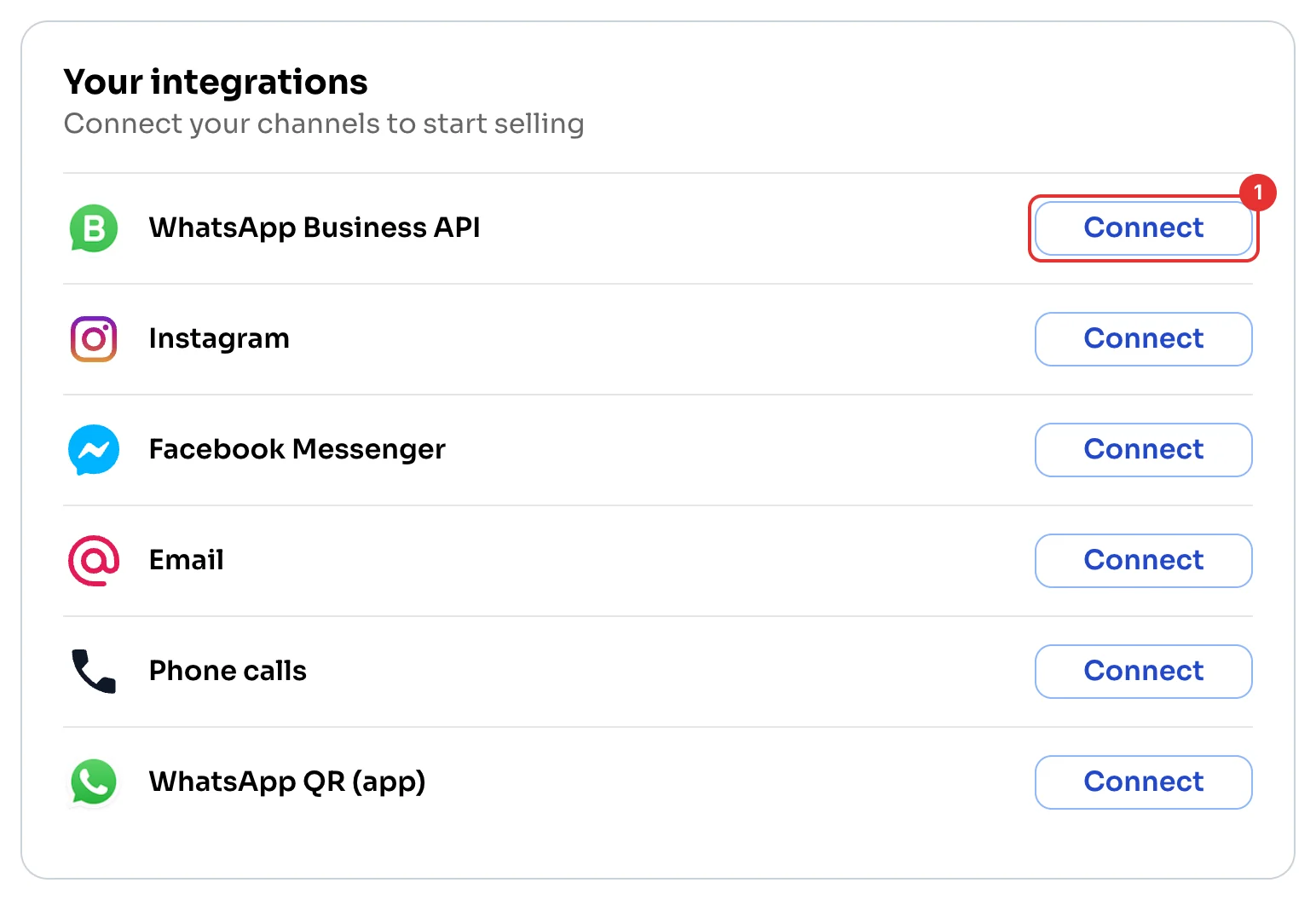
On the Dashboard, under Your integrations, click Connect next to WhatsApp Business API (1).
Read and confirm
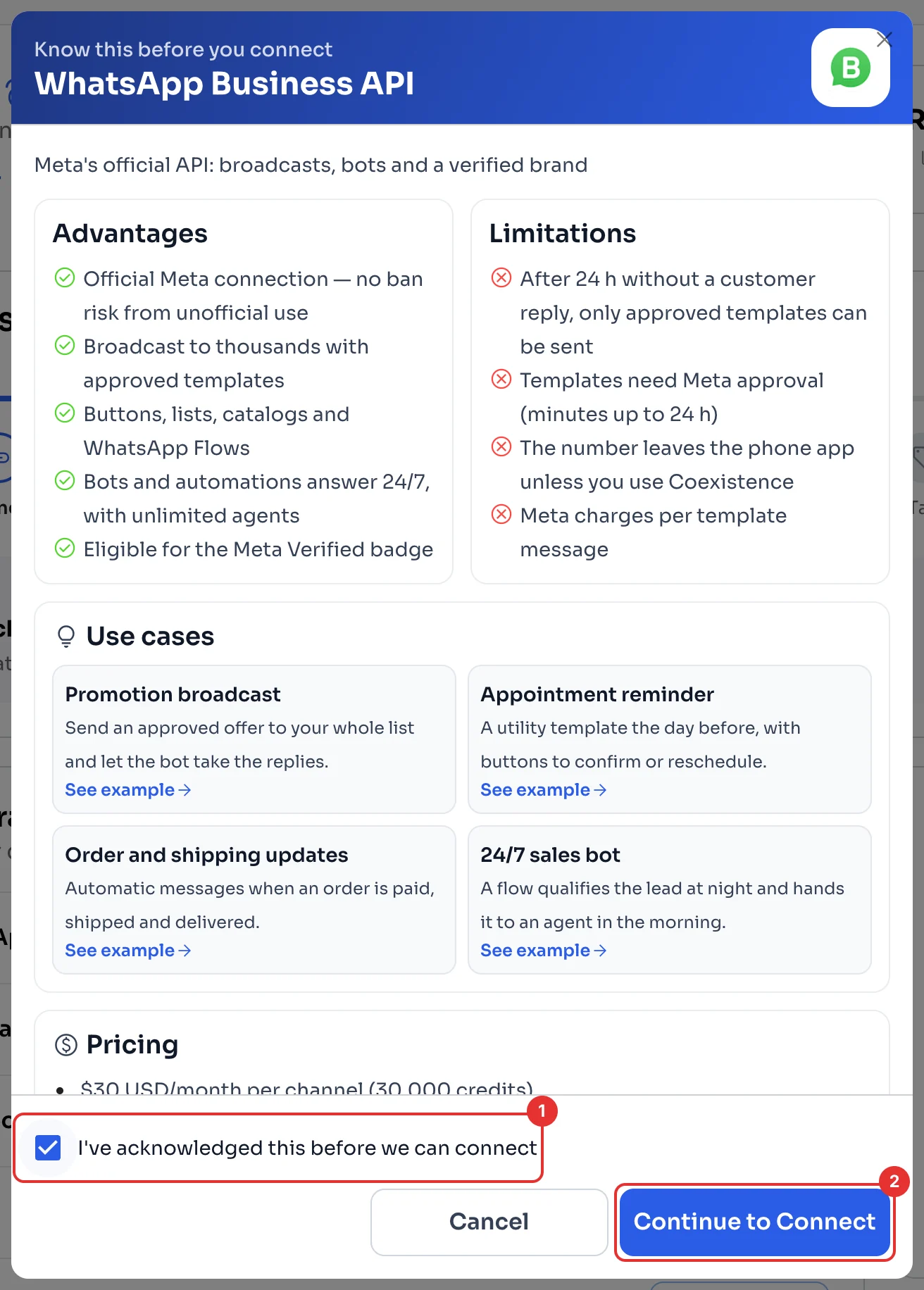
ChatSales shows you the API's advantages and limitations. Tick I've acknowledged this before we can connect (1) and click Continue to Connect (2).
Choose Coexistence
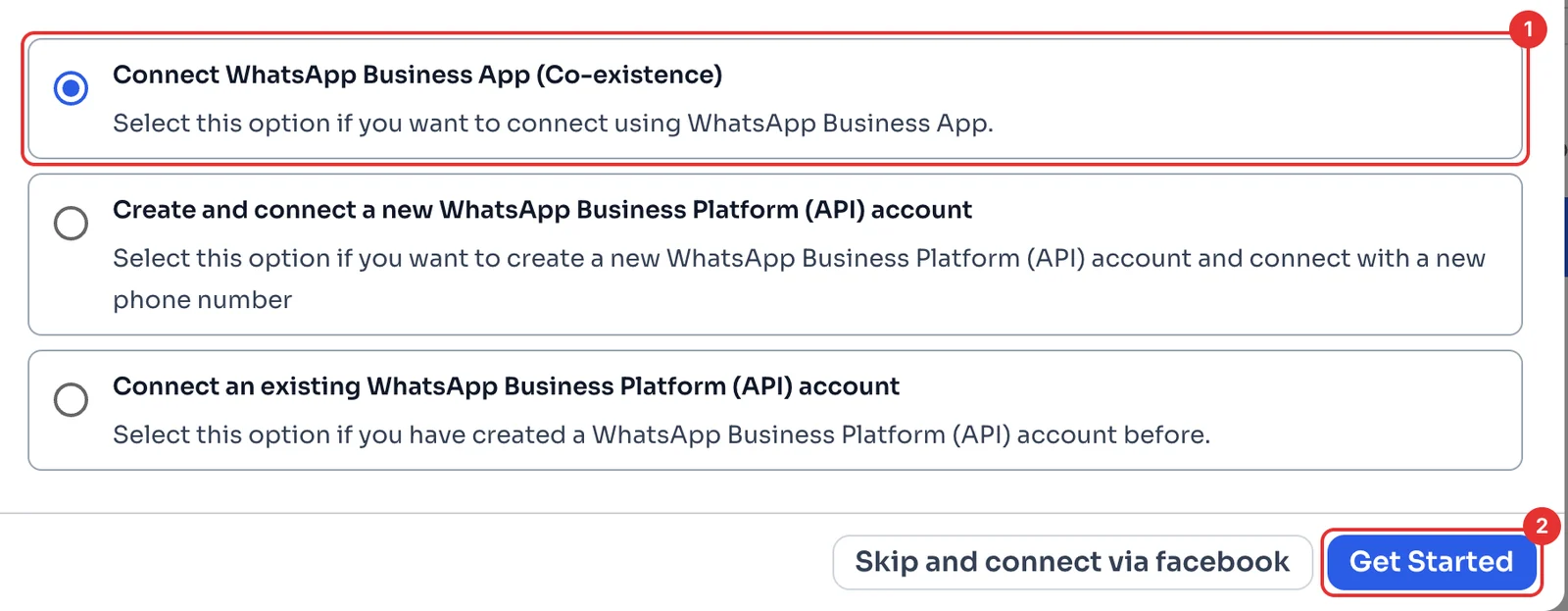
Pick Connect WhatsApp Business App (Co-existence) (1) and click Get Started (2).
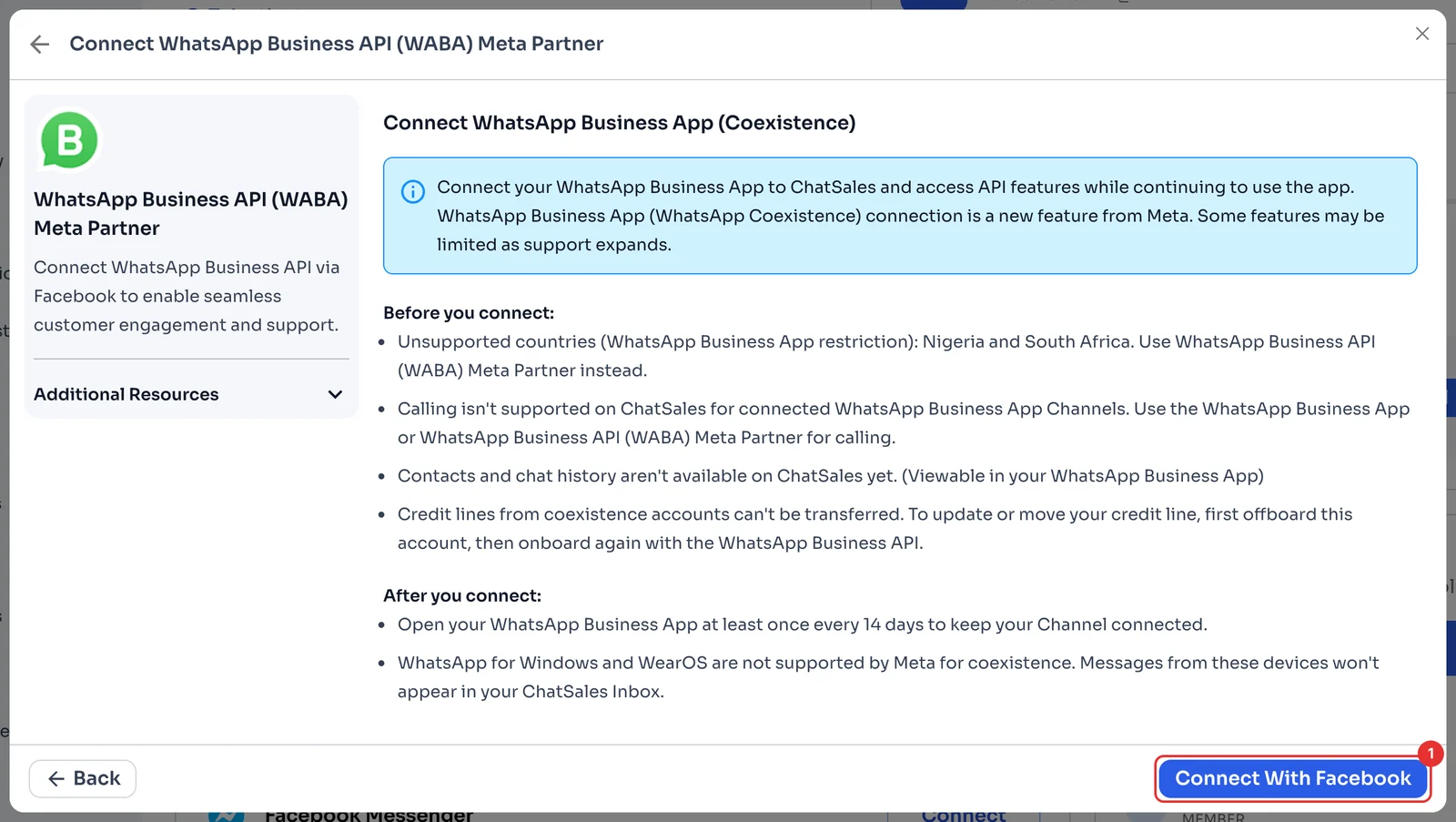
Check and connect with Facebook
Before you connect, note what ChatSales shows: it doesn't work in Nigeria or South Africa, calls aren't available on ChatSales for these channels, your contacts and chat history stay in the app for now, credit lines of Coexistence accounts can't be transferred, messages from WhatsApp for Windows and WearOS don't reach your ChatSales inbox, and you need to open the WhatsApp Business app at least every 14 days.
Click Connect With Facebook (1) and follow Meta's steps to link your WhatsApp Business app.
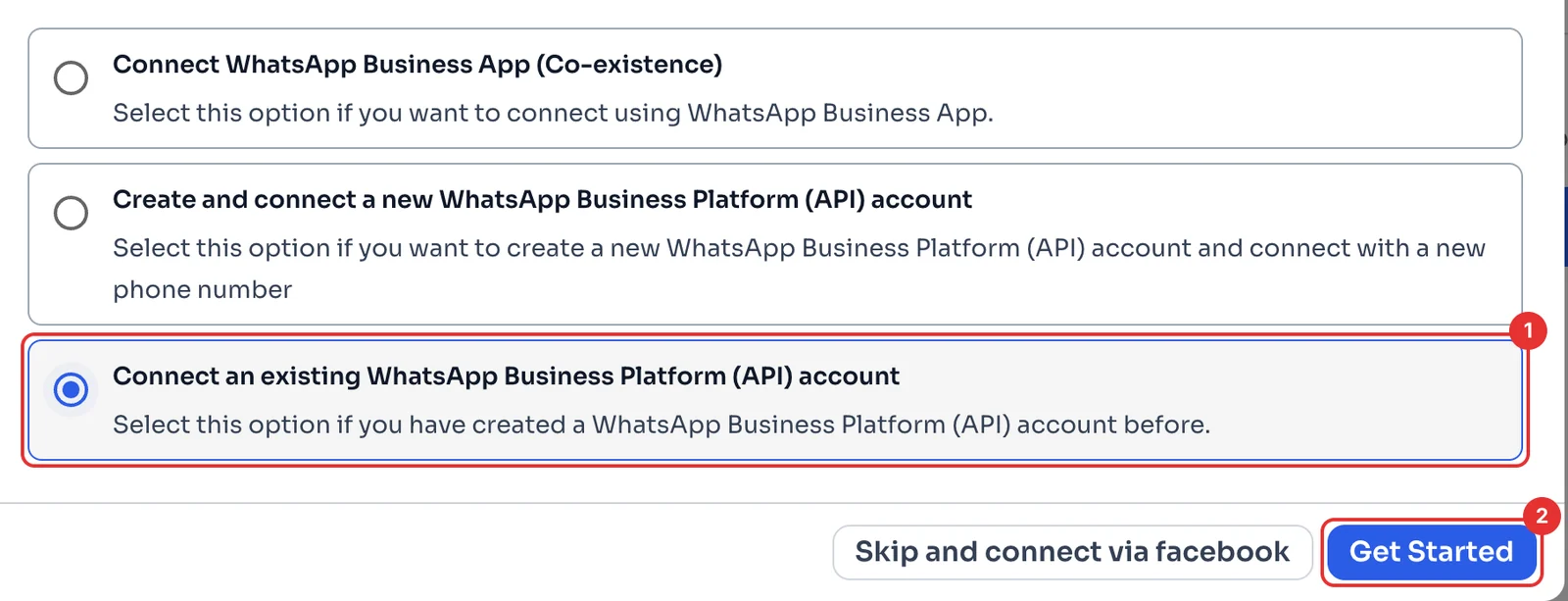
Choose to connect an existing account
Pick Connect an existing WhatsApp Business Platform (API) account (1) and click Get Started (2).
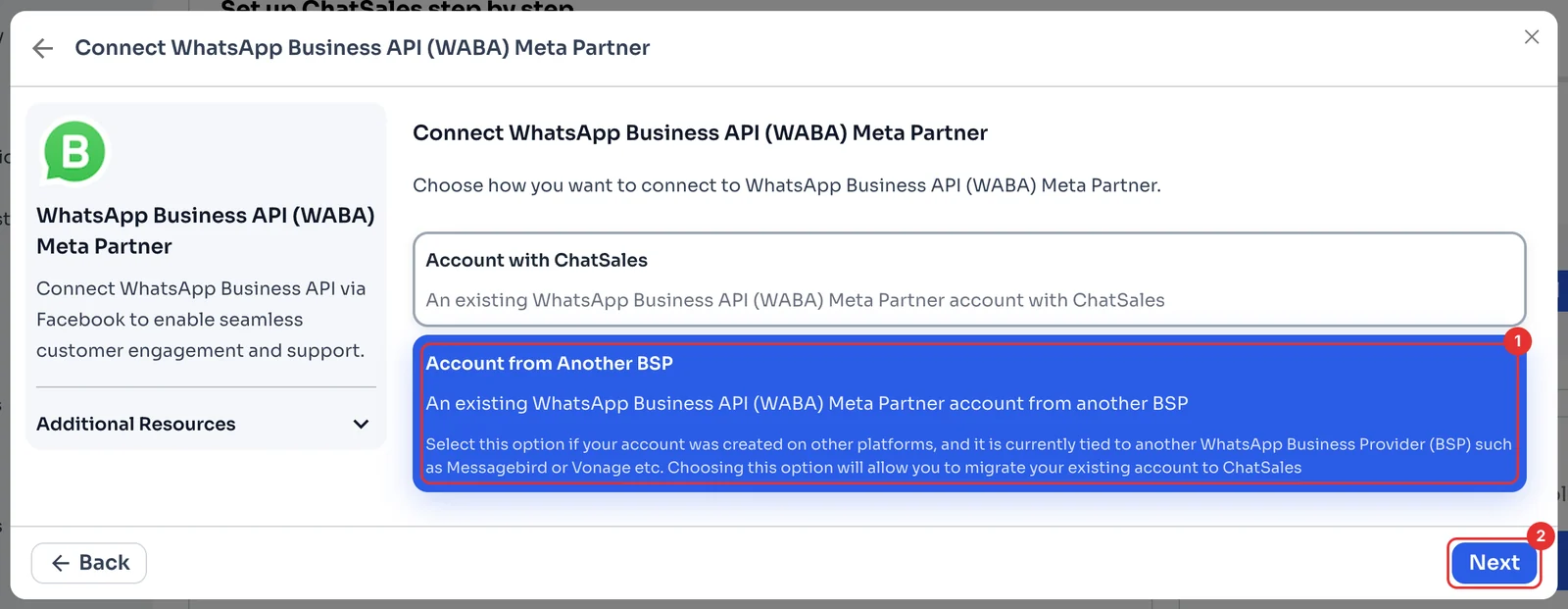
Choose Account from Another BSP
Pick Account from Another BSP (1): that is you if your number is on the API with another provider today. Click Next (2).
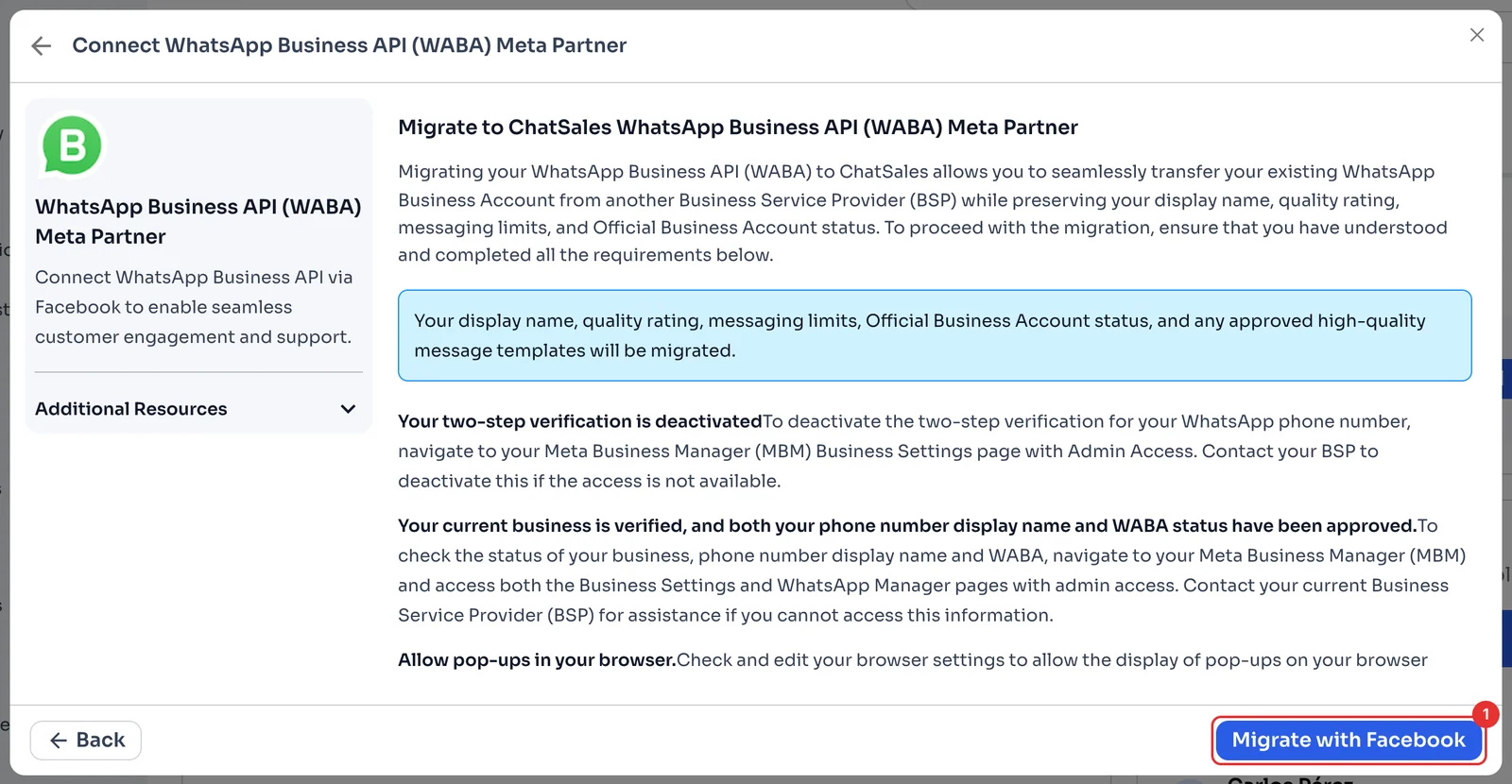
Check and migrate with Facebook
Your display name, quality rating, messaging limits, Official Business Account status and approved templates are migrated. First, turn off two-step verification on the number, make sure your business is verified and your display name and account are approved, and allow pop-ups in your browser.
Click Migrate with Facebook (1) and follow Meta's steps.
Choose to create a new account
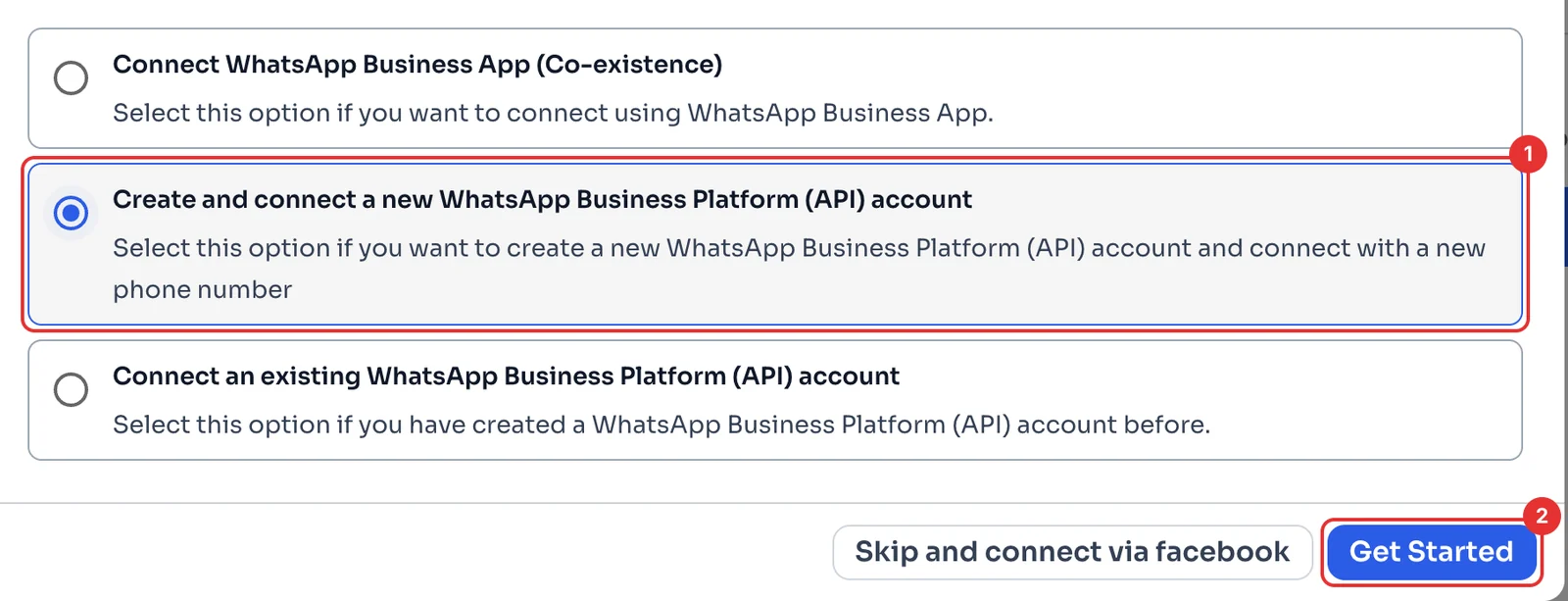
Pick Create and connect a new WhatsApp Business Platform (API) account (1) and click Get Started (2).
Choose Personal Account
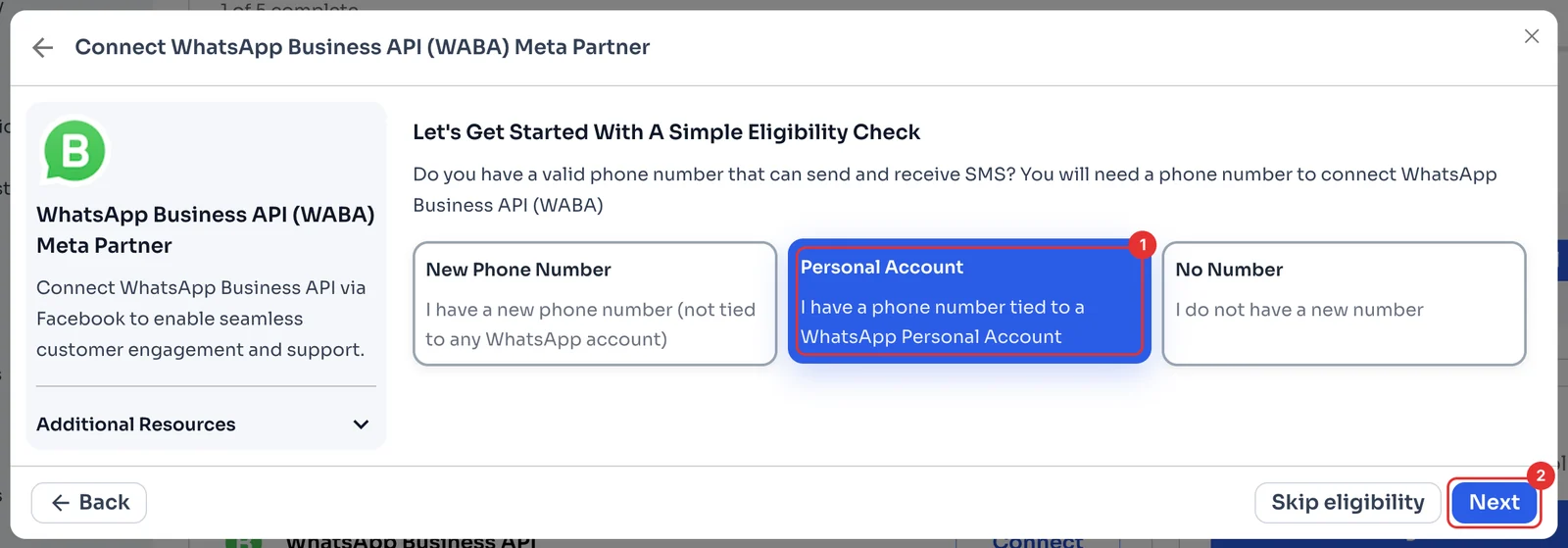
Pick Personal Account (1): that is you if you use the number on WhatsApp or the WhatsApp Business app today. Click Next (2).
Back up, delete and migrate
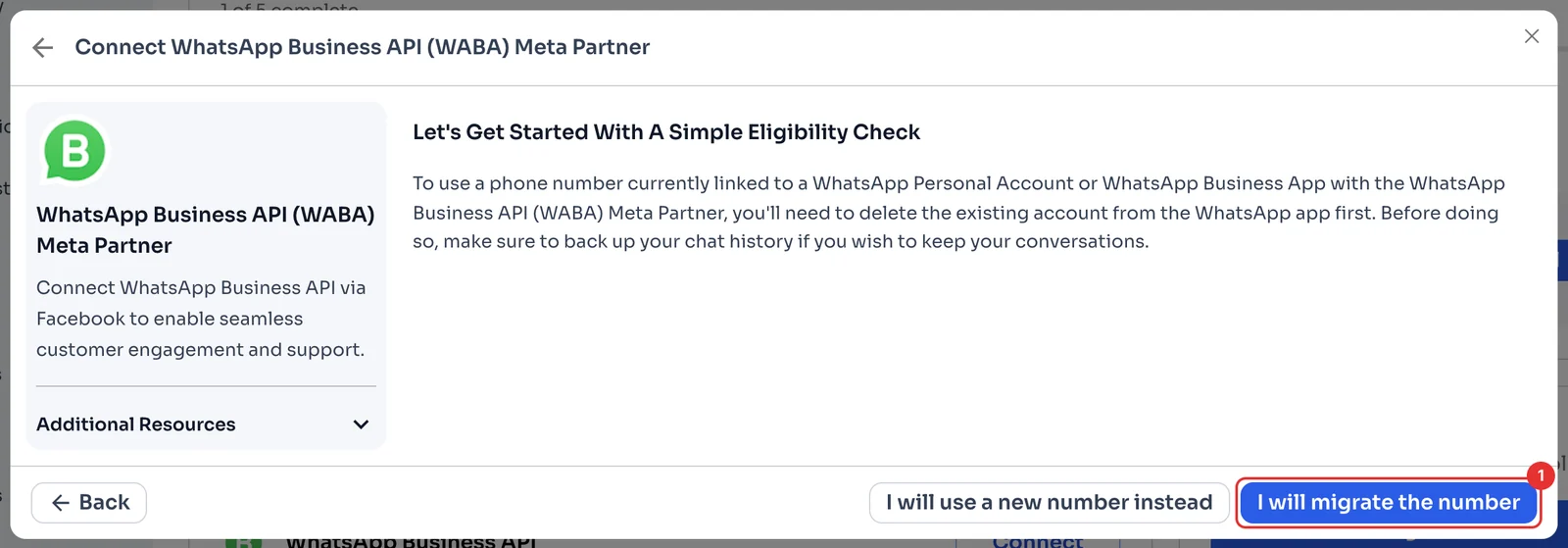
To move the number to the API you first have to delete its account in the WhatsApp app. Before that, back up your chat history if you want to keep it.
Click I will migrate the number (1) and carry on as in Connect your WhatsApp: company details and Connect With Facebook. It is a new account, so submit your templates for approval again (Send your first message).
Check everything before you cancel your previous platform
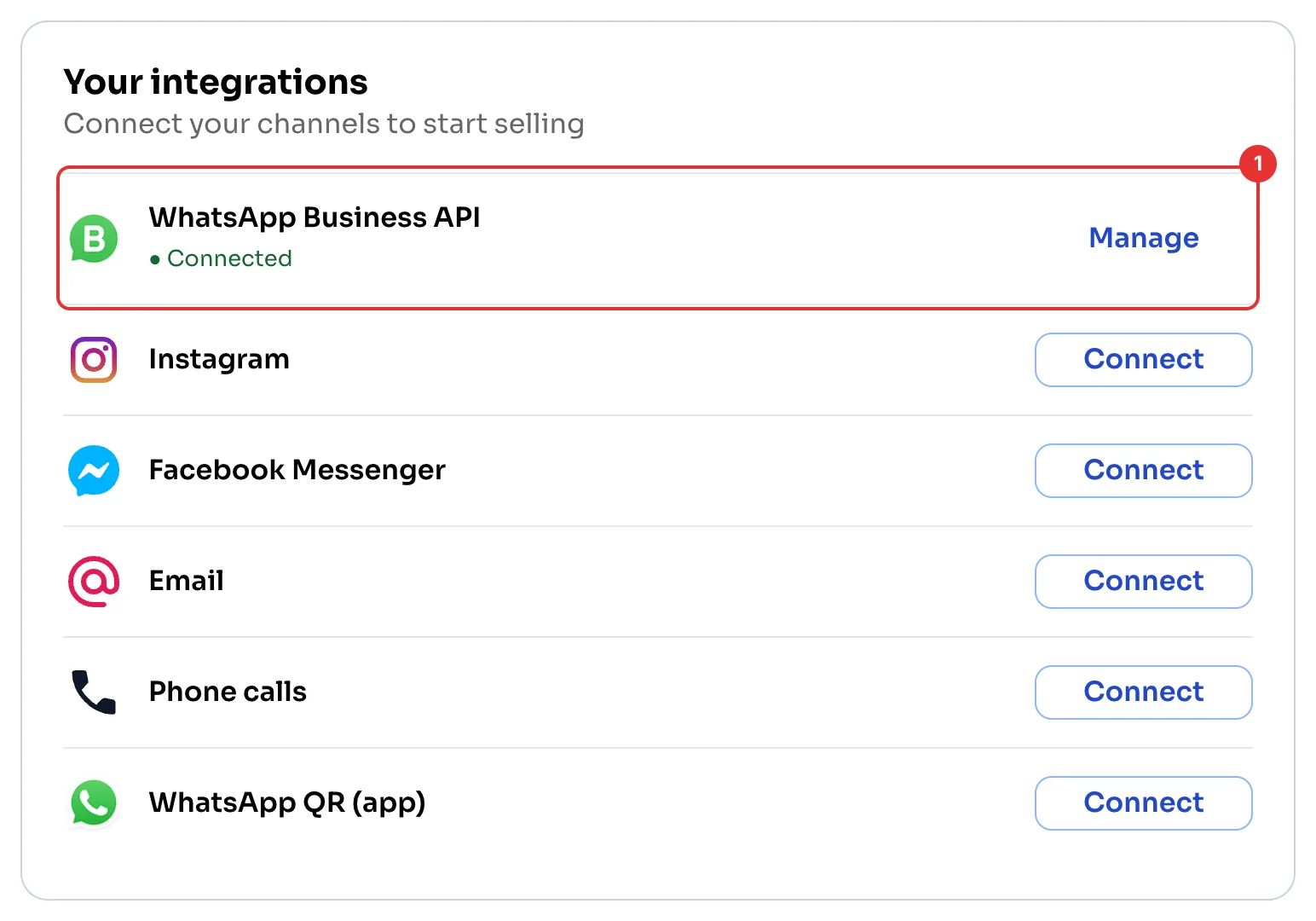
WhatsApp Business API shows Connected (1). Before you cancel your previous platform, check that:
Your contacts are in the Directory and match your file (Import your contacts).
Your tags, keyword replies and pipeline stages are created (Recreate your tags).
Your team has access (Invite your team), and you sent and received a test message in ChatSales.
Your templates are approved in the account you use now, and you saved a copy of anything you need from your previous platform. When everything is ready, cancel it.