Import your contacts from a CSV file
In ChatSales your contacts live in the Directory. From there you import a CSV file with the contacts you exported from your previous platform.
Open Import in the Directory
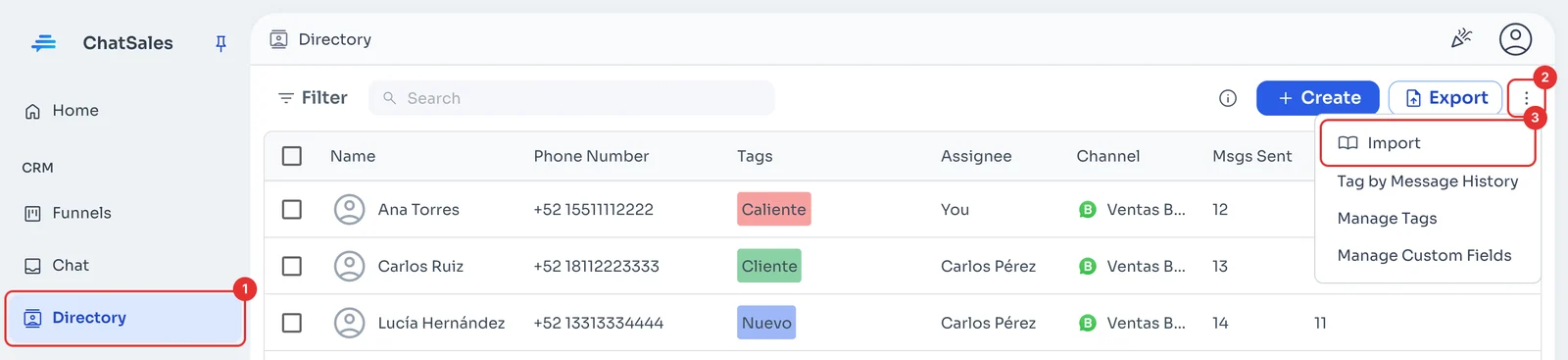
Go to Directory (1) in the left menu. Click the three dots next to Export (2) and choose Import (3).
No file yet? See what to export from your previous platform.
Download the template and upload your file
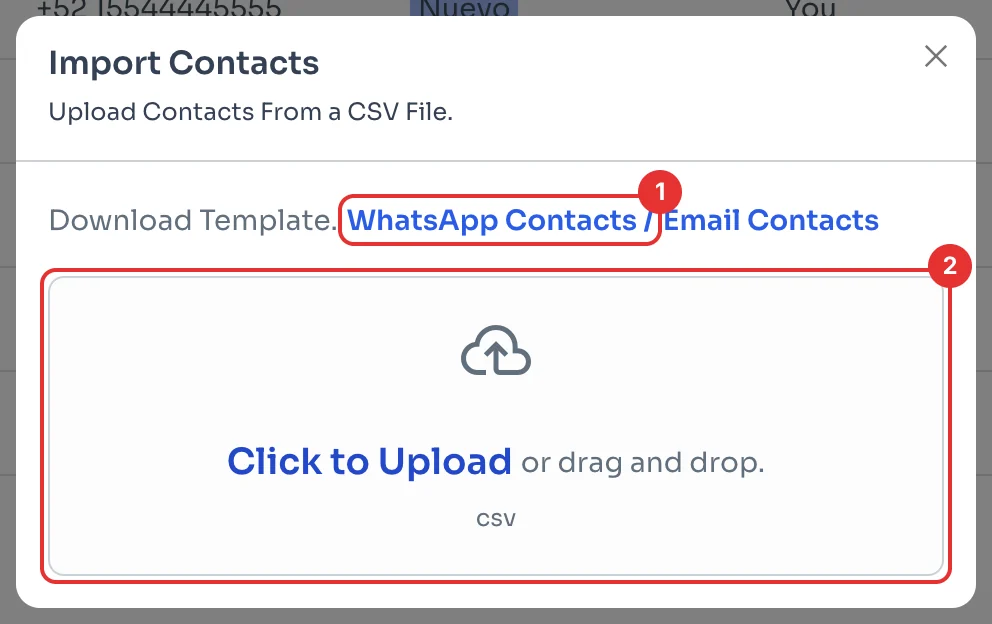
In Import Contacts, download the WhatsApp Contacts template (1). It has the columns Name, Phone Number, Tags and Assignee: copy your data into it, or make your file's headers look like them.
Write numbers with the country code, without the + sign. Click Click to Upload or drag your file in (2). Only .csv files work: if you exported to Excel, save it as CSV.
Review the preview
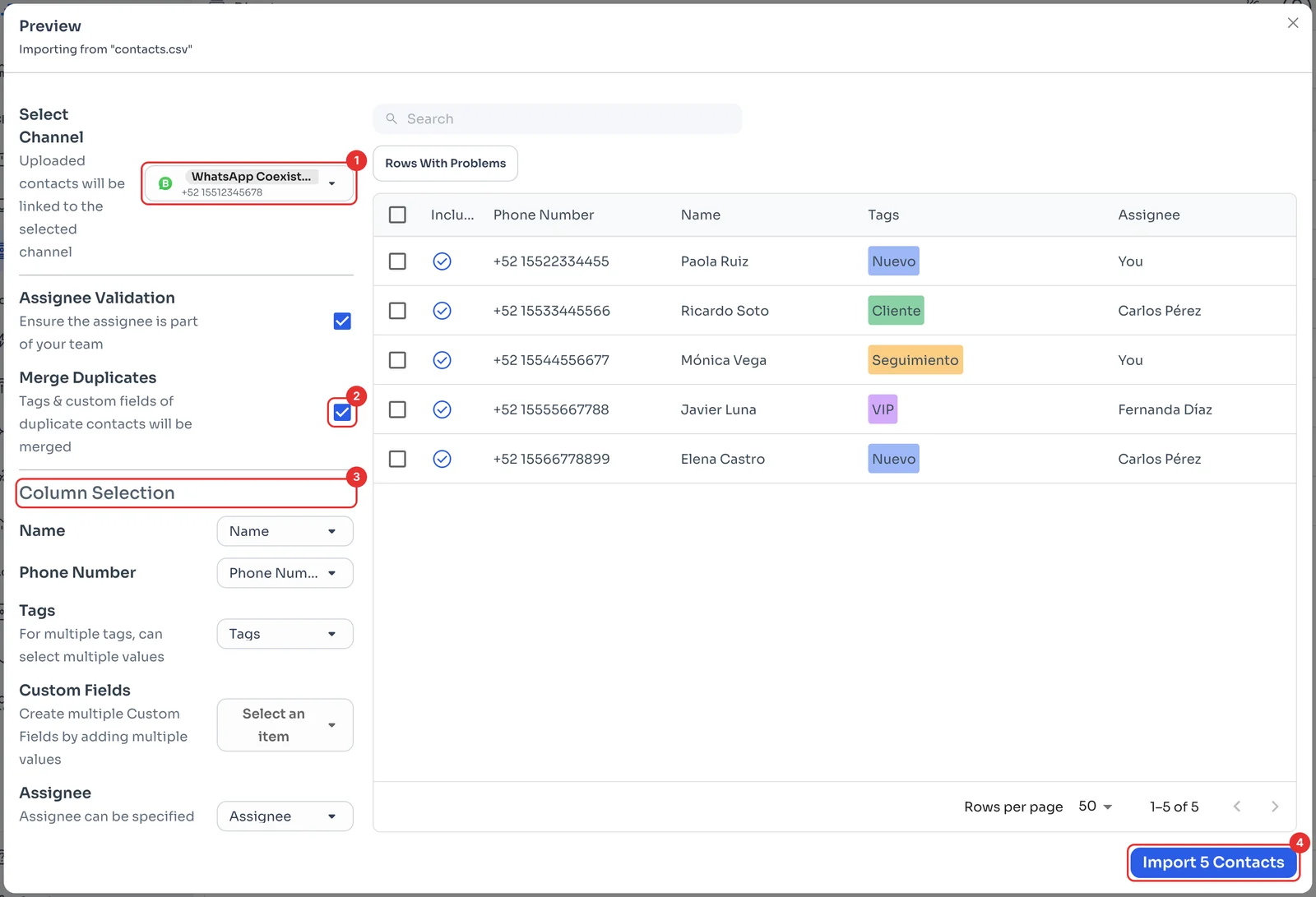
Before importing you see your contacts. Under Select Channel (1) you choose the WhatsApp they are linked to. With Merge Duplicates (2) ticked, if your file has the same number in several rows, it is imported once and its tags and fields are combined.
Under Column Selection (3) check which column of your file goes to each field. For several tags, put each one in its own column and pick them all under Tags. When everything looks right, click Import 5 Contacts (4): the number is the one in your file.
Check your contacts
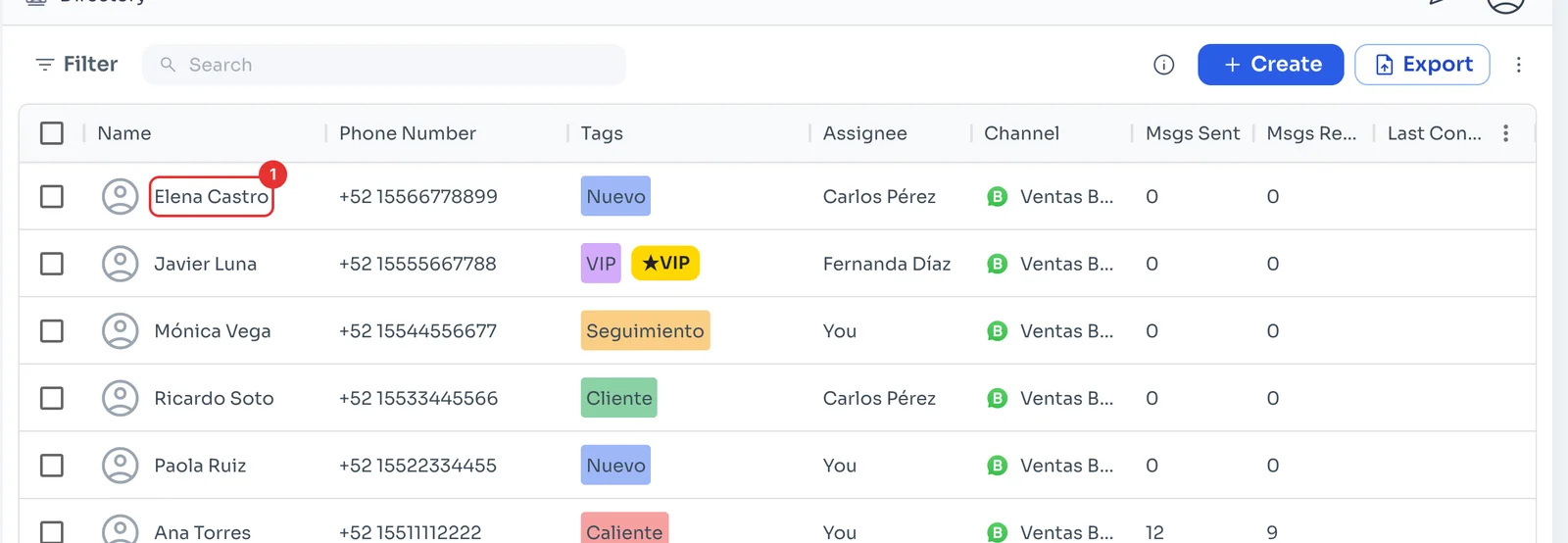
Your contacts appear in the Directory (1), with their tags and agent, ready to message. Compare the count with the rows in your file.
Next: Recreate your tags, replies and pipeline.