Connect your WhatsApp to ChatSales
There are two ways to connect WhatsApp: scan a QR code with your phone (ready in a minute) or use the official WhatsApp Business API. Pick yours and we show you only those steps.
Find WhatsApp in Your integrations
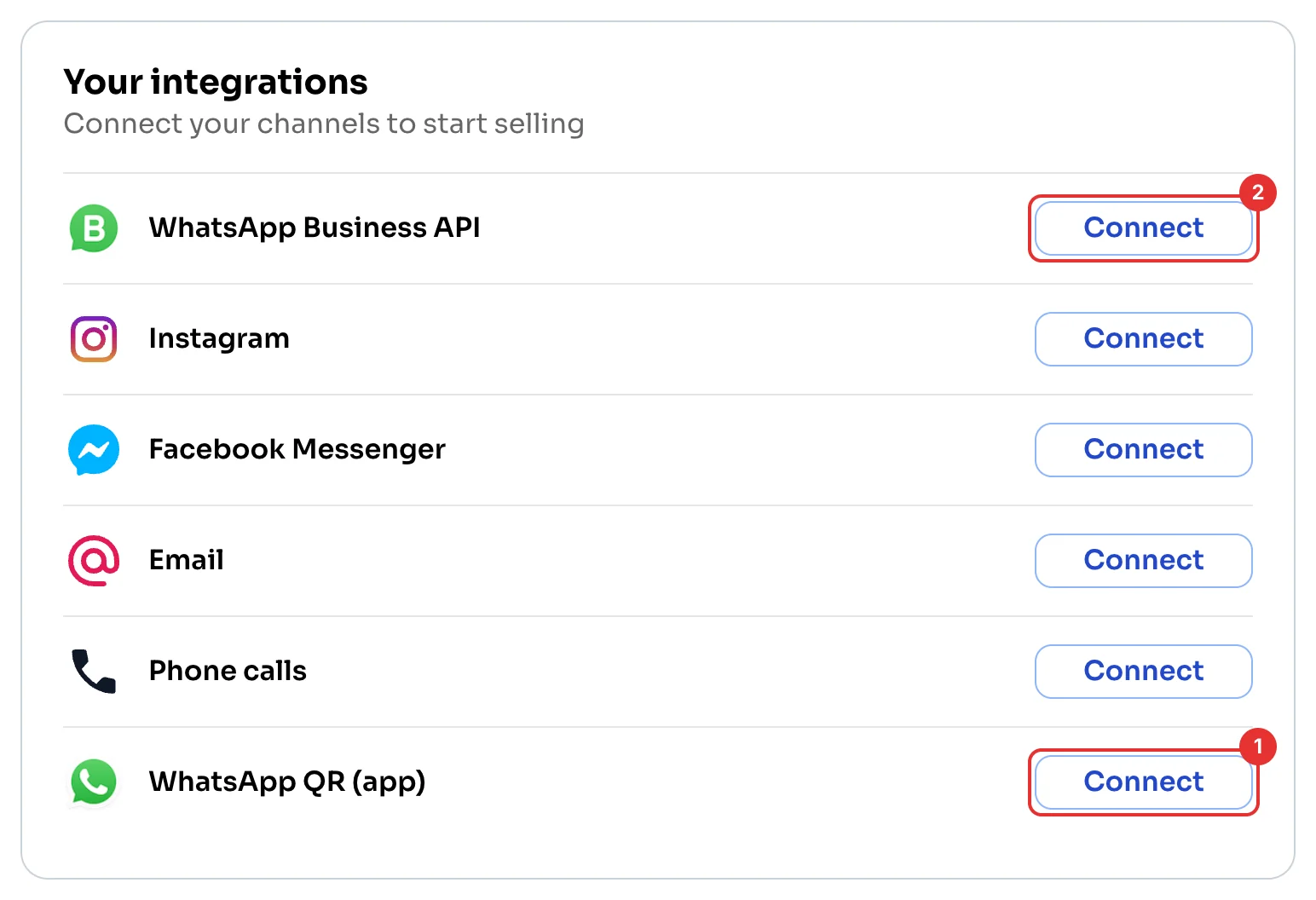
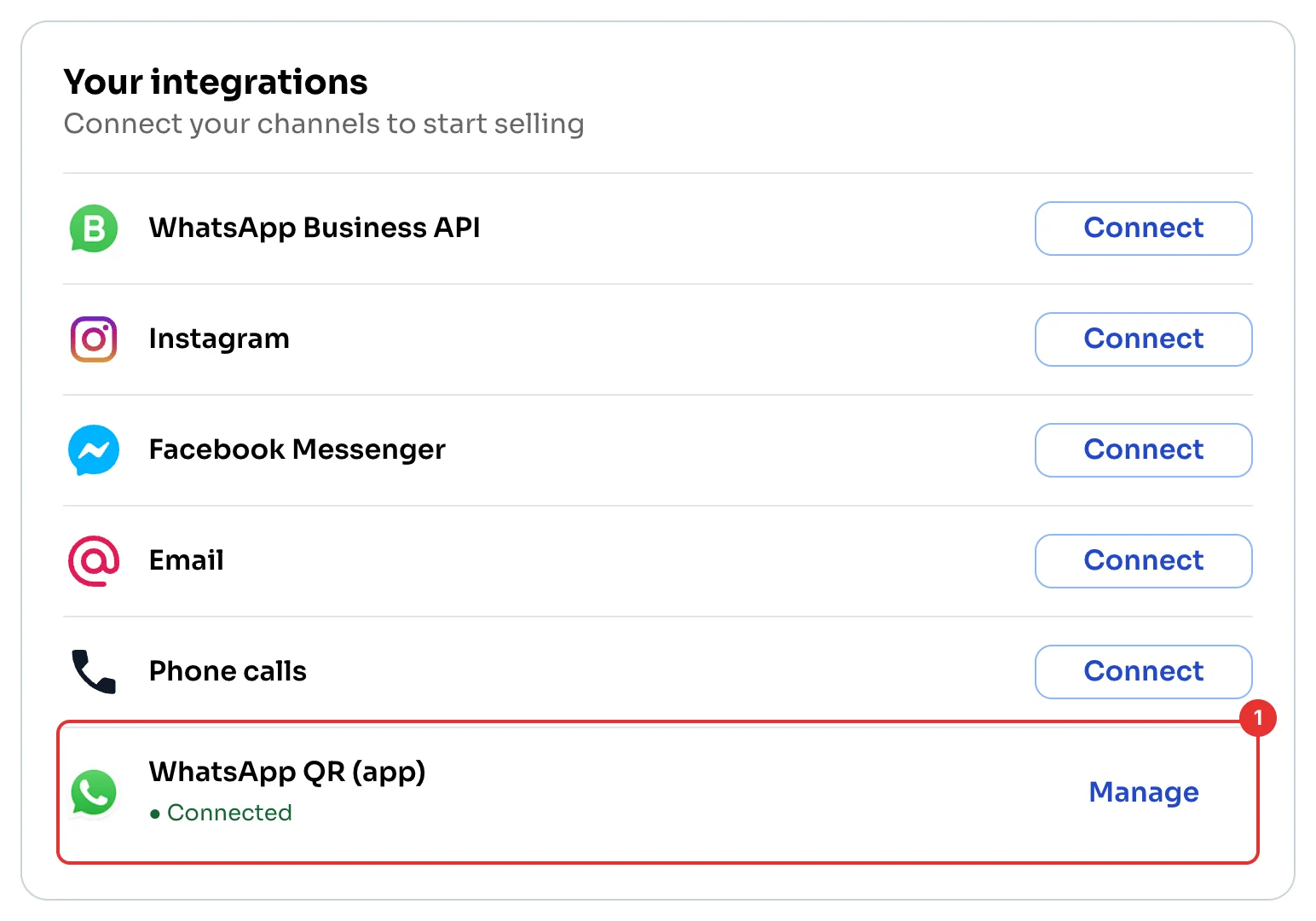
On the Dashboard, Your integrations lists all your channels. WhatsApp has two: WhatsApp QR (app) (1) and WhatsApp Business API (2).
Click Connect next to the one you chose.
Read the advantages and limitations
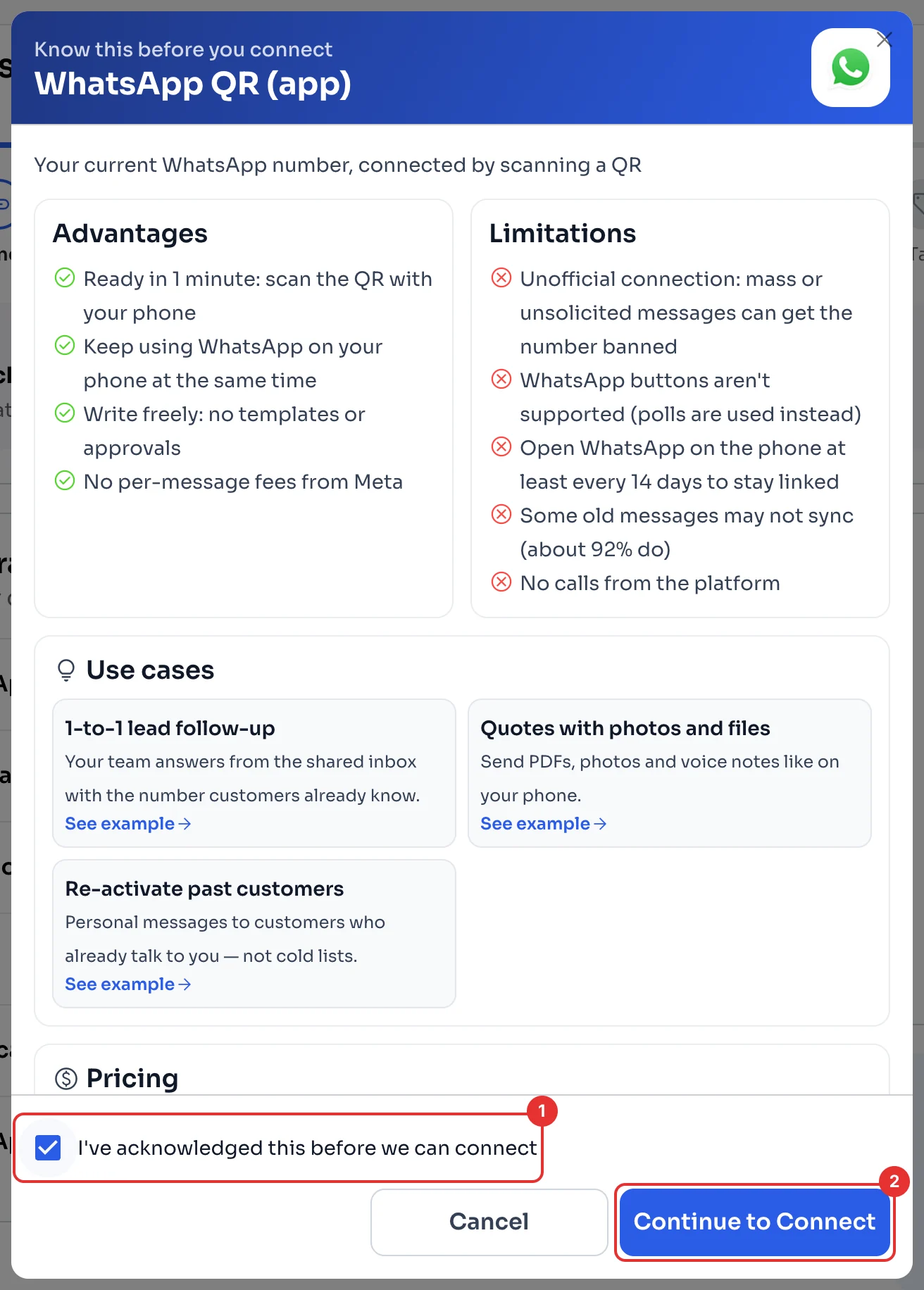
ChatSales shows you what WhatsApp QR can and can't do. For example, it's an unofficial connection, so mass or unsolicited messages can get the number banned, and you need to open WhatsApp on the phone at least every 14 days to stay linked.
Tick I've acknowledged this before we can connect (1) and click Continue to Connect (2).
Scan the QR code with your phone
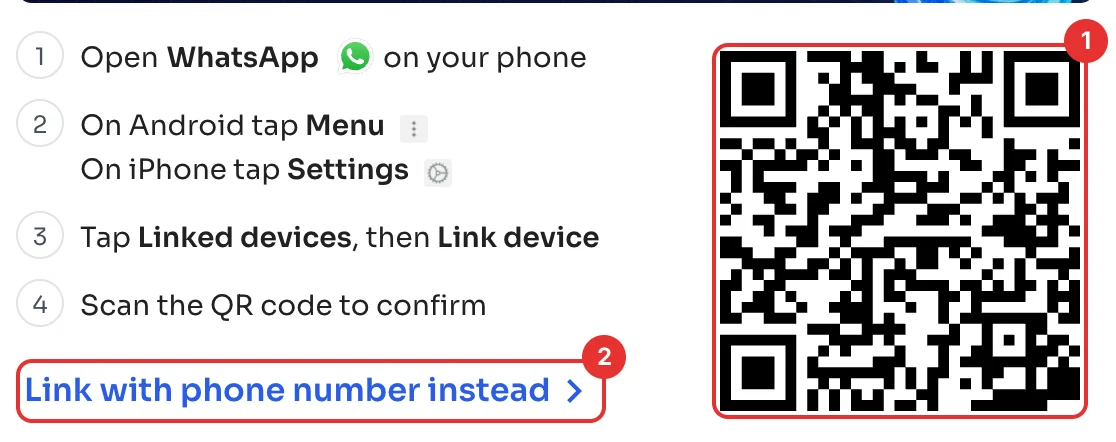
Open WhatsApp on your phone. On Android tap Menu; on iPhone, Settings. Tap Linked devices, then Link device, and scan the code (1).
Rather not scan? Click Link with phone number instead (2).
Check it's connected
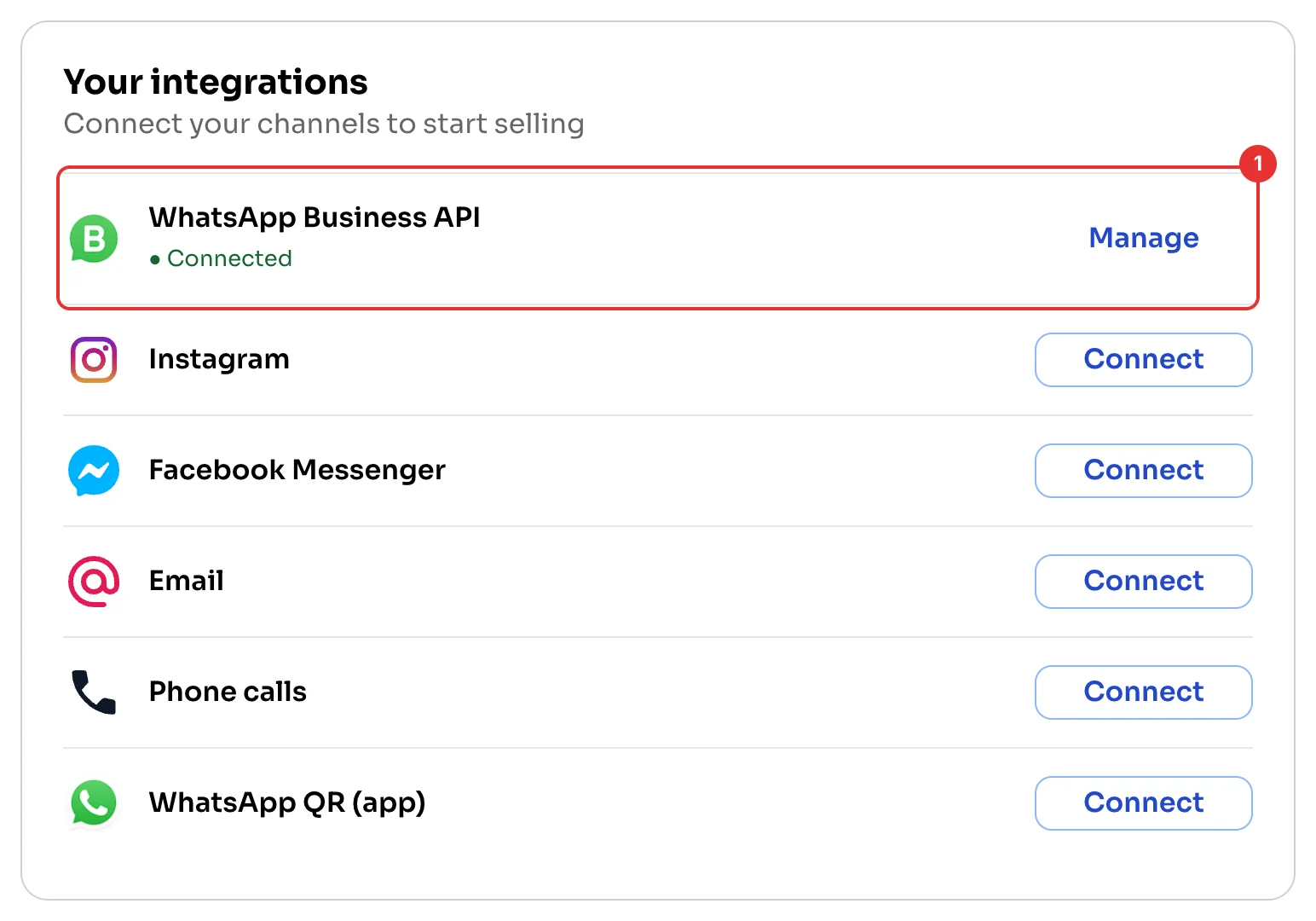
WhatsApp QR (app) now shows Connected (1). You can answer your chats from ChatSales. Next: Invite your team.
Read the advantages and limitations
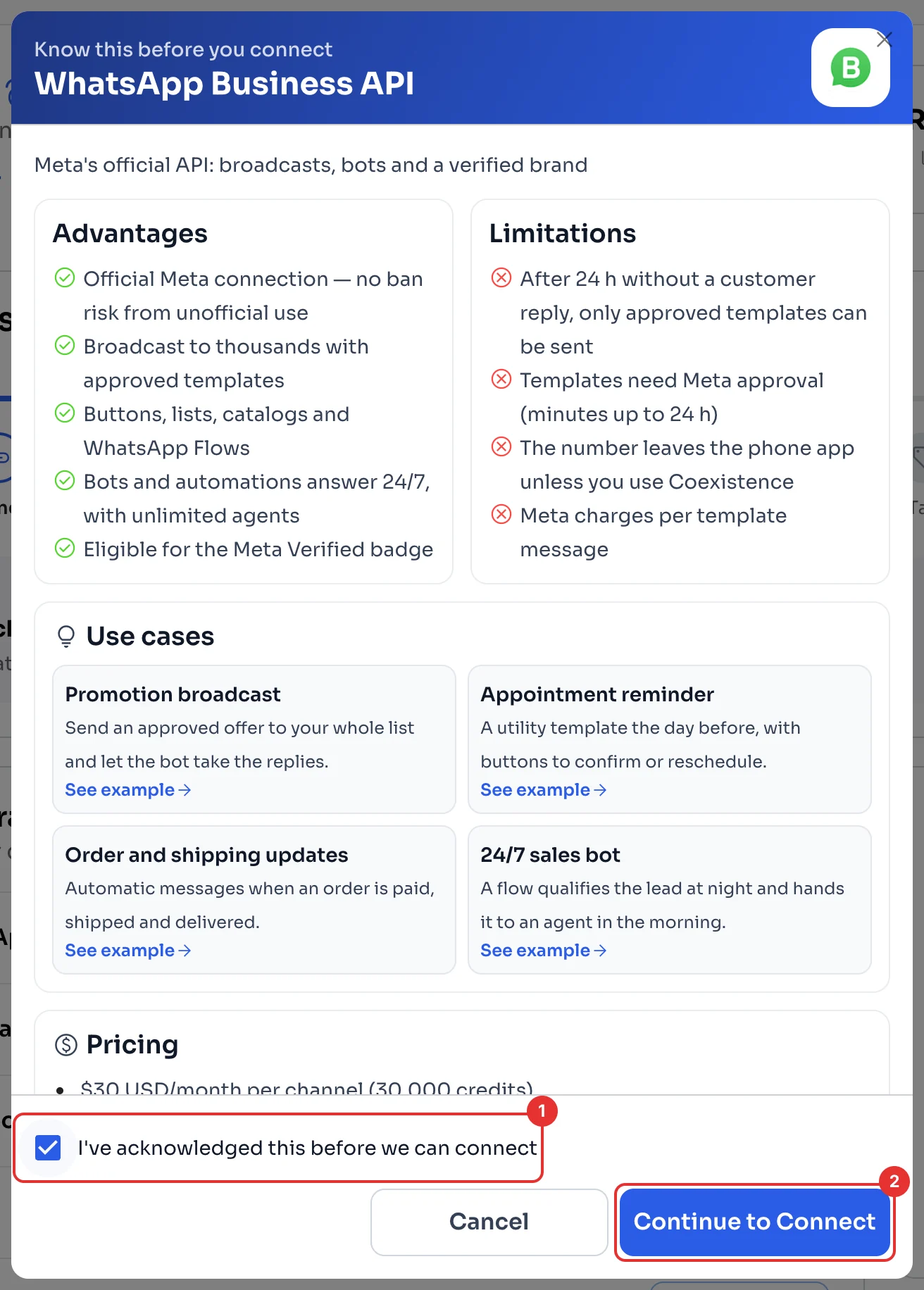
ChatSales shows you what the API can and can't do. For example, after 24 hours without a reply from the customer you can only message them with approved templates, Meta charges per template, and the number leaves the phone app unless you use Coexistence.
Tick I've acknowledged this before we can connect (1) and click Continue to Connect (2).
Choose how to connect
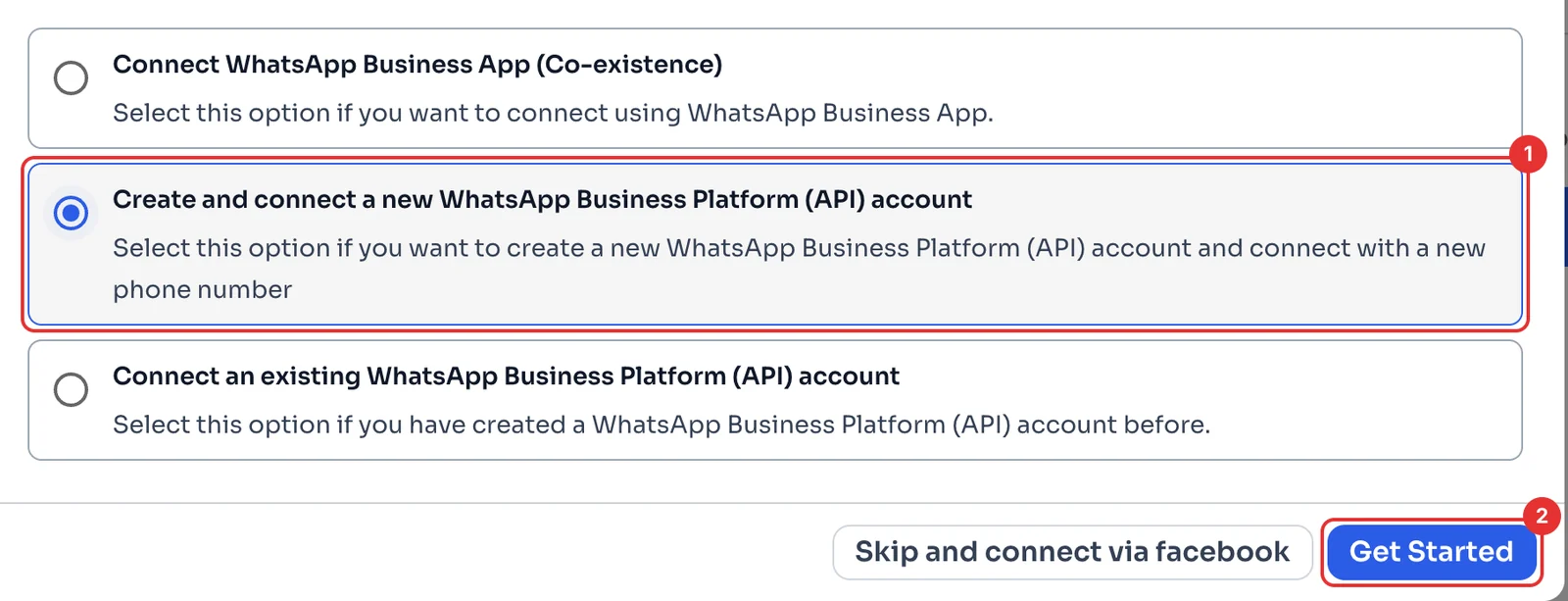
Pick Create and connect a new WhatsApp Business Platform (API) account (1) and click Get Started (2).
Already using the WhatsApp Business app on this number, or on the API with another provider? The other two options are in Move your WhatsApp number.
Check your number
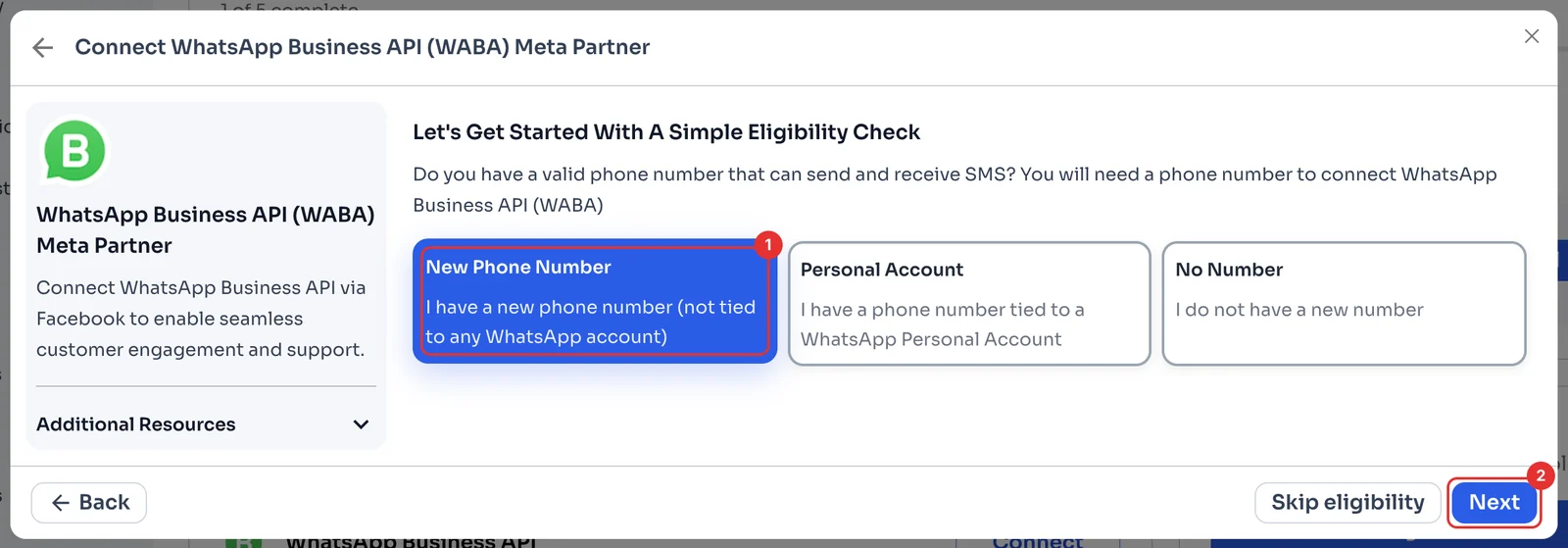
You need a number that can receive SMS. Pick your case: New Phone Number (1) if it isn't tied to any WhatsApp account, Personal Account if you use it on WhatsApp today, or No Number if you don't have one yet. Click Next (2).
Have your company details ready
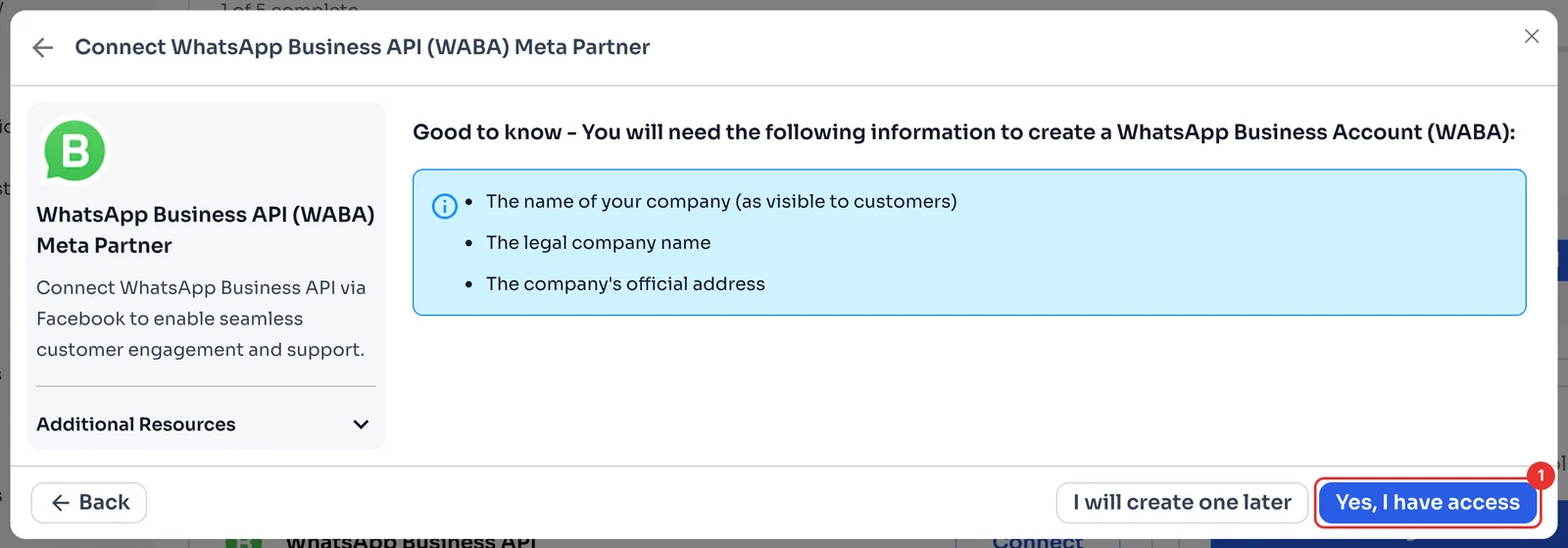
To create your WhatsApp Business Account (WABA) you'll need your company name as customers will see it, its legal name and its official address.
When you have them, click Yes, I have access (1).
Connect with Facebook
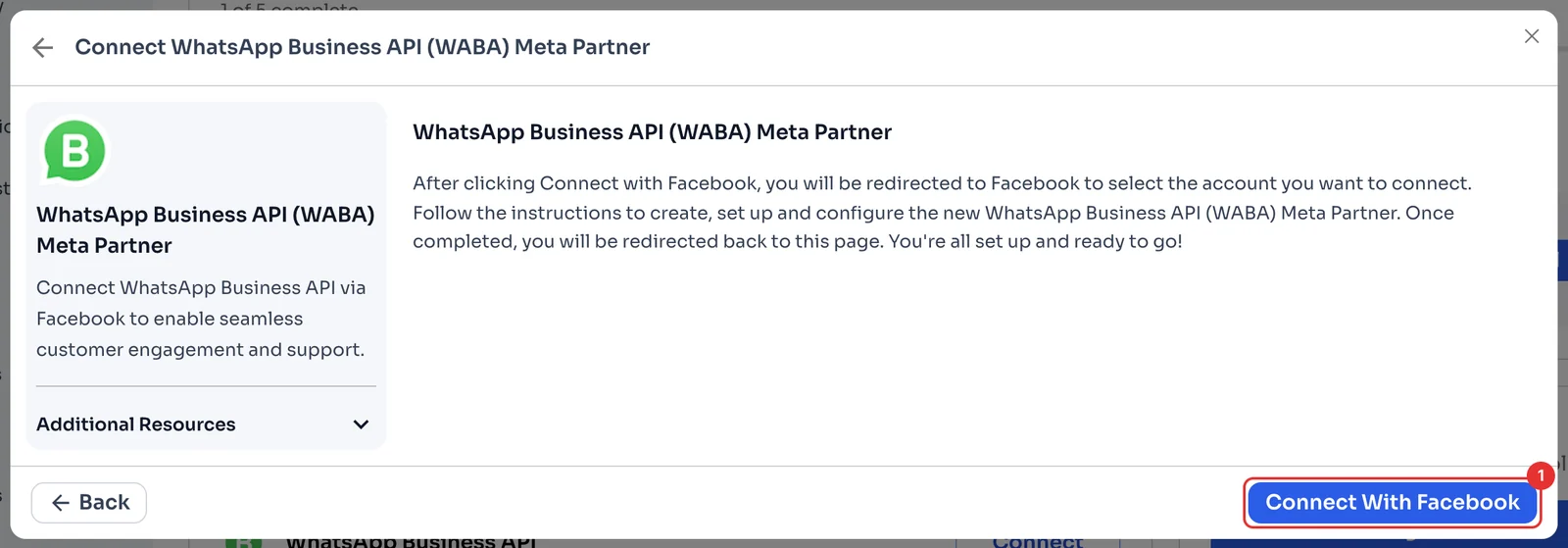
Click Connect With Facebook (1). Meta's window opens: sign in, choose or create your business account, register your number and follow the instructions. When you finish, you're back in ChatSales.
Check it's connected
WhatsApp Business API now shows Connected (1). To message a customer first you need an approved template: next, Send your first message.