
Reconnect a disconnected channel
If a channel disconnects, ChatSales stops sending and receiving its messages until you reconnect it. Reconnecting doesn't delete your contacts, chats or history. Go to <b>Channels</b> in the menu and look at the <b>Quick Actions</b> column of that channel: the button you see tells you which steps to follow. A WhatsApp Business API channel always shows <b>Relink with Meta</b>, even when it works: use it only if that channel has stopped sending or receiving.
Click Connect
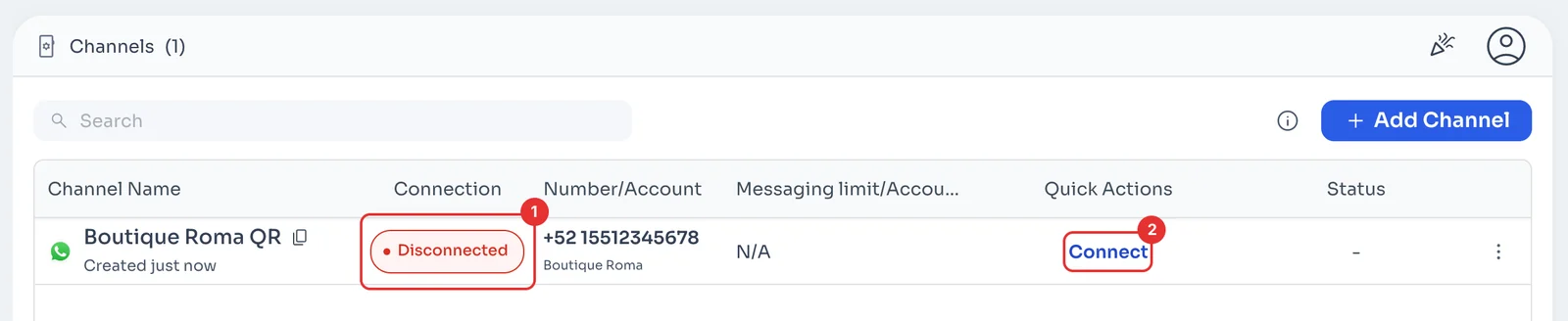
In Channels, the channel shows Disconnected under Connection (1). Click Connect (2) in Quick Actions.
If messages were waiting to go out while it was disconnected, ChatSales asks first: I Understand. Resend All Immediately sends them all at once, which carries a high risk of a ban, or Delete All Pending Messages. If they are old, deleting them is safer.
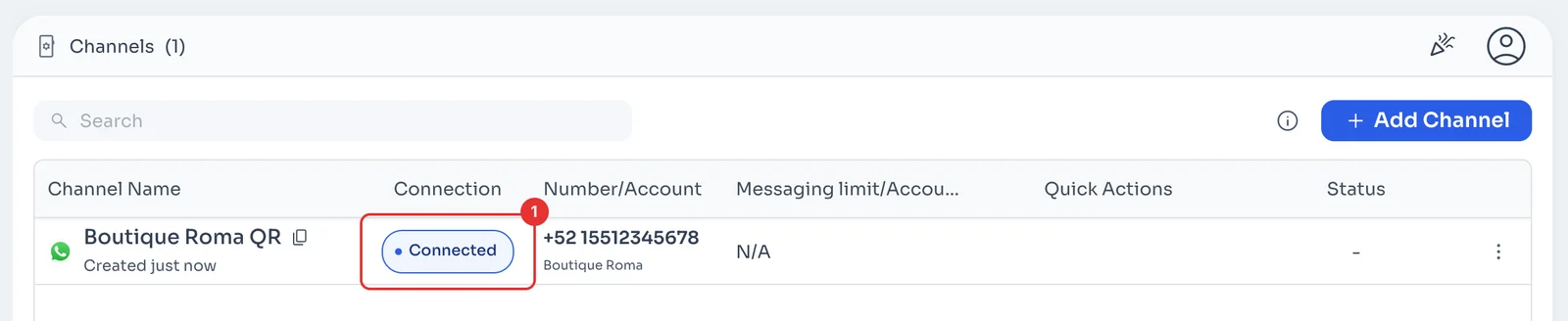
Check it says Connected
After a few seconds the channel shows Connected (1). Messages that arrive from now on reach your Chat inbox again.
If it still says Disconnected, or the button changes to Scan QR code again, choose that option at the top of this guide.
Click Scan QR code again
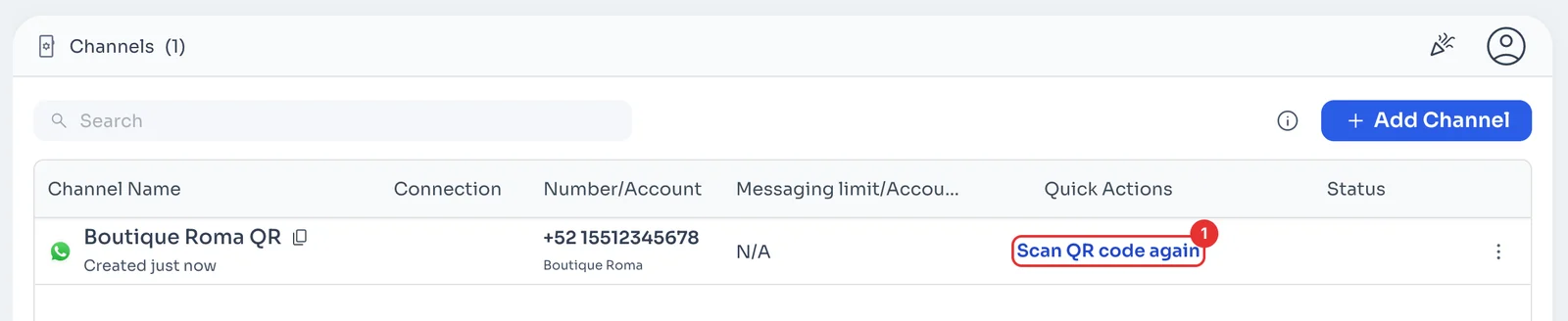
In Channels, click Scan QR code again (1) on the channel. This happens when WhatsApp logged ChatSales out, for example because the device was removed from Linked devices on the phone. Its Connection column stays blank.
If messages were waiting to go out, ChatSales first asks whether to resend or delete them, as in the Connect path.
Scan the code with your phone
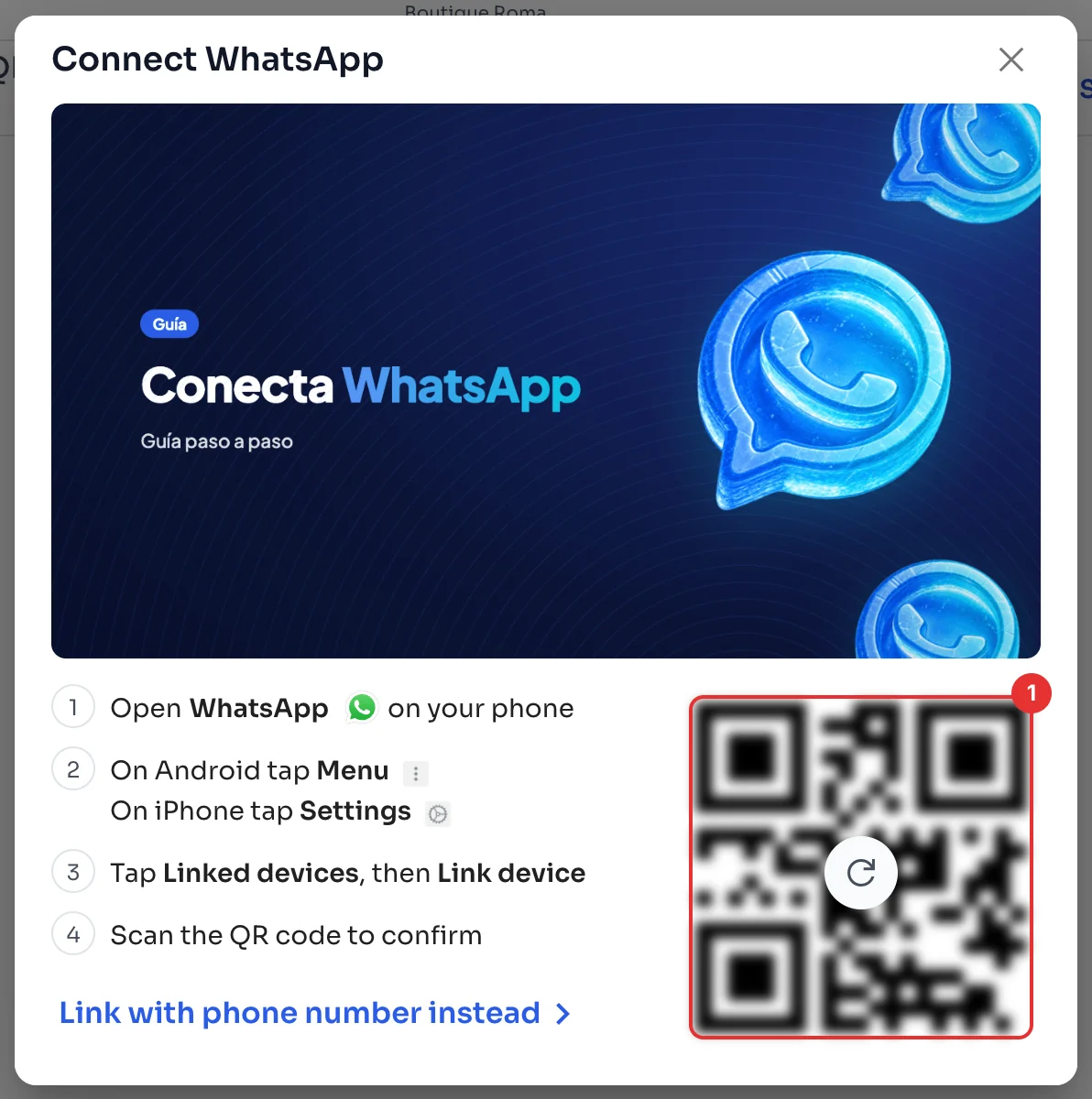
The Connect WhatsApp window opens. On the phone with that number, open WhatsApp, go to Linked devices, tap Link device and scan the code (1). The window lists the steps for Android and iPhone.
If you can't scan, click Link with phone number instead to get a code to type on the phone.
Check it says Connected
The channel shows Connected (1). New messages reach your Chat inbox again.
Click Relink with Meta
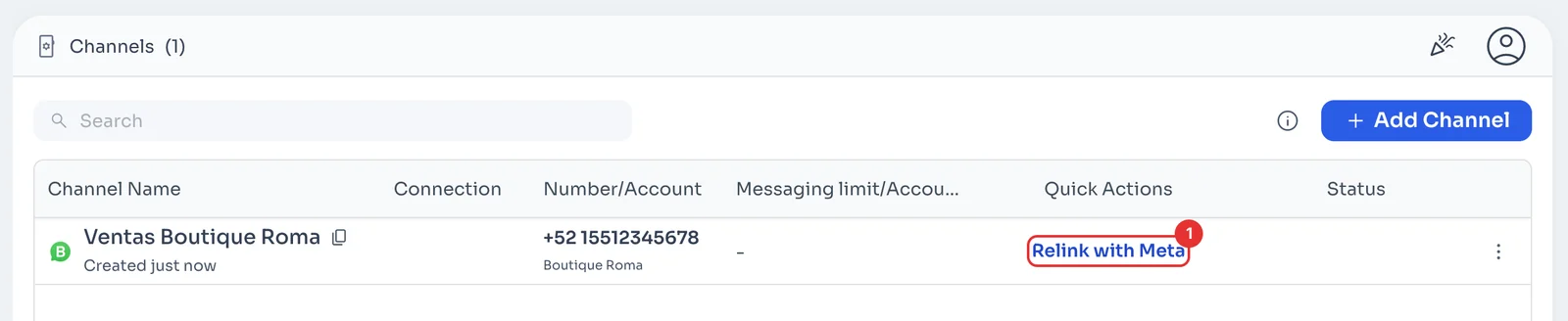
In Channels, click Relink with Meta (1) on your WhatsApp Business API channel.
Authorize it in Meta's window
Meta's window opens. Sign in with the Facebook account that manages your WhatsApp Business account, select the same business and number, and accept. When you finish you're back in ChatSales, where you confirm the number if it asks. If you pick a different number, the channel switches to that number.
If you get stuck in that window, follow the Meta part of Connect your WhatsApp.