Try WhatsApp in the testing channel
The testing channel is a simulated chat with a test customer. It shows you how a WhatsApp Business message lands on a customer's phone, with buttons or lists, and what happens when the 24-hour window closes. Nothing is sent, no channel is created and no credits are used.
Open the testing channel
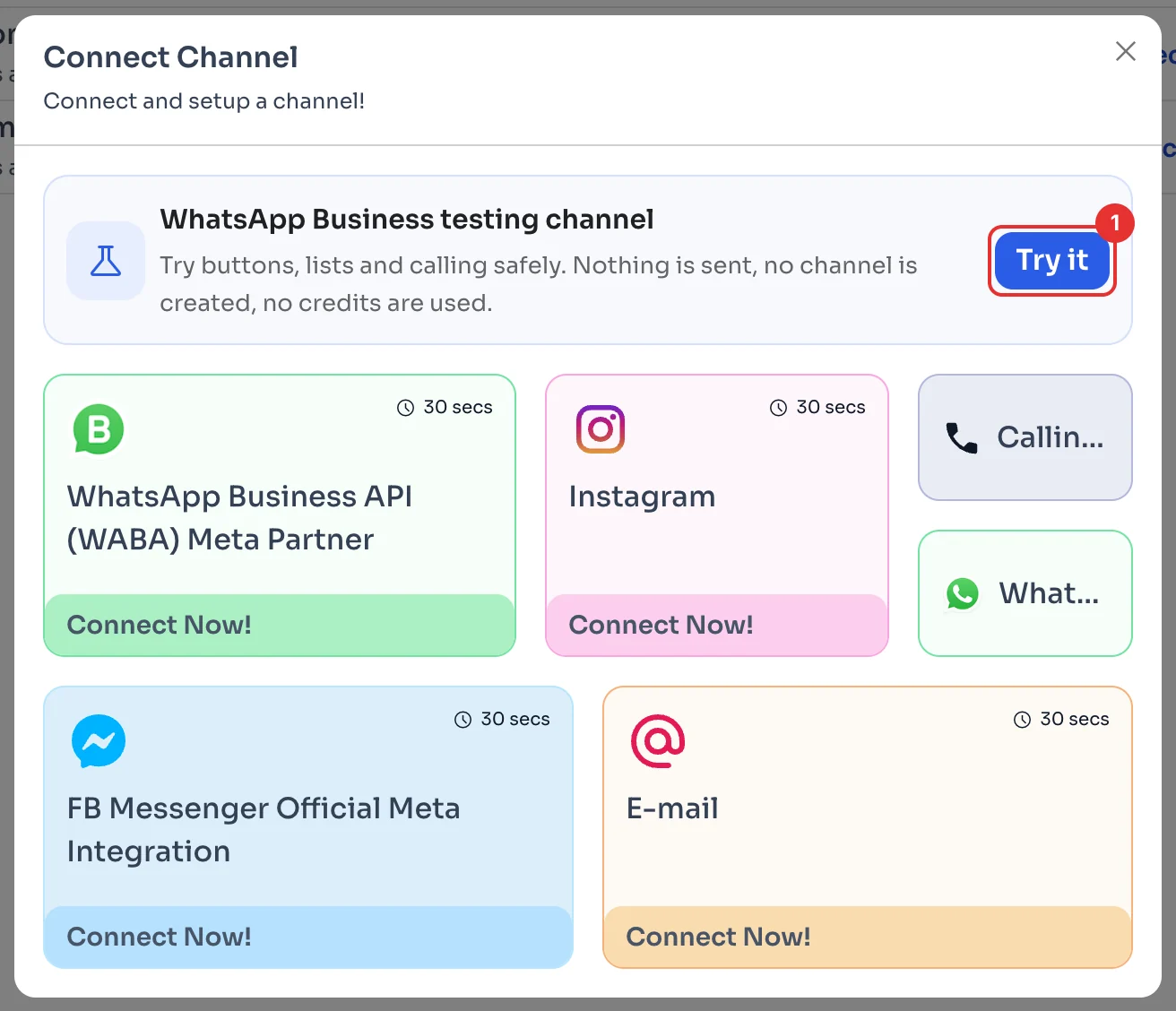
Go to Channels in the menu and click Add Channel. In Connect Channel, next to WhatsApp Business testing channel, click Try it (1).
Get to know the test chat
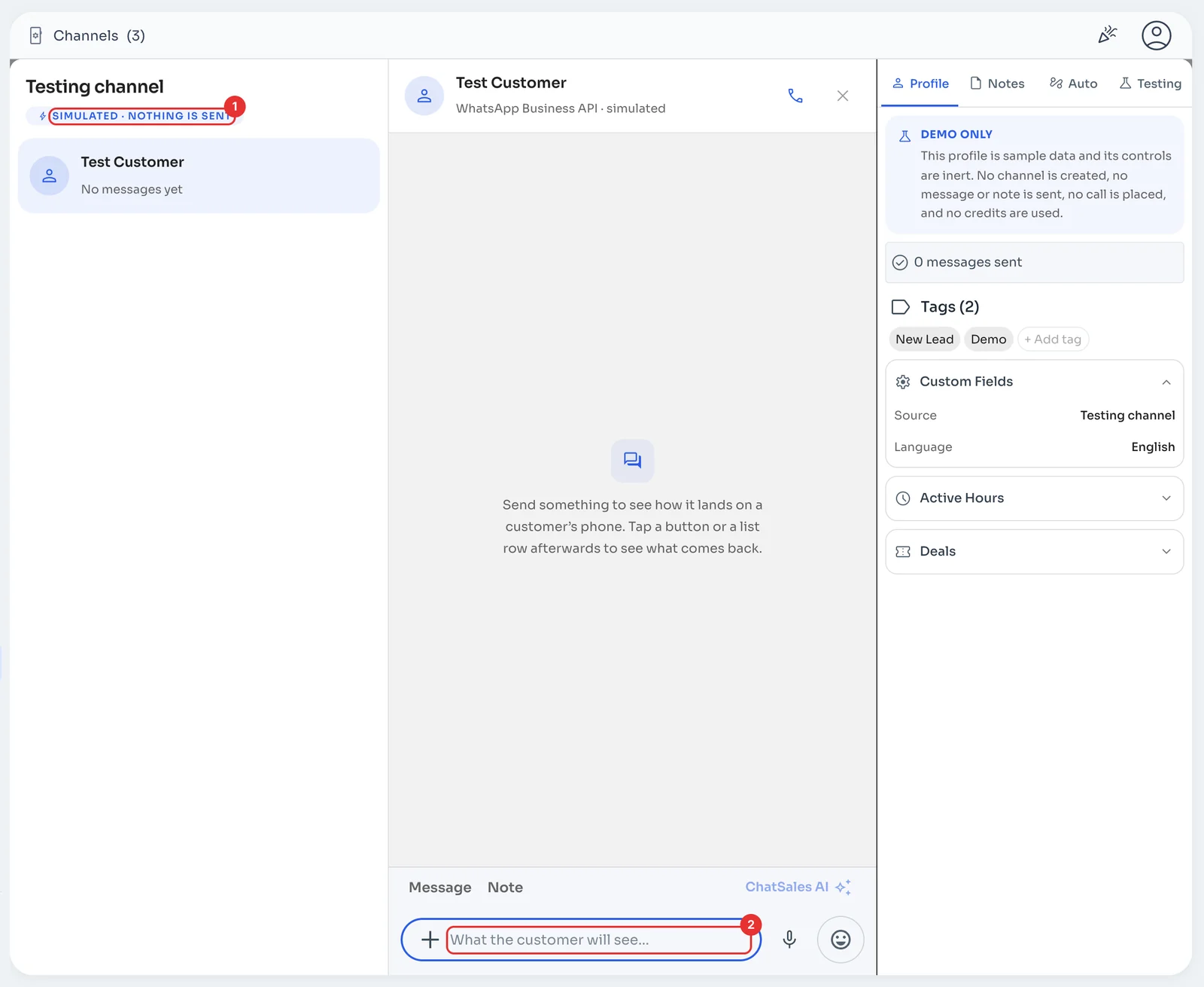
The Testing channel opens, marked Simulated · nothing is sent (1), with a chat with Test Customer. Type your message in What the customer will see… (2).
Add a button
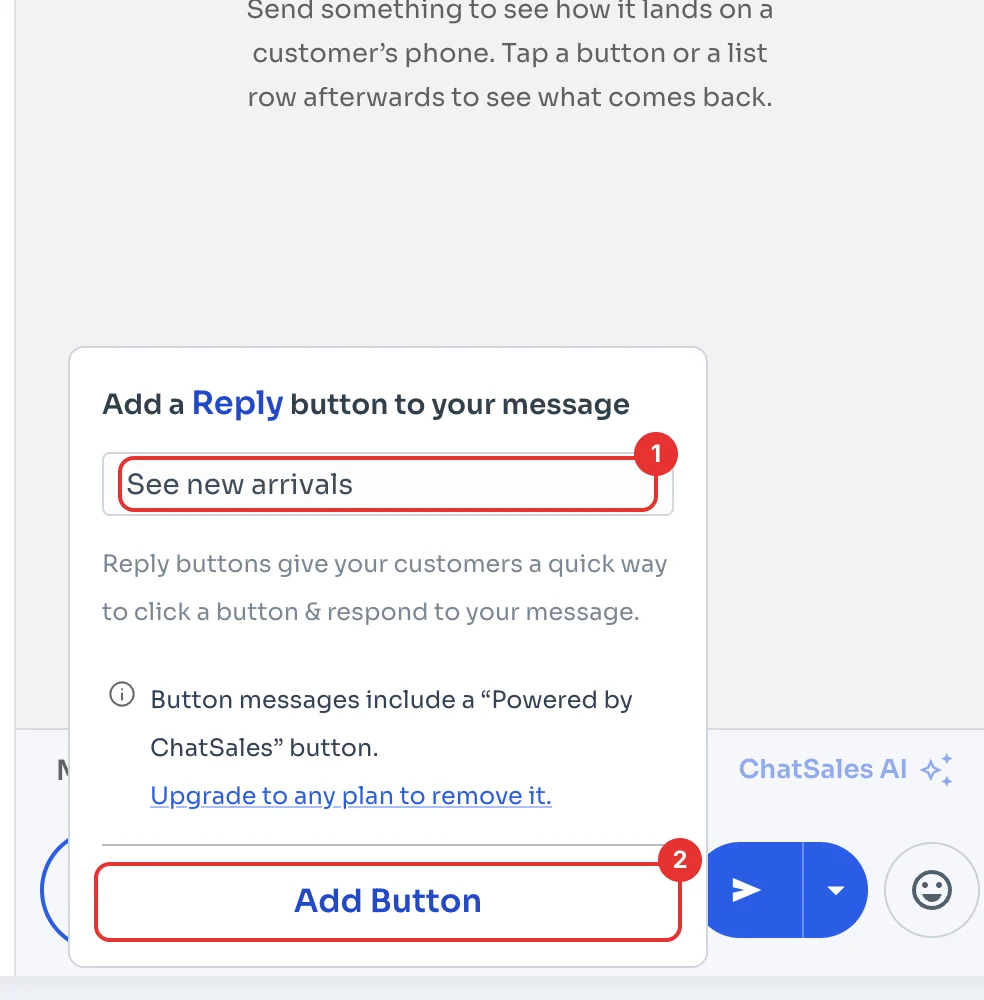
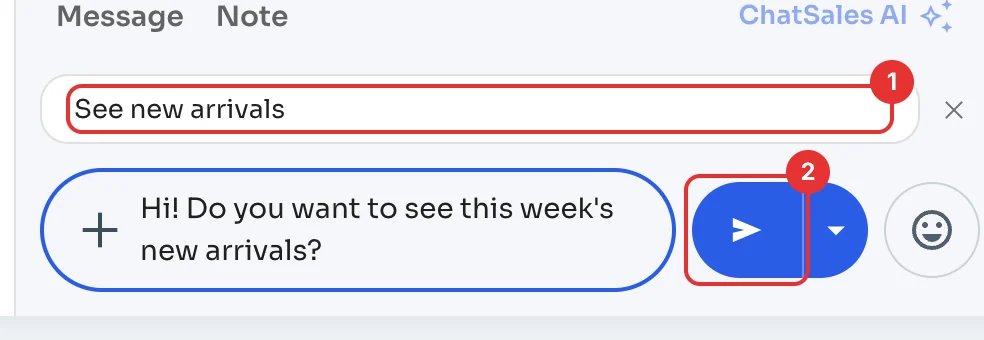
Click + next to the message and choose Button. Type the button text (1), for example "See new arrivals", and click Add Button (2).
A message carries up to 3 buttons or a list, not both. To try a list, choose List in the same menu. As the window says, button messages include a "Powered by ChatSales" button.
Send the message
The button shows above your message (1). Click send (2).
Tap the button as the customer
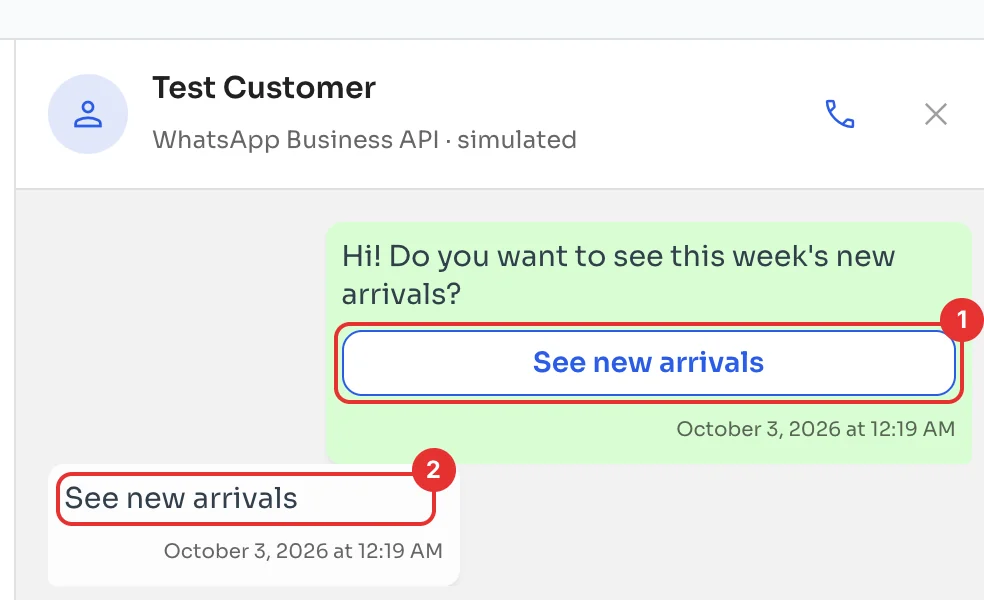
Your message shows as the customer sees it, with its button. Tap the button (1) and you'll see the reply that comes back to you (2), just like when a real customer taps it.
Try the 24-hour window
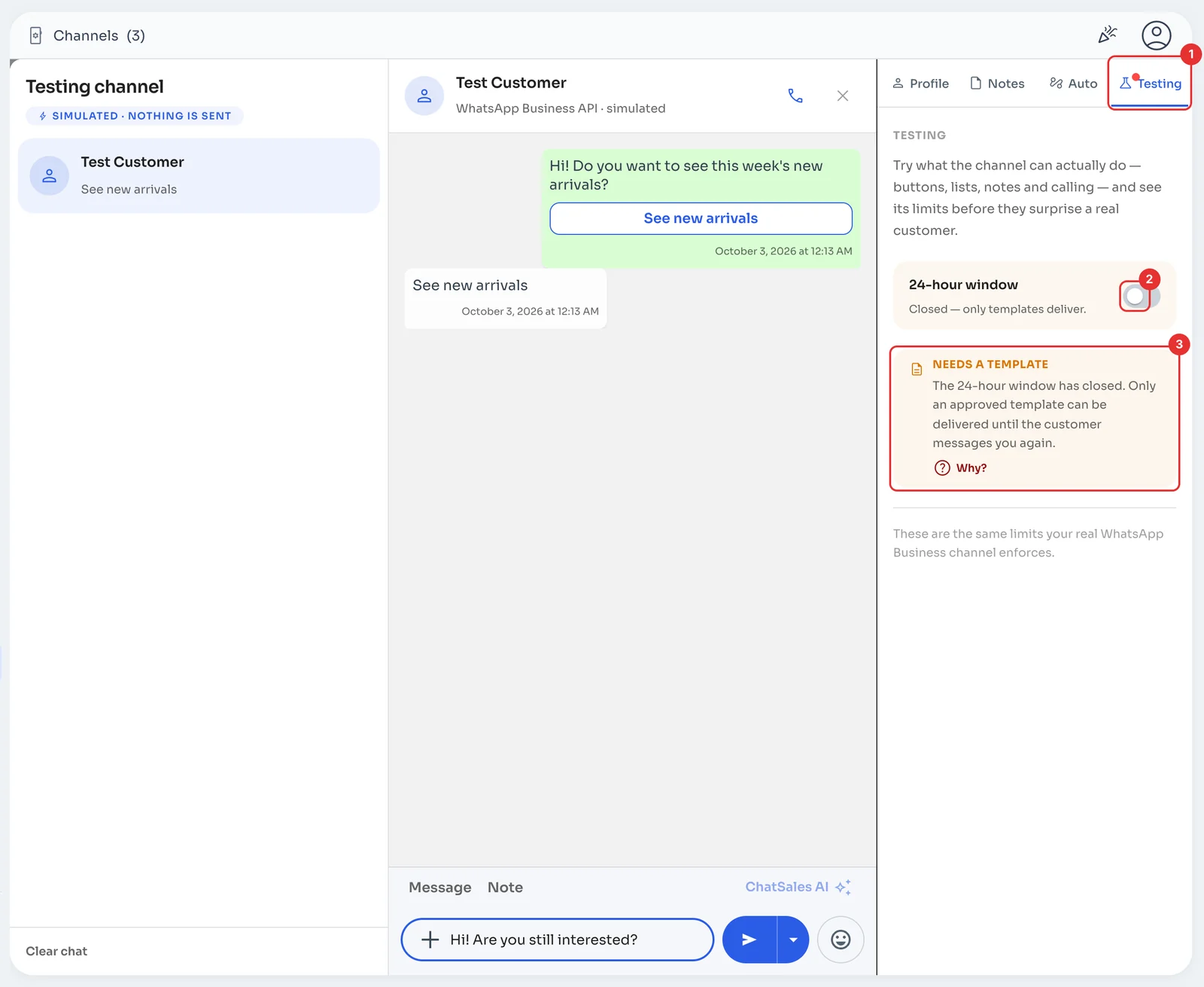
Open the Testing tab (1) and turn off 24-hour window (2): this simulates a customer who hasn't messaged you in the last 24 hours. The Needs a template notice appears right away (3): with the window closed, only an approved template reaches the customer, just like on your real channel. If the customer taps a button, the window opens again.
To send a template to a real customer, follow Send your first message.