
Jumpseller payment and shipping updates
Customers ask "did my payment go through?" and "where is my order?". With this integration ChatSales tells them on WhatsApp from your number when Jumpseller records the payment and when the order is on its way, with the tracking number.
What it does and doesn't do
| ✅ It can | 🚫 It can't |
|---|---|
| Tell your customer on WhatsApp that you received their order payment. | Message customers with no phone on the order. |
| Tell them when the order is on its way, with the carrier, tracking number and tracking link. | Write about unpaid, cancelled or abandoned orders. |
| Register the webhook in Jumpseller for you (nothing to paste) and remove it if you disconnect. | Change orders, prices or products: it only reads orders and manages its own webhook. |
| Write without Meta-approved templates (Utility category). |
🔐 Jumpseller has no read-only keys: your Login and Auth Token give access to the store. ChatSales stores them encrypted and only uses them to read orders and create or remove its webhook. If you reset the Auth Token in Jumpseller, the old one stops working.
Before you start
You need:
A WhatsApp API number connected in ChatSales (Connect your WhatsApp). These messages are the first contact with someone who has not written to you, so WhatsApp only allows them with a Meta-approved template.
To be an admin of your ChatSales team and have access to your Jumpseller account.
Open the App Store
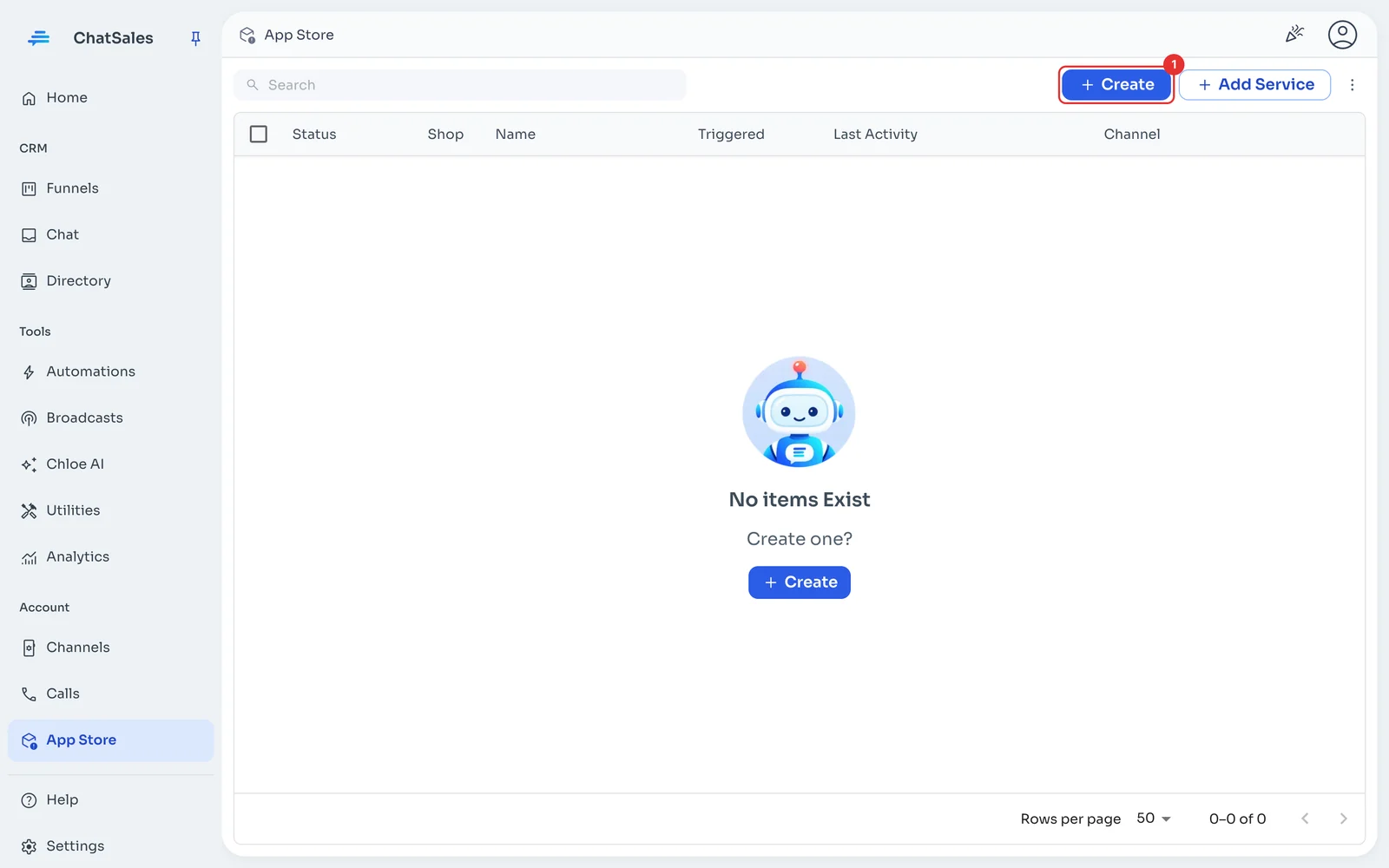
In the left menu go to App Store and click Create (1).
Choose Jumpseller
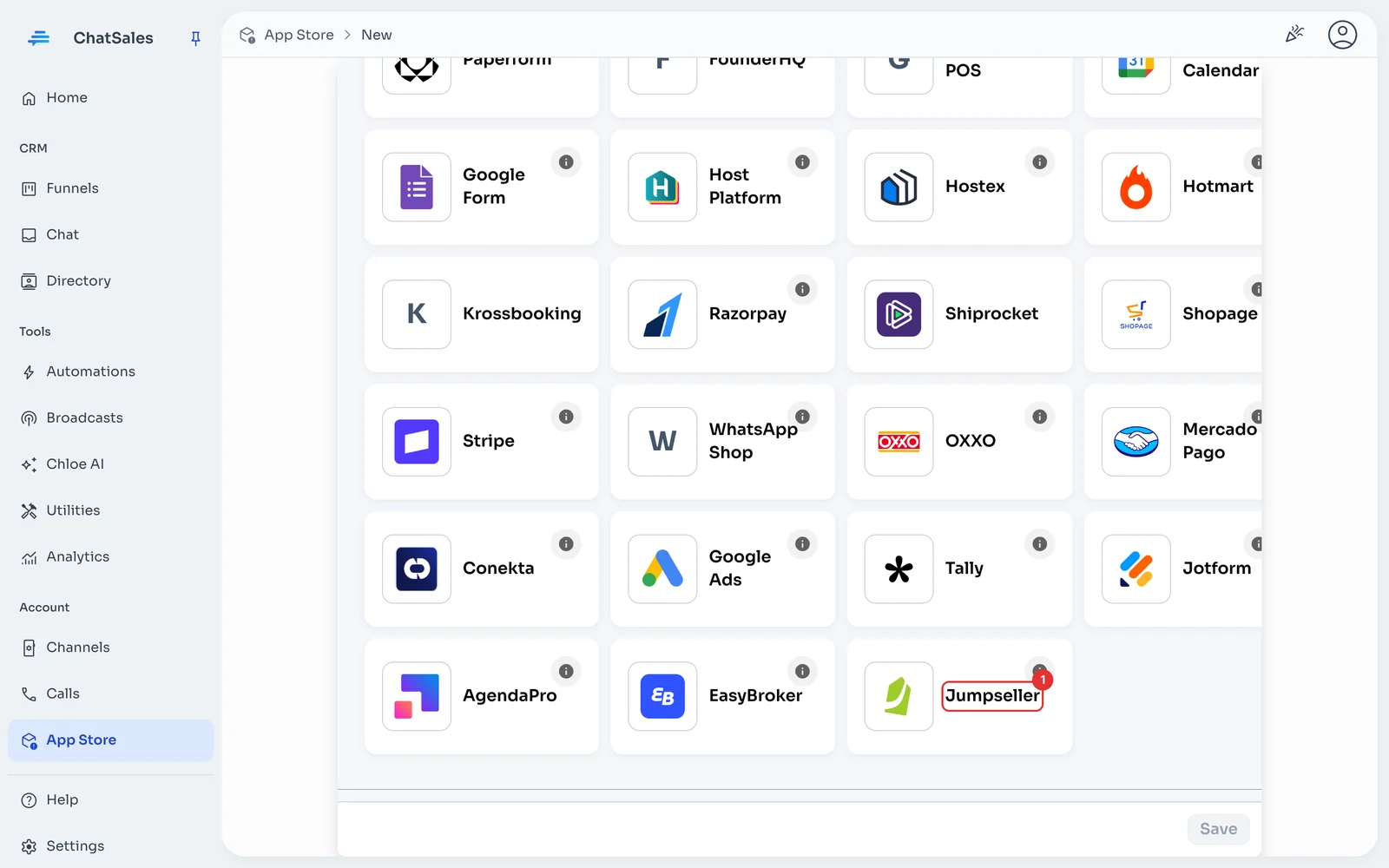
Find the Jumpseller card (1) and click it. You can also find it with the E-Commerce filter.
In Jumpseller: copy your Login and Auth Token
In your Jumpseller panel open the Account section: your Login and Auth Token (32 characters) are in the left sidebar.
Paste them and save
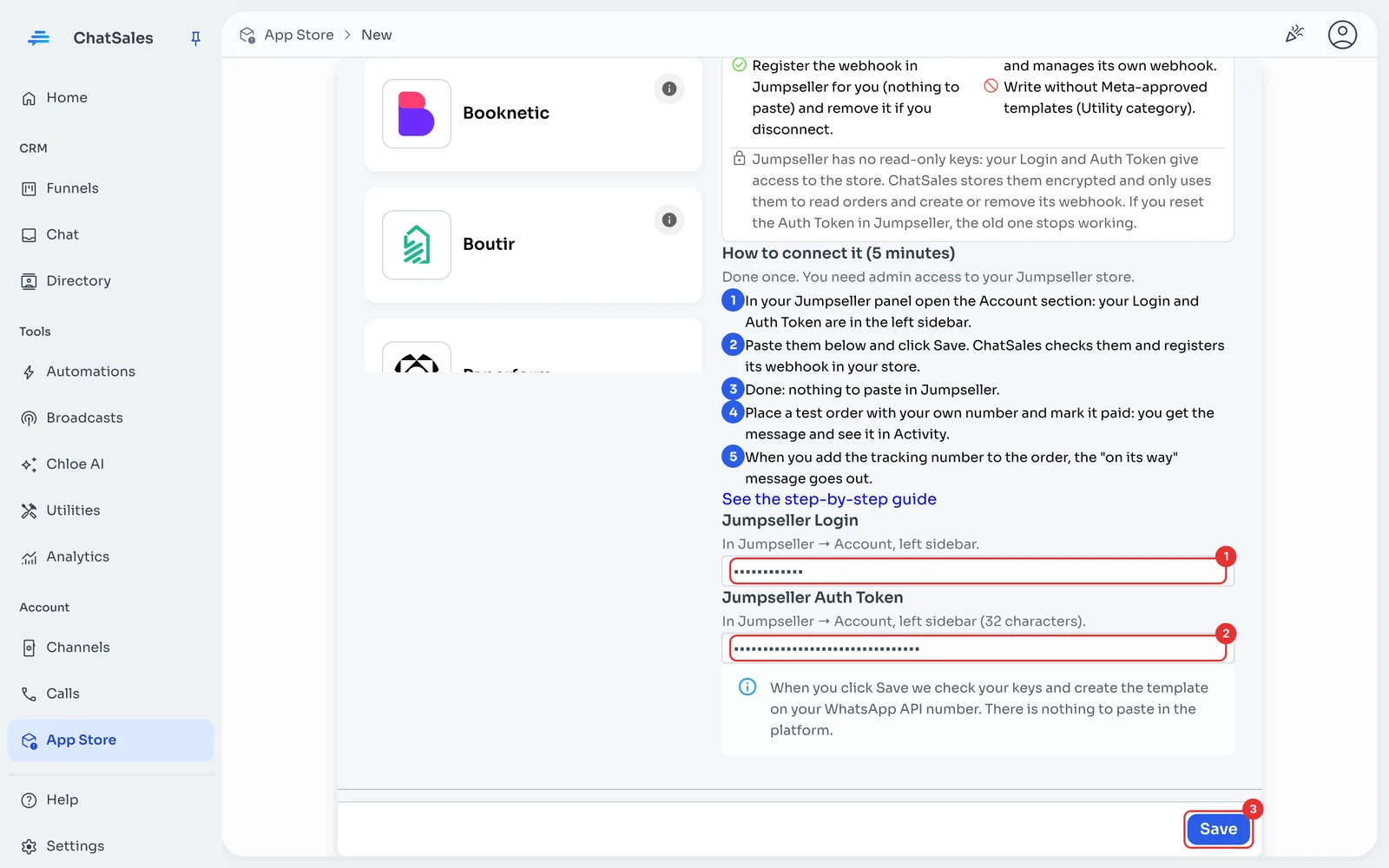
In ChatSales paste the Login (1) and the Auth Token (2) and click Save (3). ChatSales checks them with Jumpseller, registers its webhook in your store and creates 2 templates on your WhatsApp API number: payment received and order shipped.
Done: nothing to paste in Jumpseller
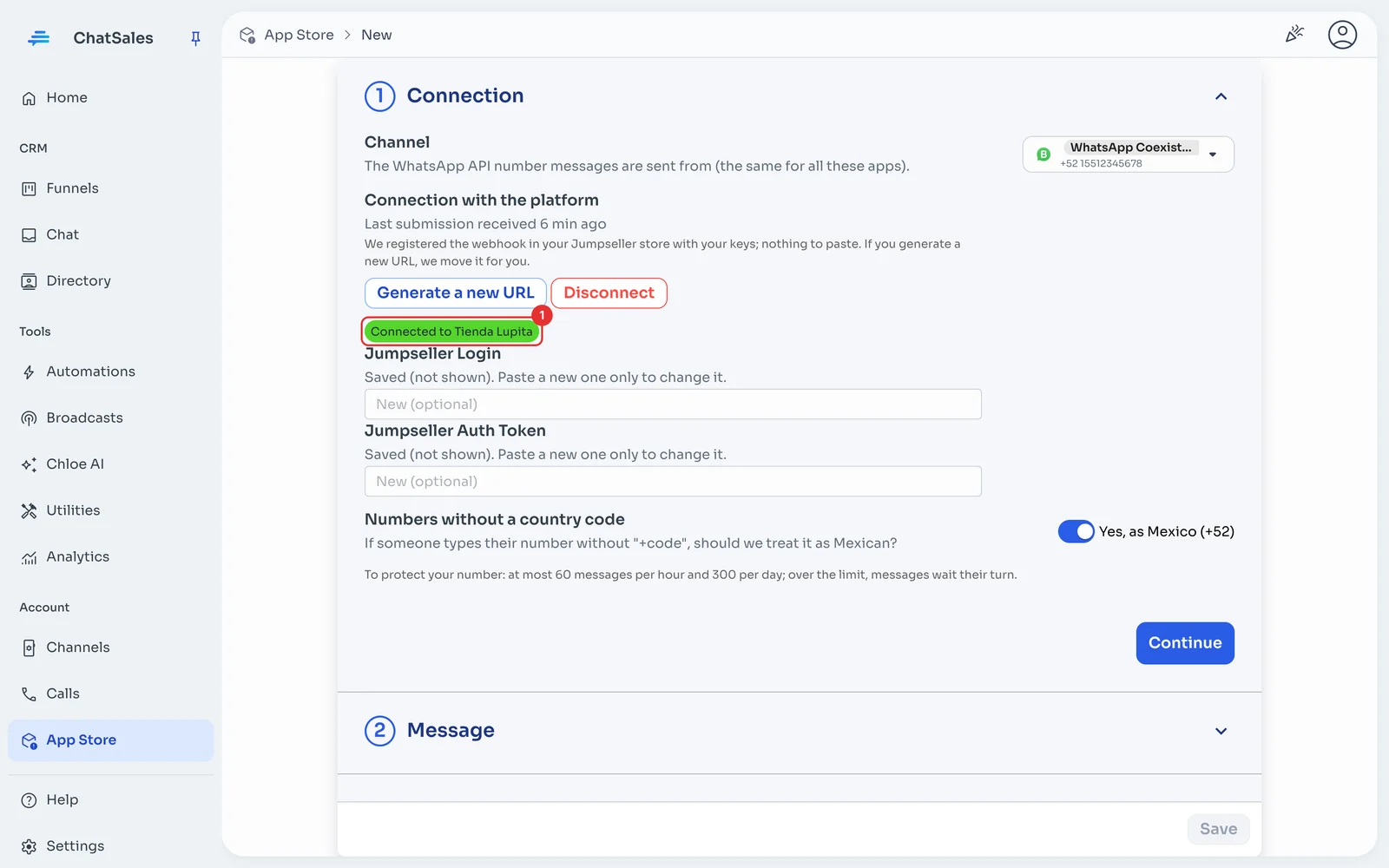
You see Connected to with your store name (1). ChatSales registered the webhook in Jumpseller; if you disconnect, we remove it.
Check that it arrives
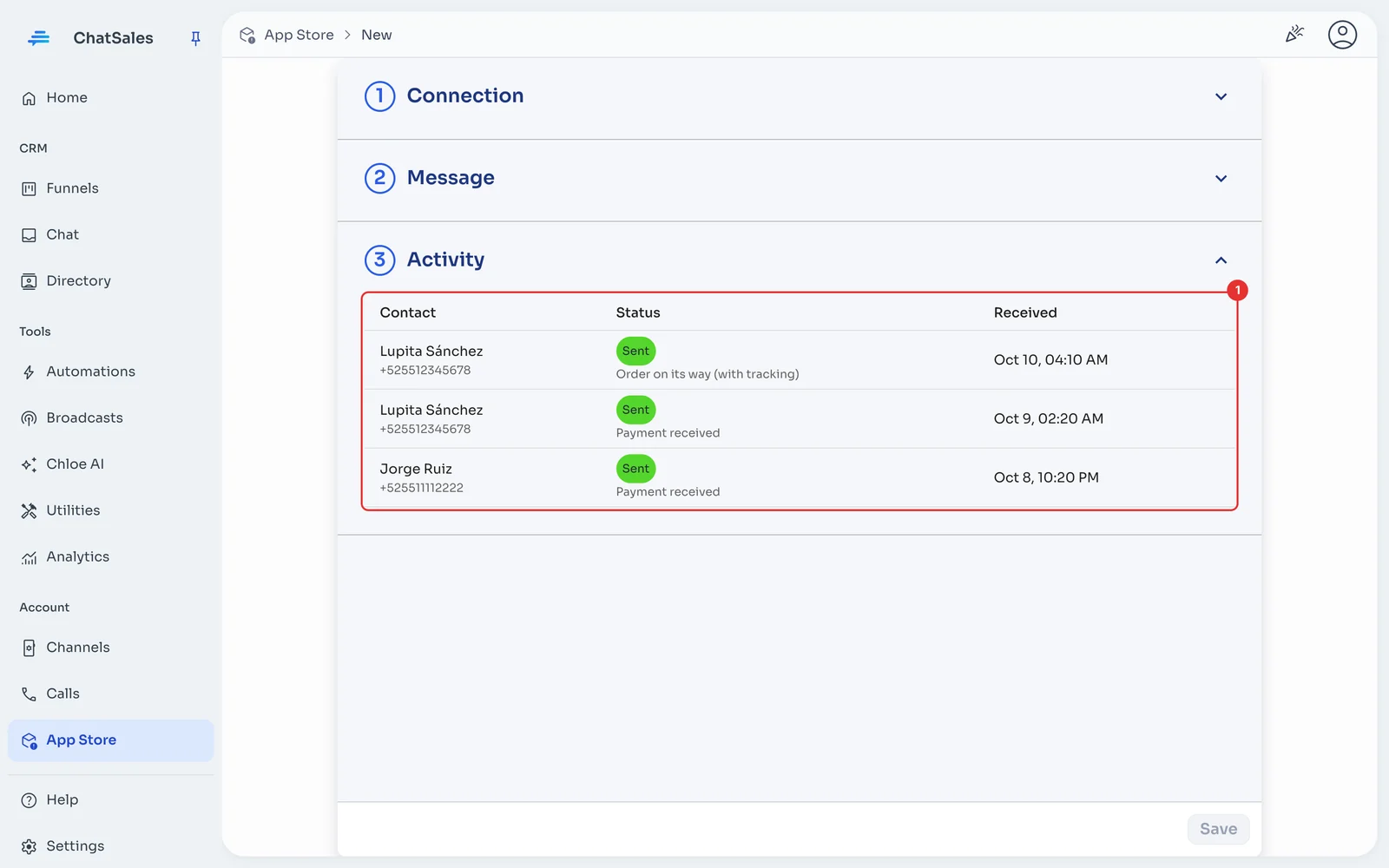
Place a test order with your own number and mark it paid: you get "payment received". When you add the tracking number and the shipment is in transit, you get "on its way". Everything shows in Activity (1).
The message (optional)
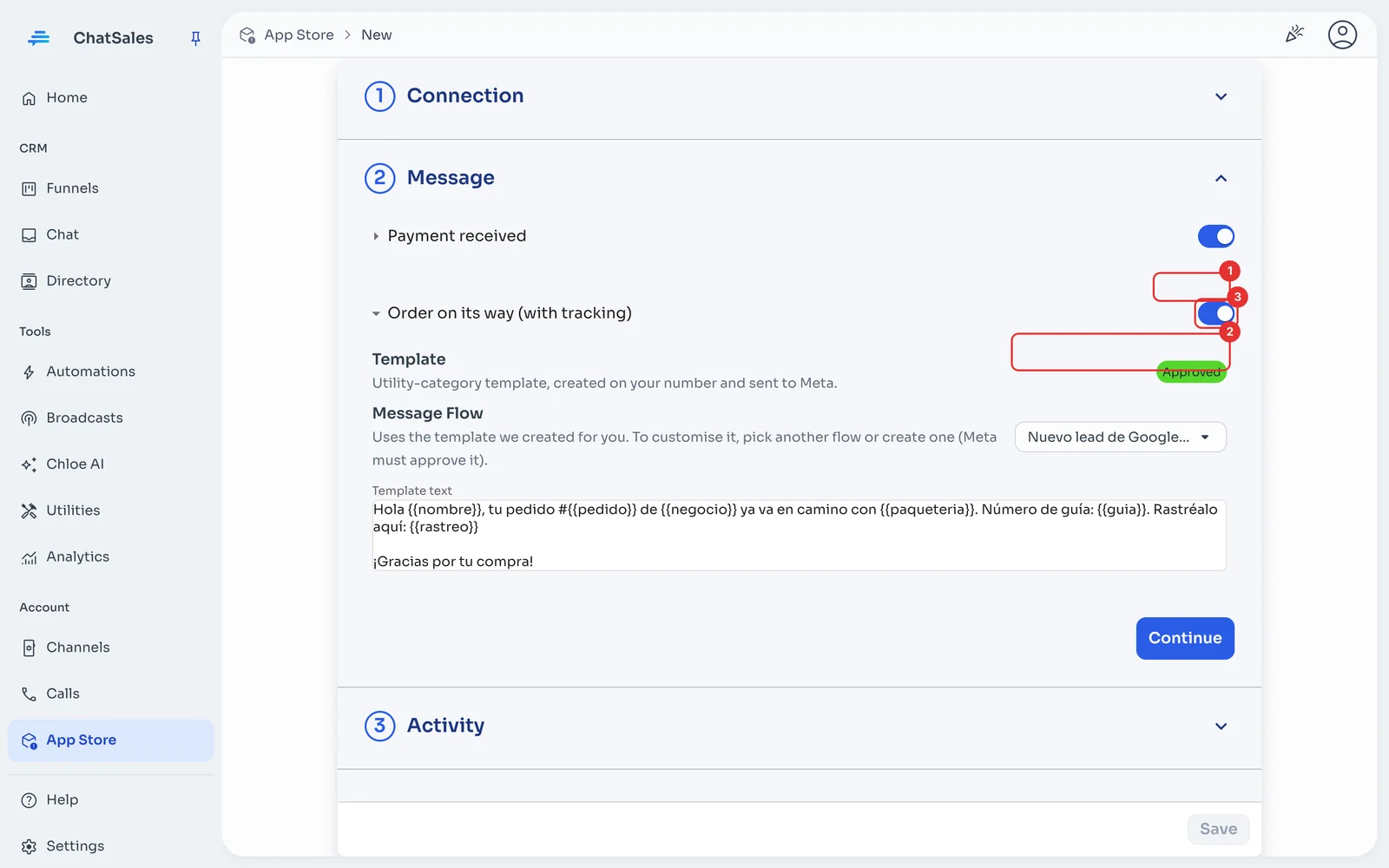
Under Message you see the template's status at Meta (1) and the text that is sent. To customise it, pick another flow or create one (2): Meta must approve it. The switch (3) turns it off. Click Save.
Rules that protect your number
Numbers without a country code are treated as Mexican (+52) by default. If you get contacts from other countries, turn it off under Connection and we only message numbers with "+code".
Find it later
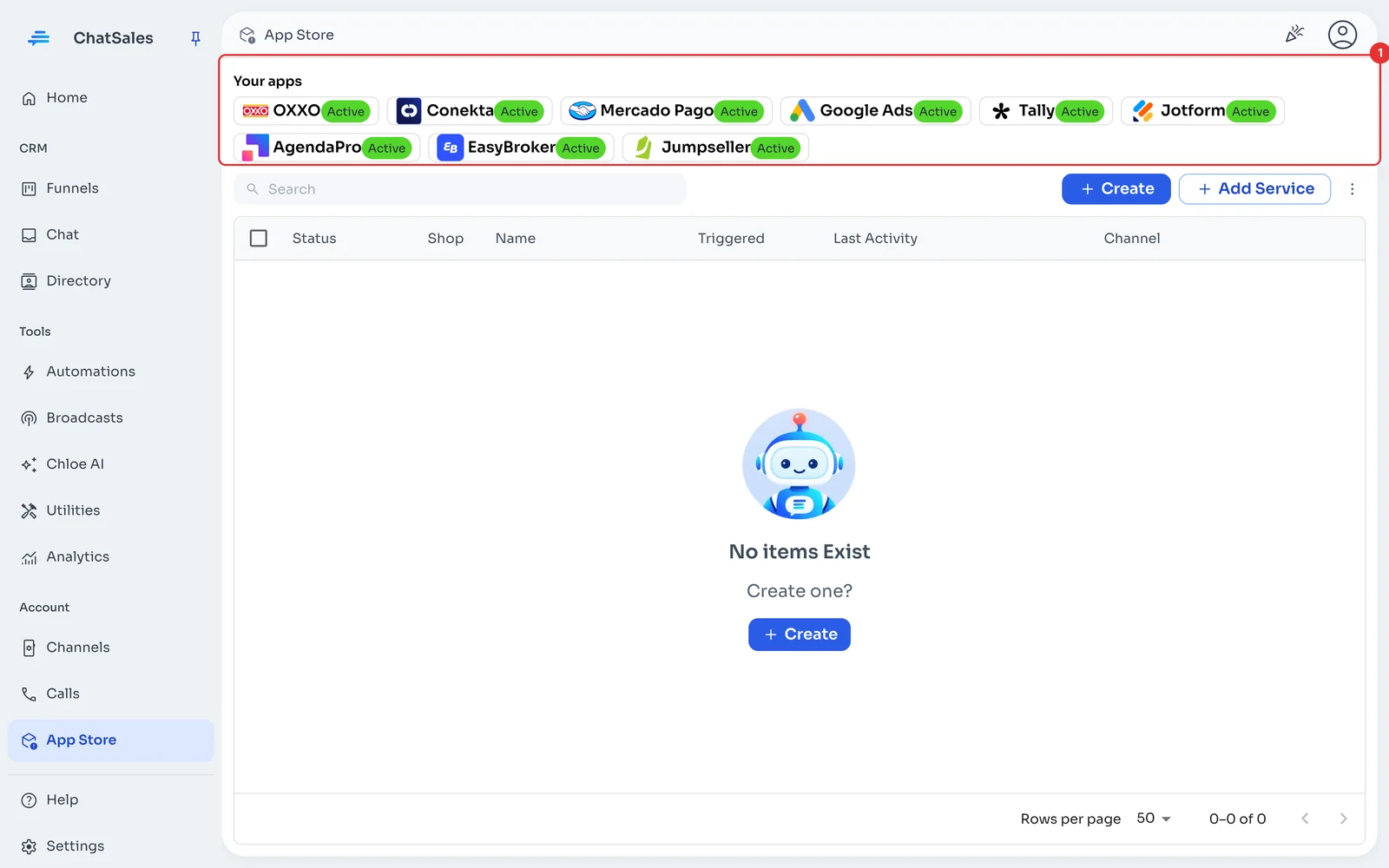
Your connected apps show at the top of the App Store, under Your apps (1), with what is left to do. Click Jumpseller to open it.
Common problems
"On its way" doesn't arrive. It is sent when the order has a tracking number and Jumpseller marks the shipment in transit (or delivered or ready for pickup).
I changed my Auth Token in Jumpseller. Paste the new one under Connection and save: we register the webhook again.
I want to stop using it. Under Connection click Disconnect: the URL stops working and this app's activity is deleted.