
Kommo leads to WhatsApp
Kommo gathers your leads from forms, ads and chats. With this integration every new lead gets your WhatsApp from your ChatSales number within minutes, and when you move it to the won stage it gets your thank-you. The conversation continues in your ChatSales inbox.
What it does and doesn't do
| ✅ It can | 🚫 It can't |
|---|---|
| Welcome every new lead in Kommo on WhatsApp, from your ChatSales number, within minutes. | Message leads whose contact has no phone in Kommo. |
| Thank the customer when you move their lead to "Closed - won". | Write about leads created hours ago or imported in bulk (only fresh leads are welcomed). |
| Register the webhook in Kommo for you (nothing to paste) and remove it if you disconnect. | Change leads, stages or contacts: it only reads them and manages its own webhook. |
| If Kommo already chats with that lead on WhatsApp, turn off "New lead" to avoid two messages. |
🔐 Kommo's long-lived token acts with the rights of the administrator who created it. ChatSales stores it encrypted and only uses it to read leads and contacts and to create or remove its webhook. You can revoke it any time in Kommo (the integration's Authorization tab).
Before you start
You need:
A WhatsApp API number connected in ChatSales (Connect your WhatsApp). These messages are the first contact with someone who has not written to you, so WhatsApp only allows them with a Meta-approved template.
To be an admin of your ChatSales team and have access to your Kommo account.
Open the App Store
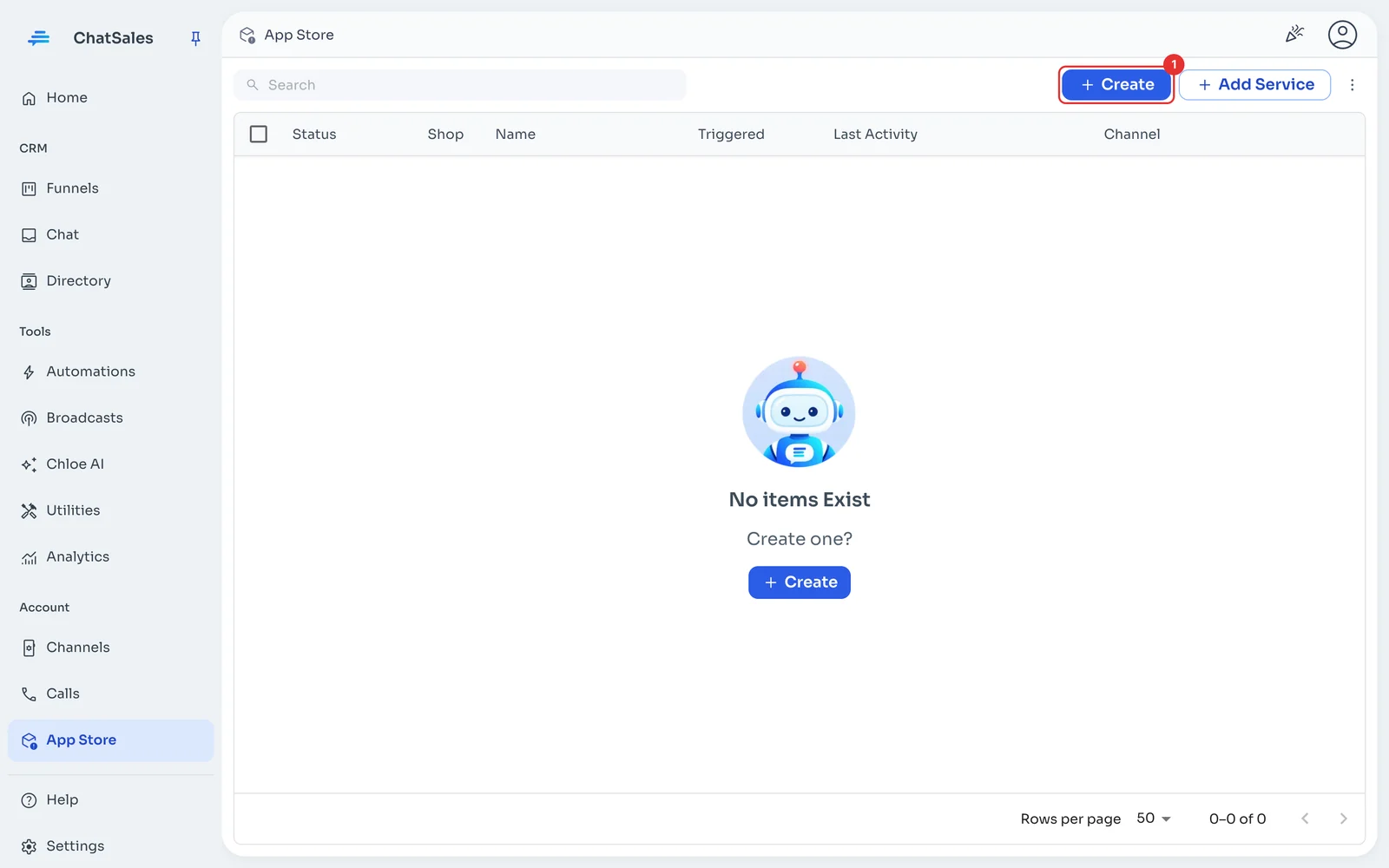
In the left menu go to App Store and click Create (1).
Choose Kommo
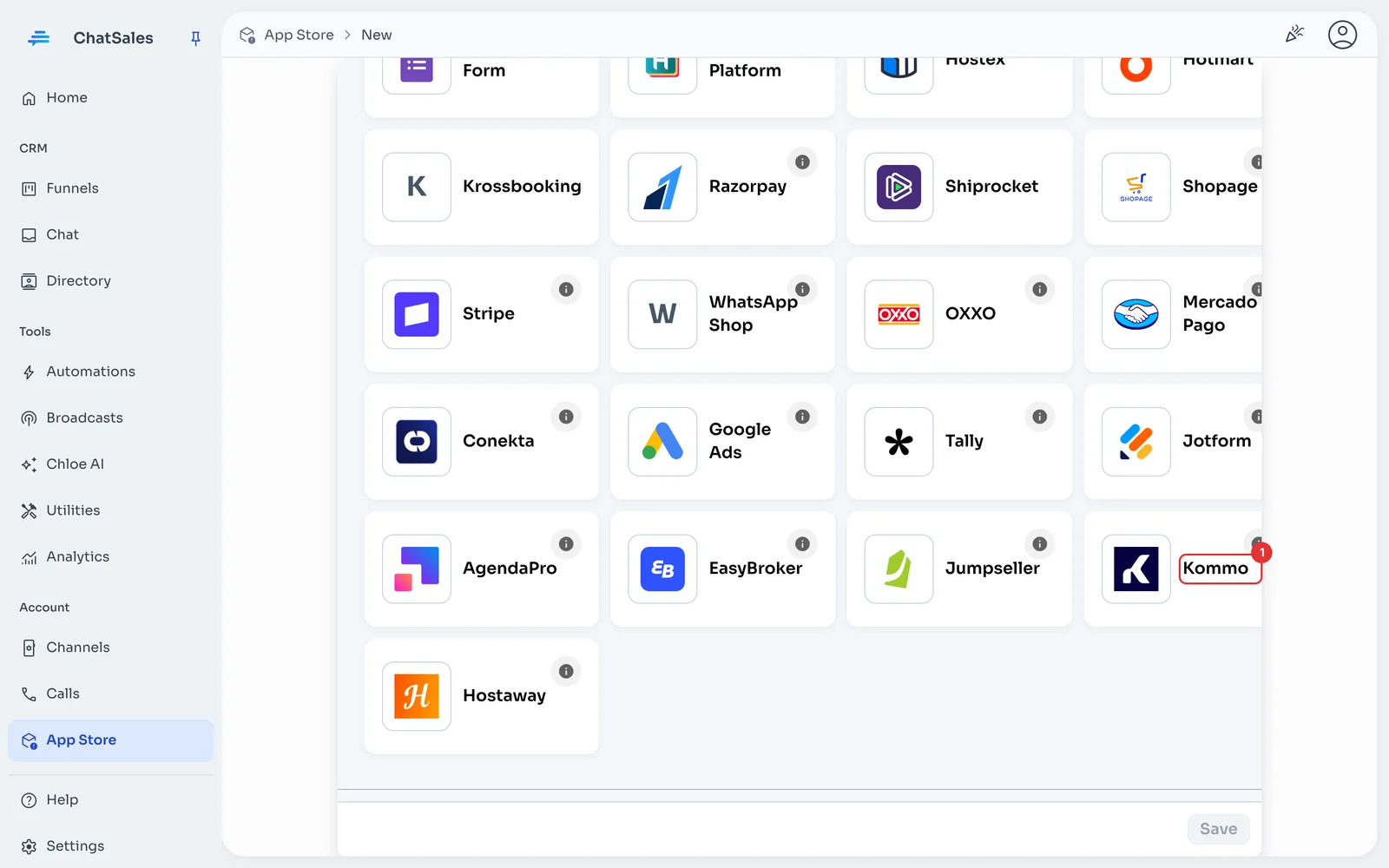
Find the Kommo card (1) and click it. You can also find it with the CRM filter.
In Kommo: create a long-lived token
You need to be a Kommo administrator on the Advanced plan or higher (Kommo only allows webhooks via API on those plans). In Kommo go to Settings → Integrations → Create integration (private) and save it. In its "Keys and scopes" tab click "Generate long-lived token", choose an expiry date and copy the token: Kommo shows it only once.
Paste your Kommo address and the token, and save
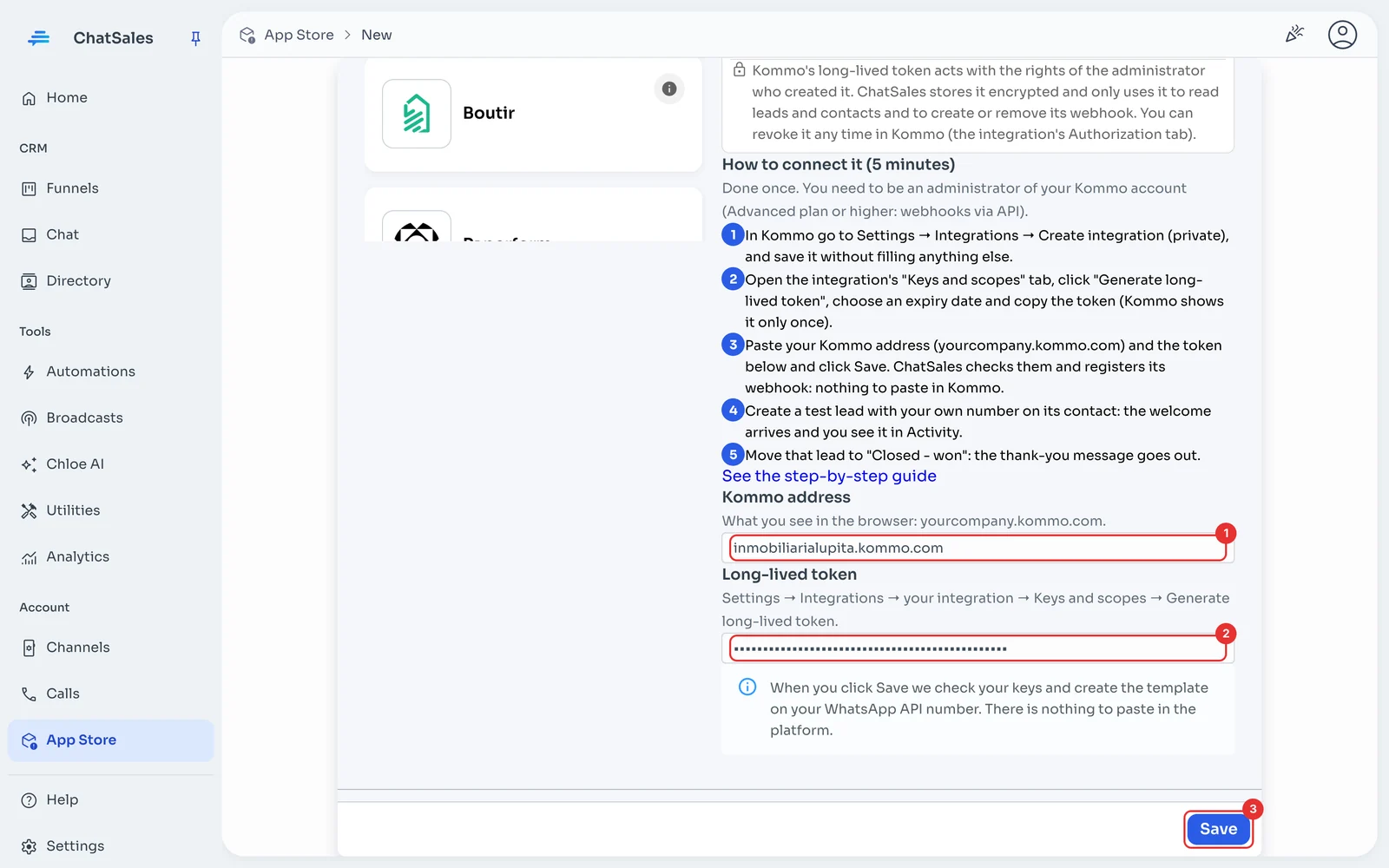
In ChatSales paste your address (yourcompany.kommo.com) (1) and the token (2), and click Save (3). ChatSales checks them with Kommo, registers its webhook in your account and creates 2 templates on your WhatsApp API number: welcome and thank you.
Done: nothing to paste in Kommo
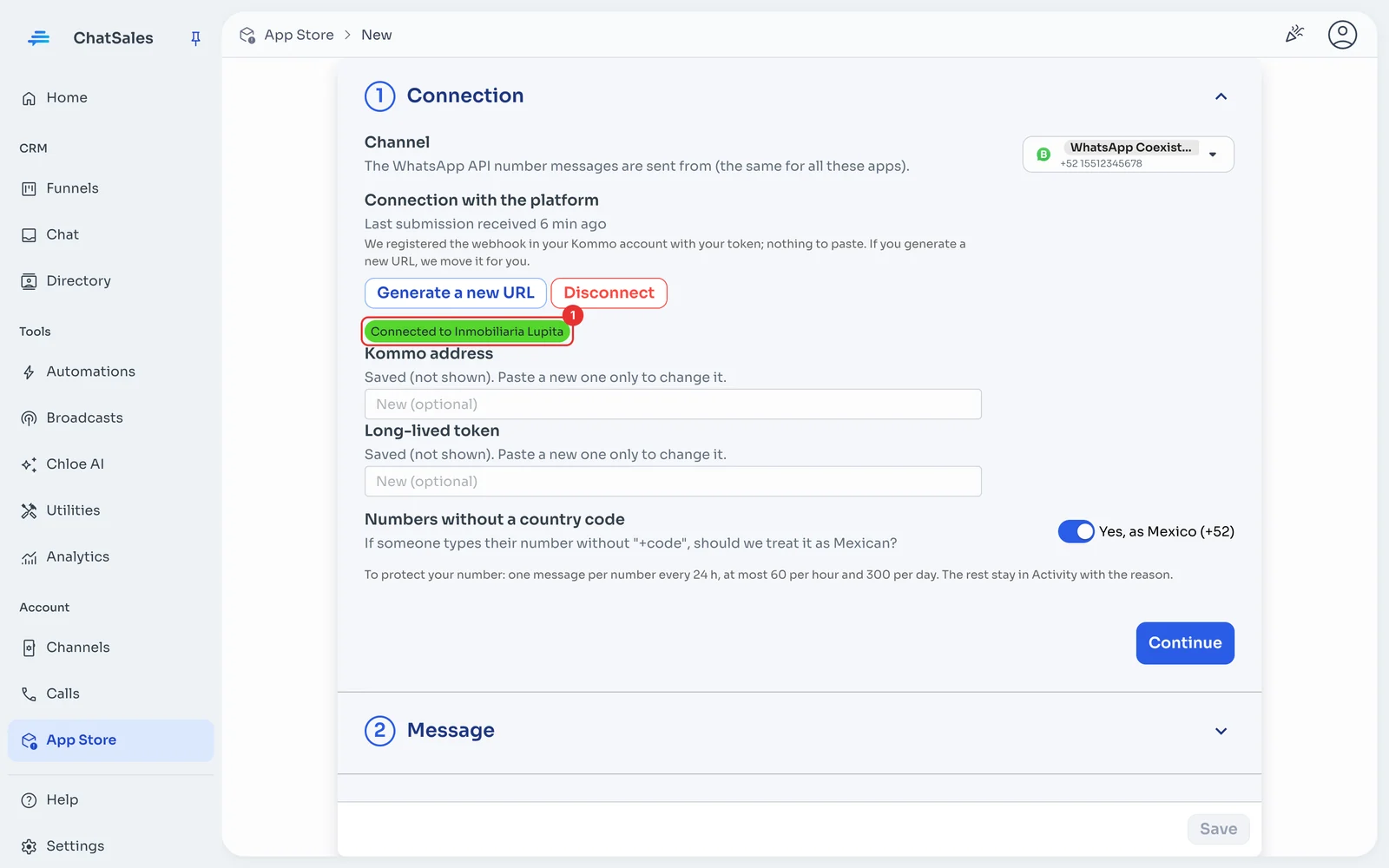
You see Connected to with your Kommo account name (1). ChatSales registered the webhook in Kommo; if you disconnect, we remove it.
Check that it arrives
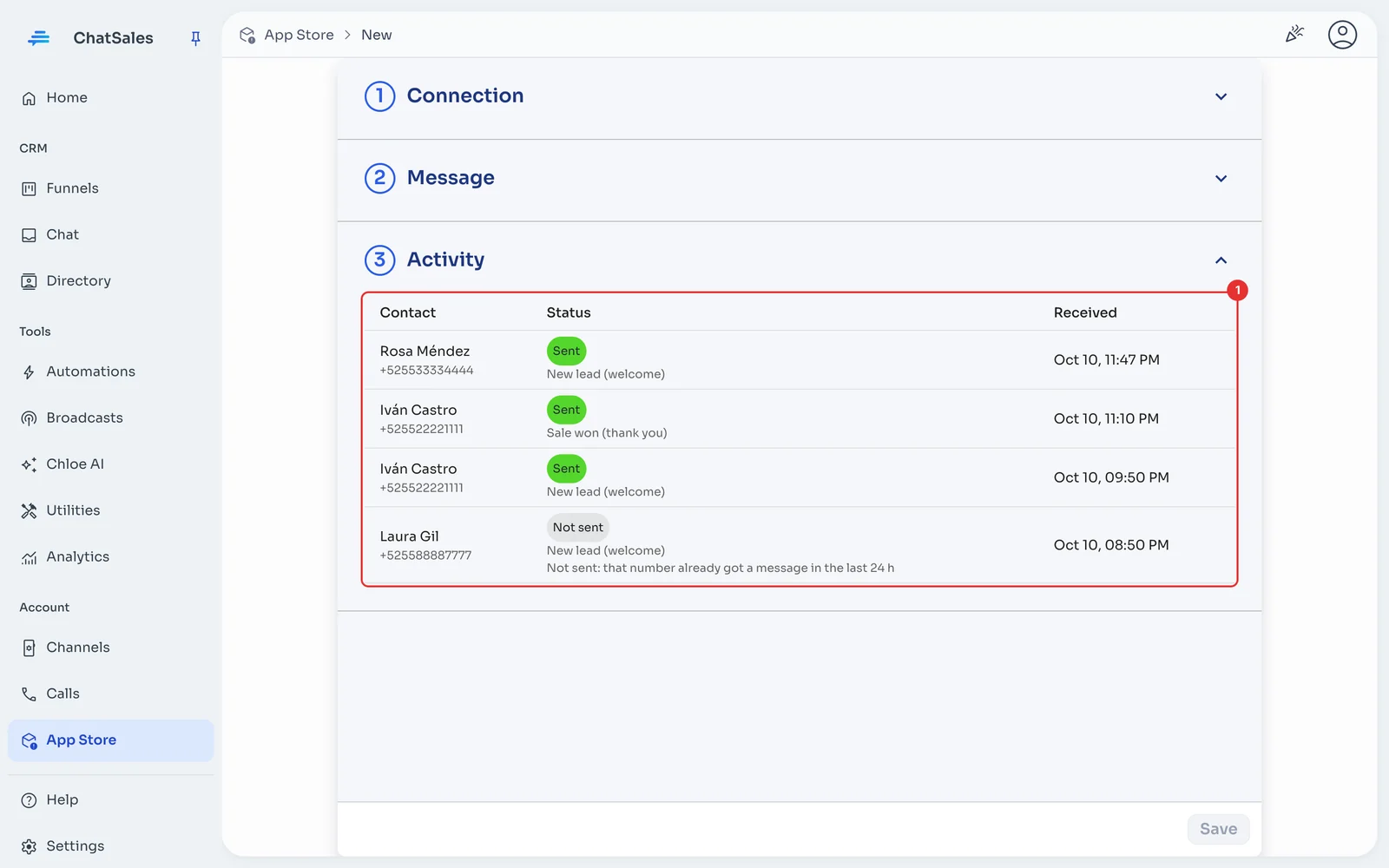
Create a test lead with your own number on its contact: you get the welcome and Activity (1) shows it as Sent. Move it to the won stage: you get the thank-you.
The message (optional)
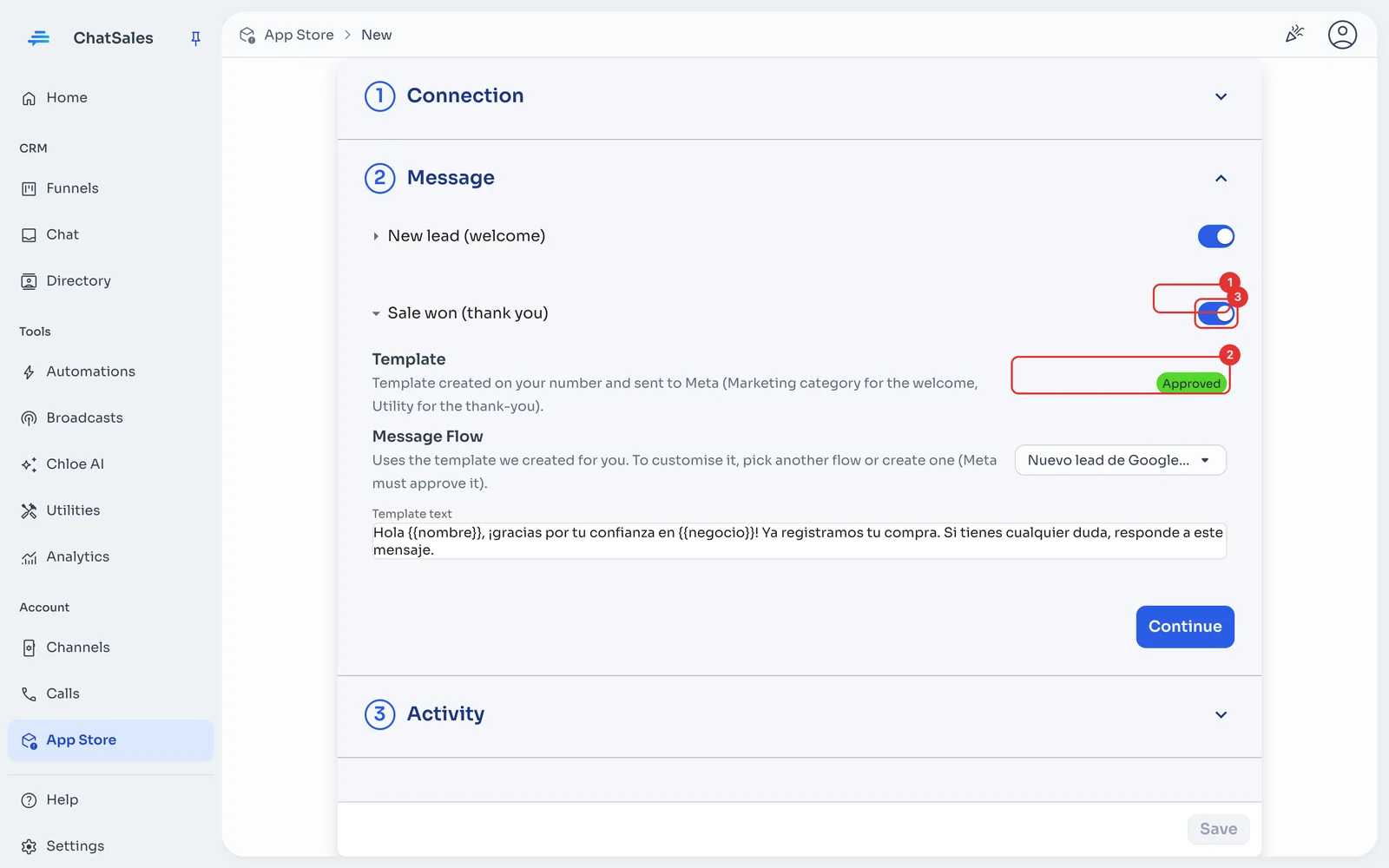
Under Message you see the template's status at Meta (1) and the text that is sent. To customise it, pick another flow or create one (2): Meta must approve it. The switch (3) turns it off. Click Save.
Rules that protect your number
So a public form can't be used to make your number write to strangers: one message per number every 24 h, and at most 60 per hour and 300 per day per app. Anything over the limit stays in Activity with the reason.
Numbers without a country code are treated as Mexican (+52) by default. If you get contacts from other countries, turn it off under Connection and we only message numbers with "+code".
Add a consent line to your form (for example "I agree to be contacted on WhatsApp"): WhatsApp requires people to agree to receive messages from your business.
Find it later
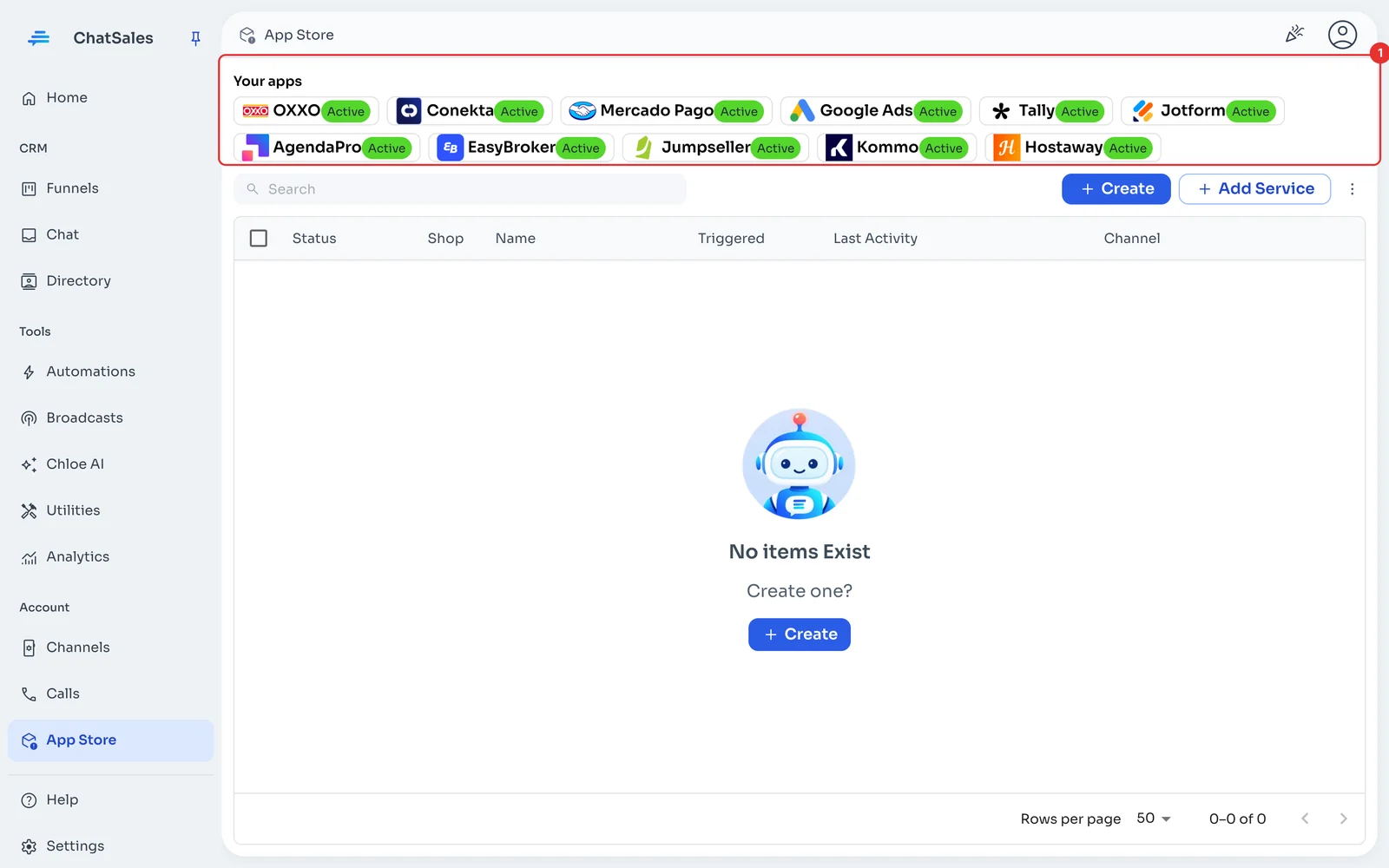
Your connected apps show at the top of the App Store, under Your apps (1), with what is left to do. Click Kommo to open it.
Common problems
A lead didn't get the welcome. Only fresh leads (created in the last hours) with a phone on their main contact are welcomed; if the contact had no number yet, it is welcomed once it has one and the lead changes stage. If Kommo already chats with that lead on WhatsApp, turn off "New lead" to avoid two messages.
I see "Kommo refused the token". The token expired or was revoked: generate a new one in your Kommo integration, paste it under Connection and save.
Saving says the token can't create webhooks. It must be an administrator's, on Kommo's Advanced plan or higher.
I want to stop using it. Under Connection click Disconnect: the URL stops working and this app's activity is deleted.