
Beds24 bookings: confirmation and check-in
Beds24 gathers your bookings from Booking.com, Agoda, Airbnb and your own site. With this integration every confirmed booking gets your WhatsApp from your number with the property and arrival date, and a reminder 24 hours before check-in.
What it does and doesn't do
| ✅ It can | 🚫 It can't |
|---|---|
| Confirm every new booking on WhatsApp: property, arrival date and check-in time. | Message guests with no phone on the booking (Beds24 doesn't notify when only the phone is edited later). |
| Remind the guest 24 hours before check-in, in the property's time zone; if the stay moves, the reminder moves with it. | Write about requests, inquiries, cancelled bookings or blocked dates. |
| Read bookings from Booking.com, Agoda, Airbnb and your own site, all through Beds24. | Change bookings, prices or availability: it only reads bookings and properties. |
| Write without Meta-approved templates (Utility category). |
🔐 The invite code is swapped once for lasting read access to your Beds24 bookings and properties. ChatSales stores it encrypted and only uses it to read bookings. You can revoke it any time in Beds24 (Settings → Marketplace → API). Unused access expires after 30 days; ChatSales refreshes it weekly.
Before you start
You need:
A WhatsApp API number connected in ChatSales (Connect your WhatsApp). These messages are the first contact with someone who has not written to you, so WhatsApp only allows them with a Meta-approved template.
To be an admin of your ChatSales team and have access to your Beds24 account.
Open the App Store
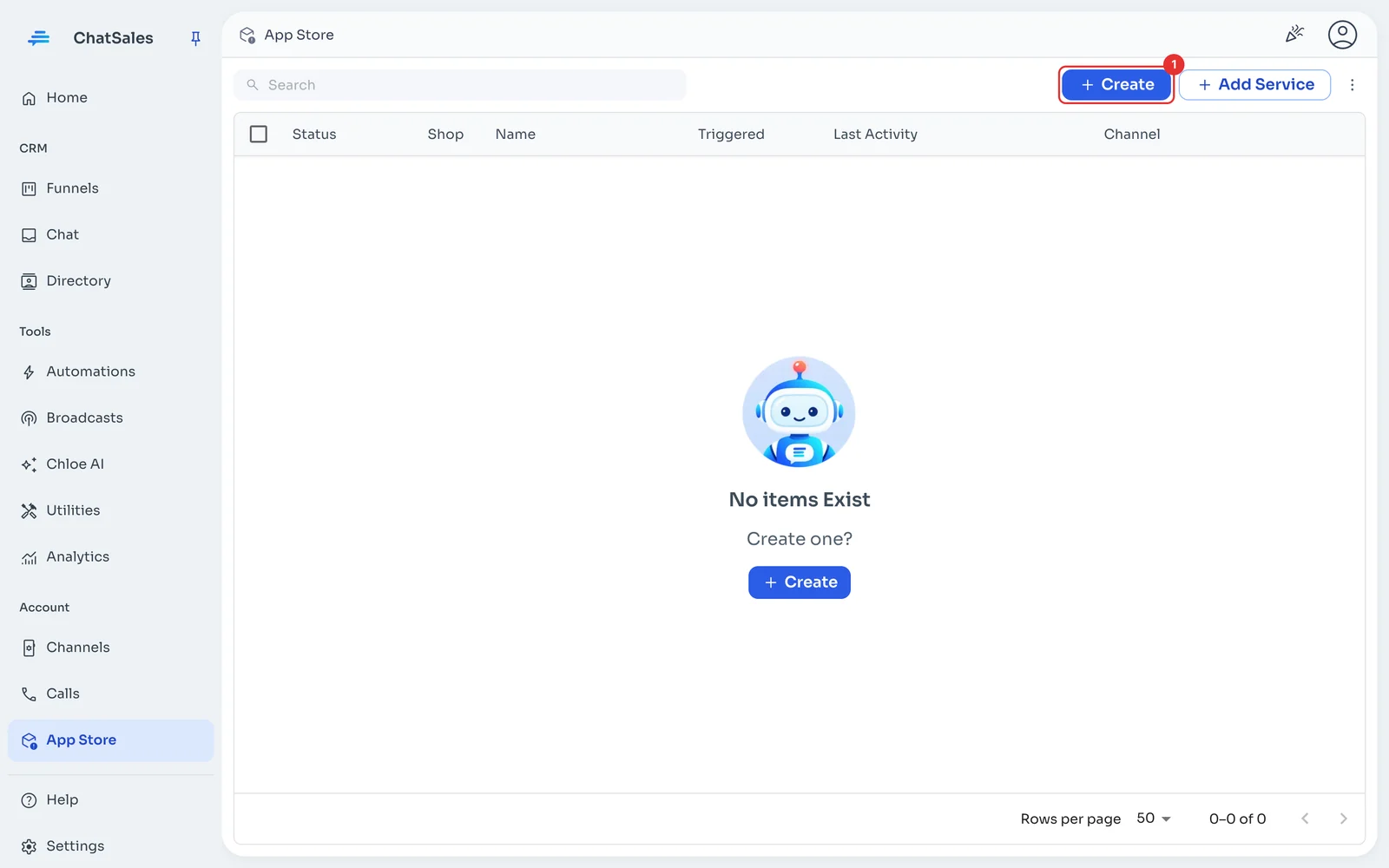
In the left menu go to App Store and click Create (1).
Choose Beds24
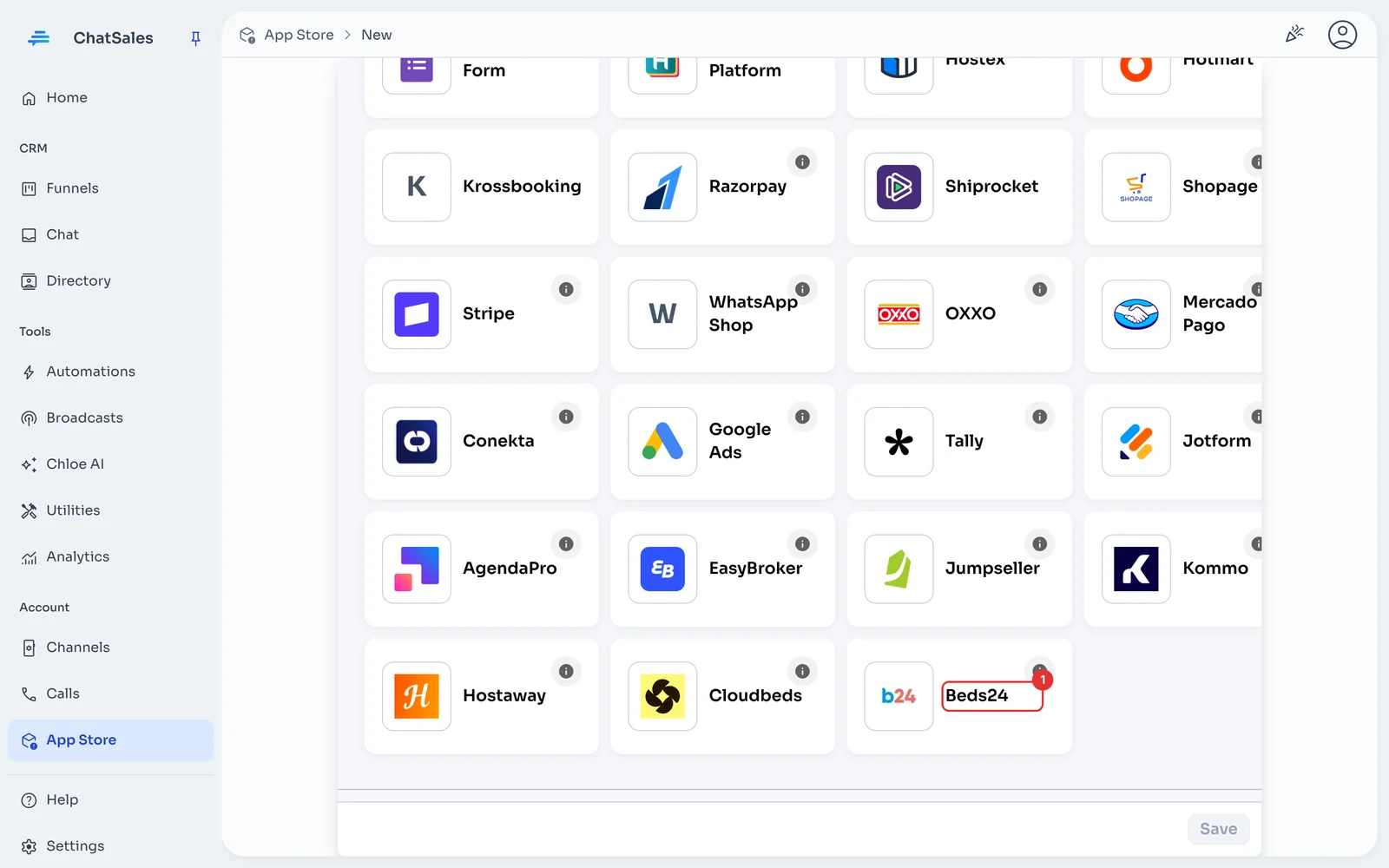
Find the Beds24 card (1) and click it. You can also find it with the Property Management filter.
In Beds24: create an invite code
In Beds24 go to Settings → Marketplace → API and generate an invite code with read permission for bookings, bookings-personal (guest name and phone) and properties. Leave the IP whitelist empty. The code expires in 24 hours and works once: paste it soon.
Paste the code and save
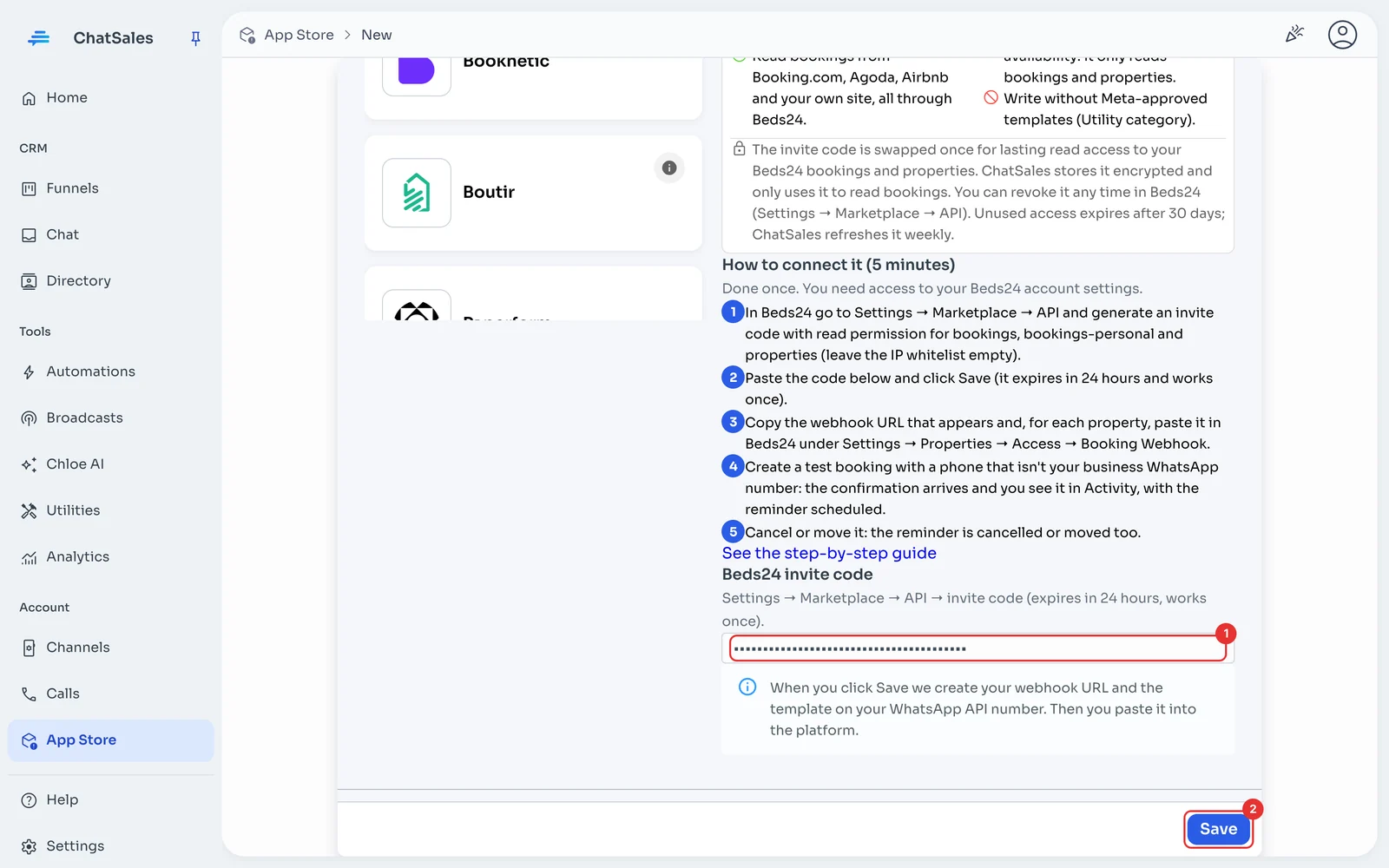
In ChatSales paste the invite code (1) and click Save (2). ChatSales swaps it once for lasting access to your account and creates 2 templates on your WhatsApp API number: booking confirmed and check-in reminder.
Paste the URL into each property's webhook
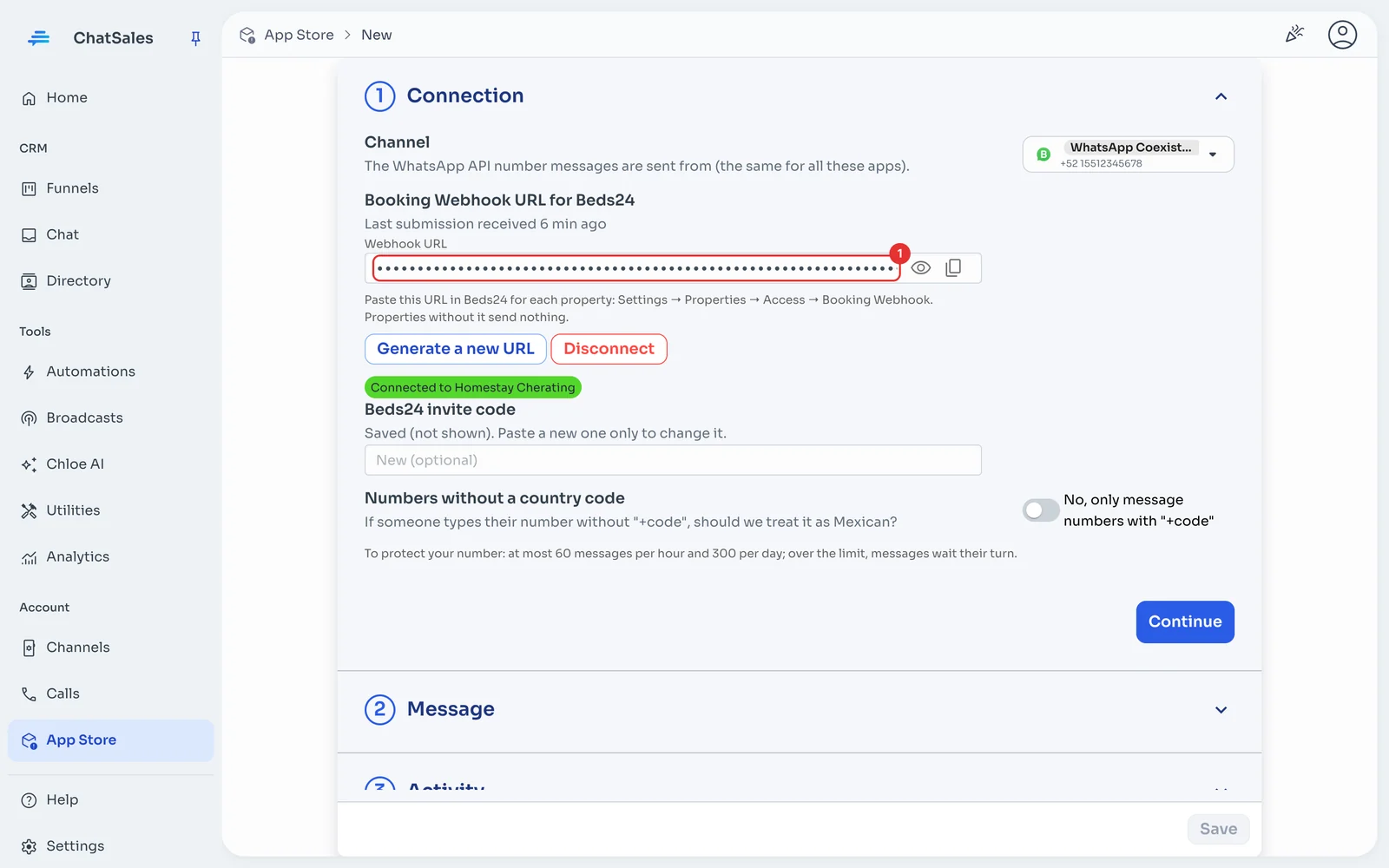
Copy the Webhook URL (1). In Beds24, for each property, go to Settings → Properties → Access → Booking Webhook, paste the URL and save. Properties without the URL send nothing. Bookings made before you connected get no confirmation, but they do get the check-in reminder.
Check that it arrives
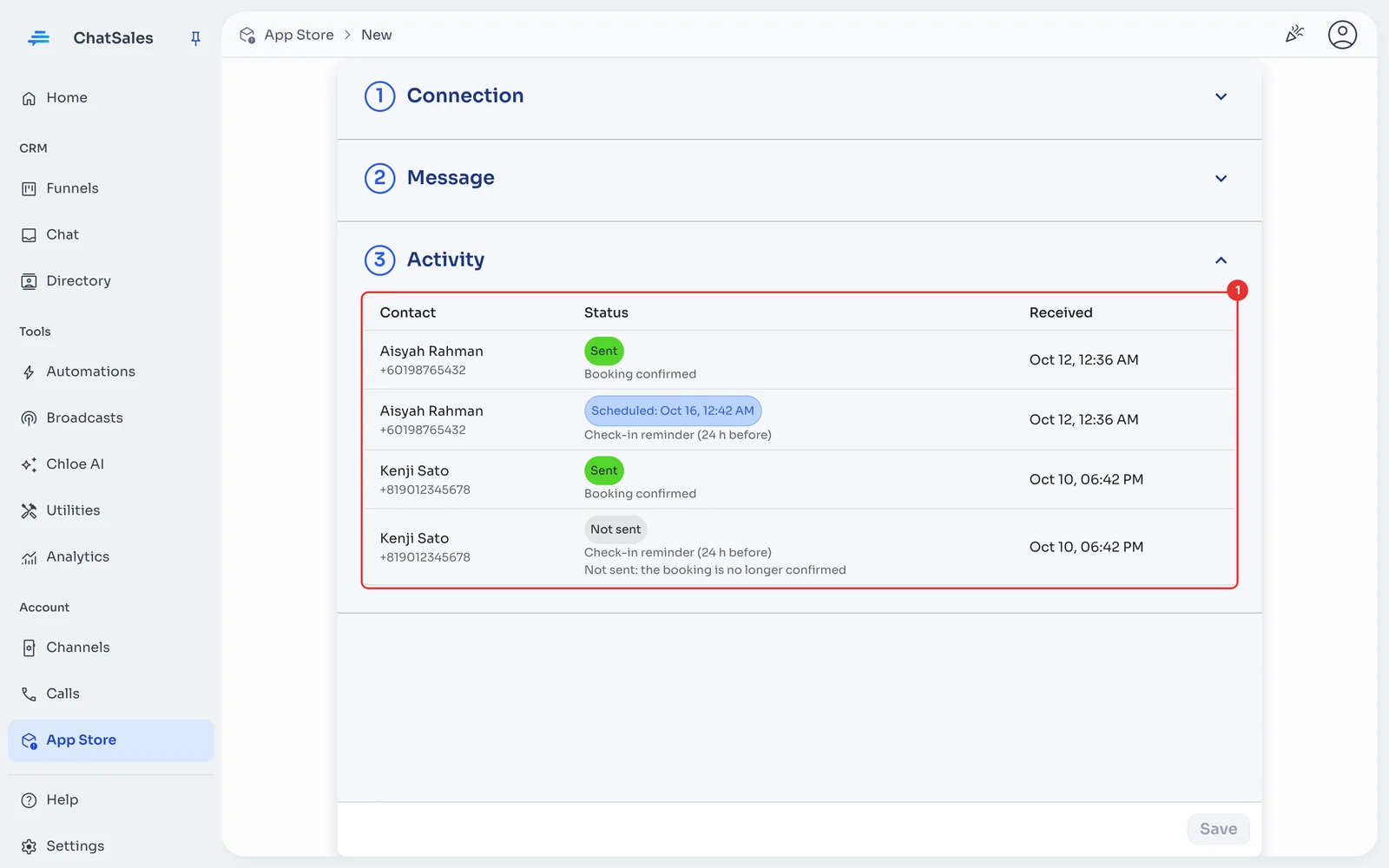
Create a confirmed test booking with a phone that isn't your business WhatsApp number, arriving more than two days ahead. You get the confirmation and Activity (1) shows the reminder as Scheduled. If you cancel or move it, you see why.
The message (optional)
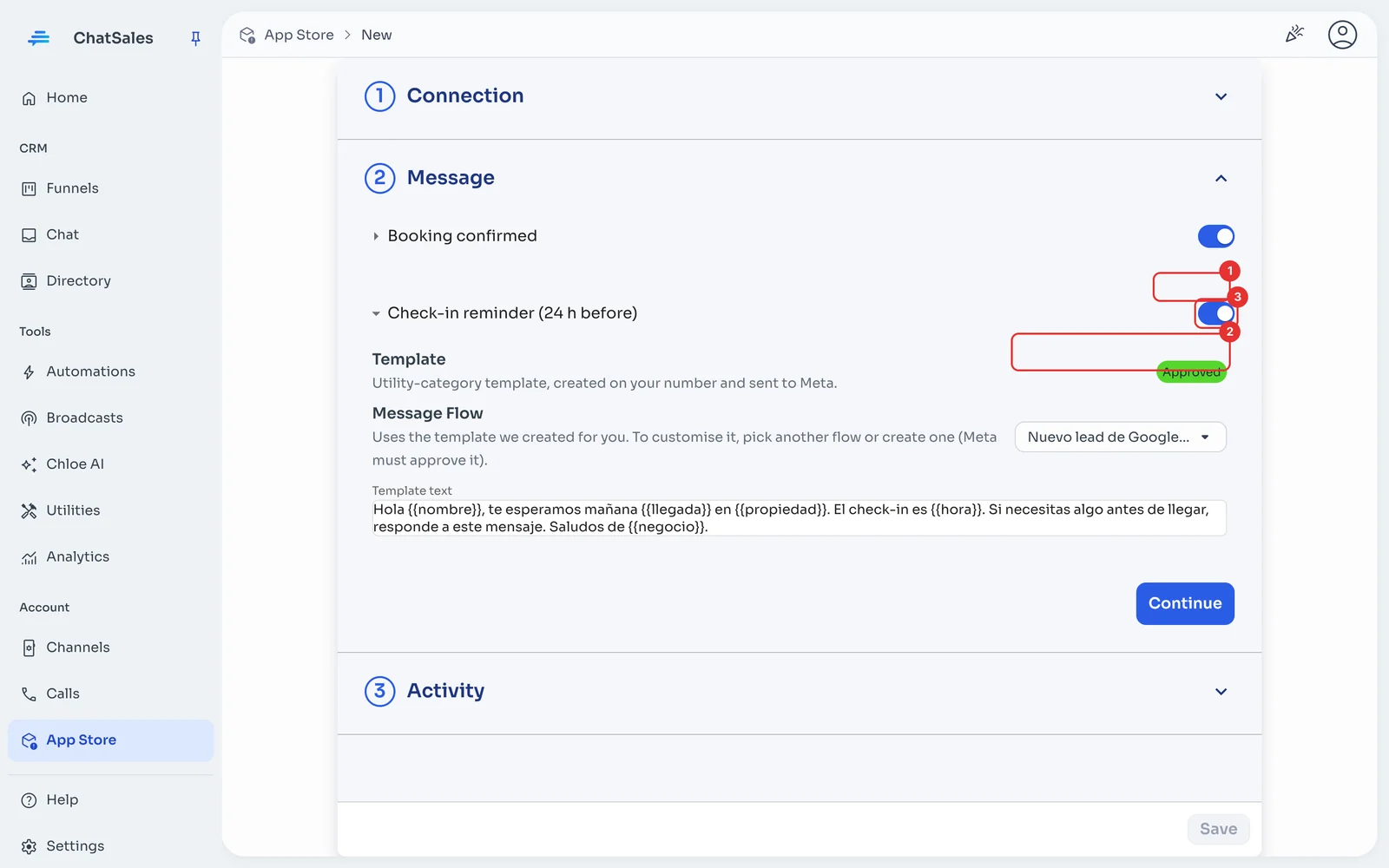
Under Message you see the template's status at Meta (1) and the text that is sent. To customise it, pick another flow or create one (2): Meta must approve it. The switch (3) turns it off. Click Save.
Rules that protect your number
Numbers without a country code: your guests come from many countries, so by default we only message numbers with "+code". If nearly all your guests are from Mexico, you can turn it on under Connection. With Beds24, a local number is completed with the property country's code (for example, in Malaysia "012-345 6789" goes to +60 12-345 6789).
Find it later
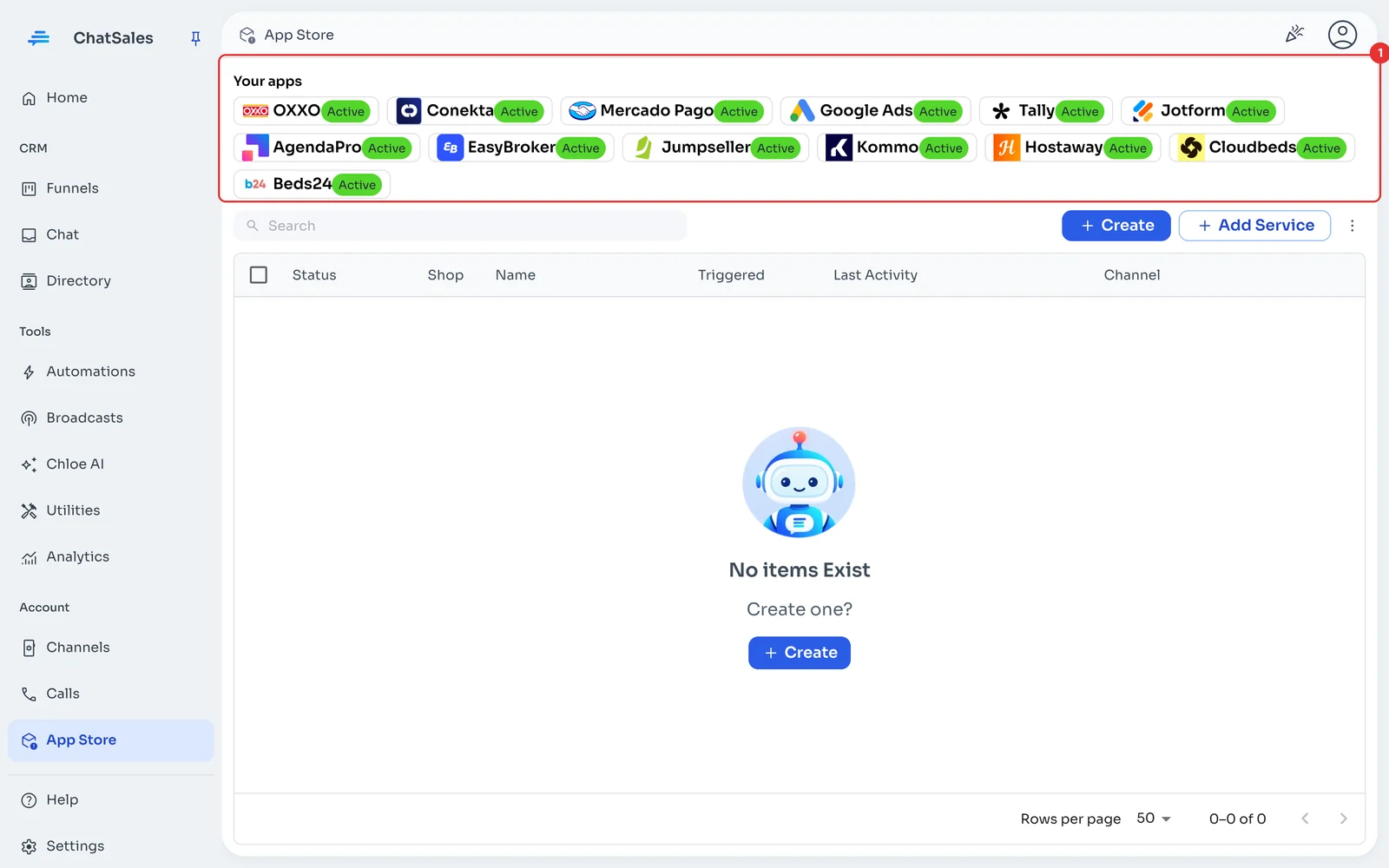
Your connected apps show at the top of the App Store, under Your apps (1), with what is left to do. Click Beds24 to open it.
Common problems
A guest got nothing. Only confirmed or new bookings that already have a phone when they are created or changed get messages; Beds24 doesn't notify when only the phone is edited. Requests, inquiries, cancellations and blocked dates get no messages.
When does the reminder go? 24 hours before the property's check-in start time in Beds24 (minutes included), in the time zone of the property's country. If the country has several zones, your Beds24 account's zone is used.
Saving asks for a new code. That code was already used: generate another in Beds24 and paste it. If you see "Beds24 refused the access", do the same.
I want to stop using it. Under Connection click Disconnect: the URL stops working and this app's activity is deleted.