
Cloudbeds bookings: confirmation and check-in
Bookings reach Cloudbeds from your website, Booking.com, Agoda or the front desk. With this integration every confirmed booking gets your WhatsApp from your number with the property and arrival date, and a reminder 24 hours before check-in, in the property's time zone.
What it does and doesn't do
| ✅ It can | 🚫 It can't |
|---|---|
| Confirm every new booking on WhatsApp: property, arrival date and check-in time. | Message guests with no phone on the booking (some channels hide it). |
| Remind the guest 24 hours before check-in, in the property's time zone; if the stay moves, the reminder moves with it. | Write about unconfirmed, cancelled or no-show bookings. |
| Register the webhooks in Cloudbeds for you (nothing to paste) and remove them if you disconnect. | Change bookings, rates or availability: it only reads bookings and manages its own webhooks. |
| Write without Meta-approved templates (Utility category). |
🔐 A Cloudbeds API key reads your property's bookings and guests. ChatSales stores it encrypted and only uses it to read bookings and to create or remove its webhooks. You can delete the key any time in Cloudbeds; it then stops working here. Cloudbeds disables keys unused for 30 days, which won't happen while bookings arrive.
Before you start
You need:
A WhatsApp API number connected in ChatSales (Connect your WhatsApp). These messages are the first contact with someone who has not written to you, so WhatsApp only allows them with a Meta-approved template.
To be an admin of your ChatSales team and have access to your Cloudbeds account.
Open the App Store
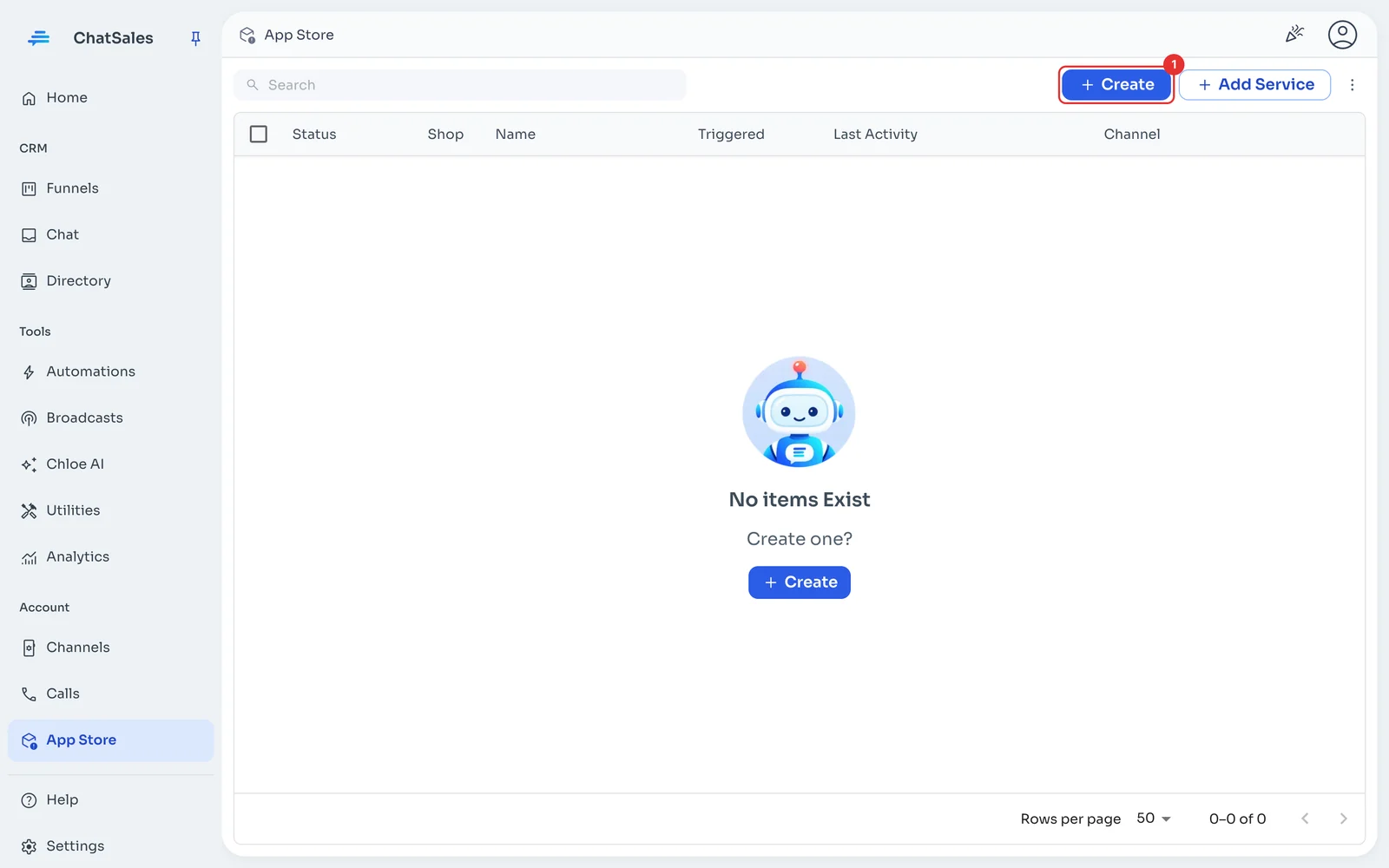
In the left menu go to App Store and click Create (1).
Choose Cloudbeds
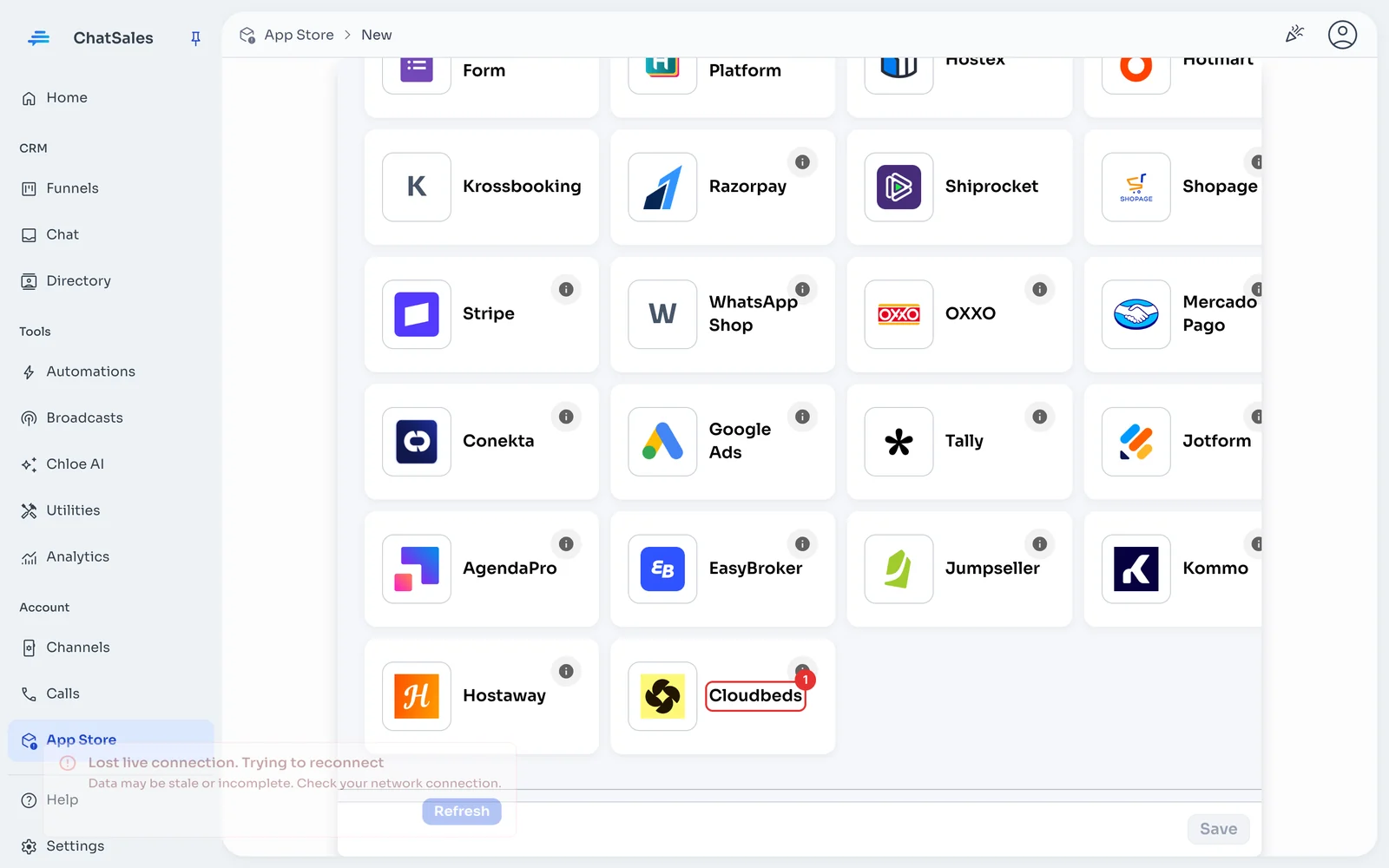
Find the Cloudbeds card (1) and click it. You can also find it with the Property Management filter.
In Cloudbeds: create an API key
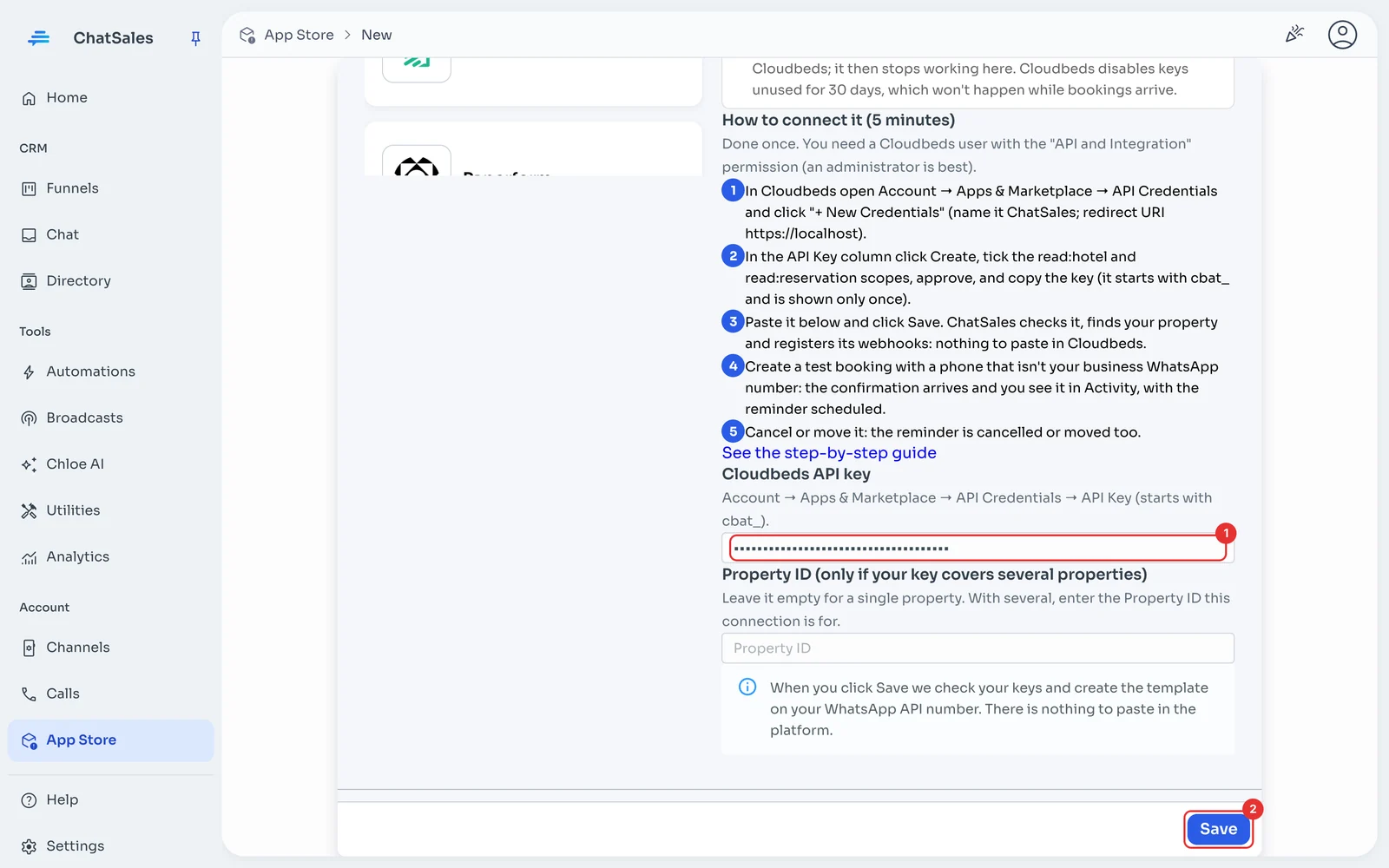
You need a user with the "API and Integration" permission (an administrator is best). In Cloudbeds open Account → Apps & Marketplace → API Credentials and click "+ New Credentials" (name ChatSales; redirect URI https://localhost). In the API Key column click Create, tick read:hotel and read:reservation, approve, and copy the key: it starts with cbat_ and is shown only once.
Paste the API key and save
In ChatSales paste the API key (1) and click Save (2). If your key covers several properties, also enter this connection's Property ID. ChatSales checks it with Cloudbeds, registers its webhooks and creates 2 templates on your WhatsApp API number: booking confirmed and check-in reminder.
Done: nothing to paste in Cloudbeds
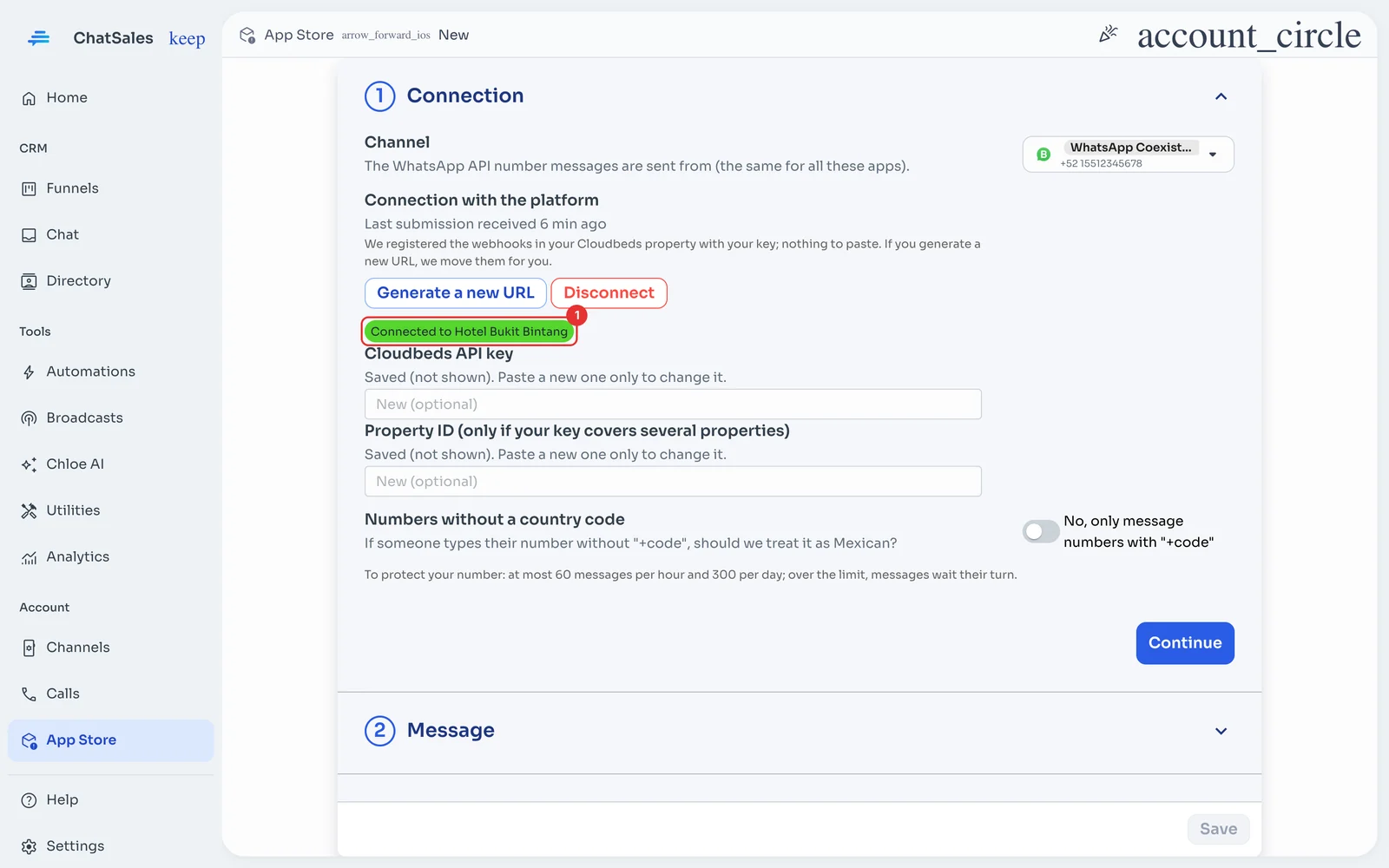
You see Connected to with your property name (1). ChatSales registered the webhooks in Cloudbeds; if you disconnect, we remove them. Bookings made before you connected get no confirmation, but they do get the check-in reminder.
Check that it arrives
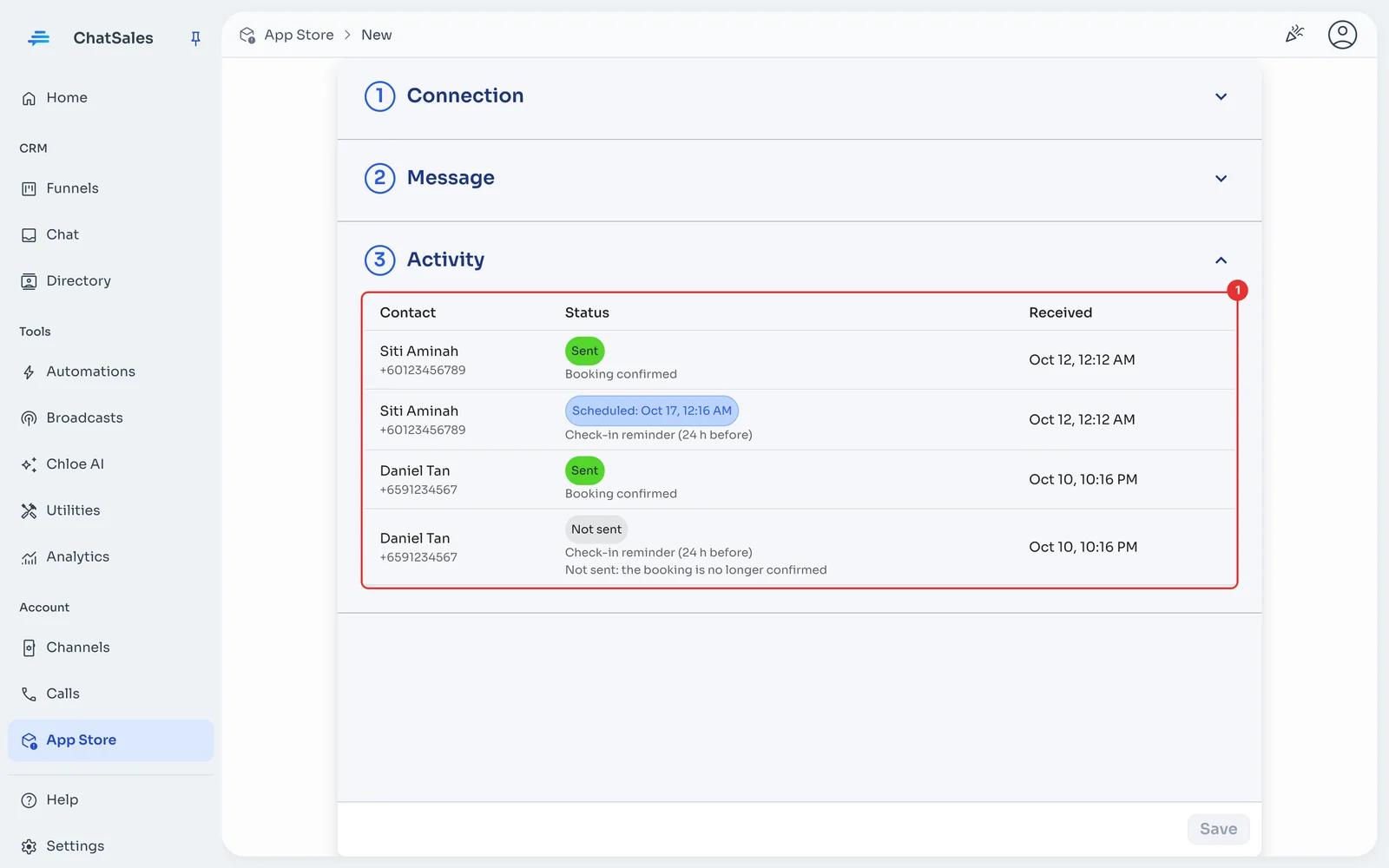
Create a confirmed test booking with a phone that isn't your business WhatsApp number, arriving more than two days ahead. You get the confirmation and Activity (1) shows the reminder as Scheduled. If you cancel or move it, you see why.
The message (optional)
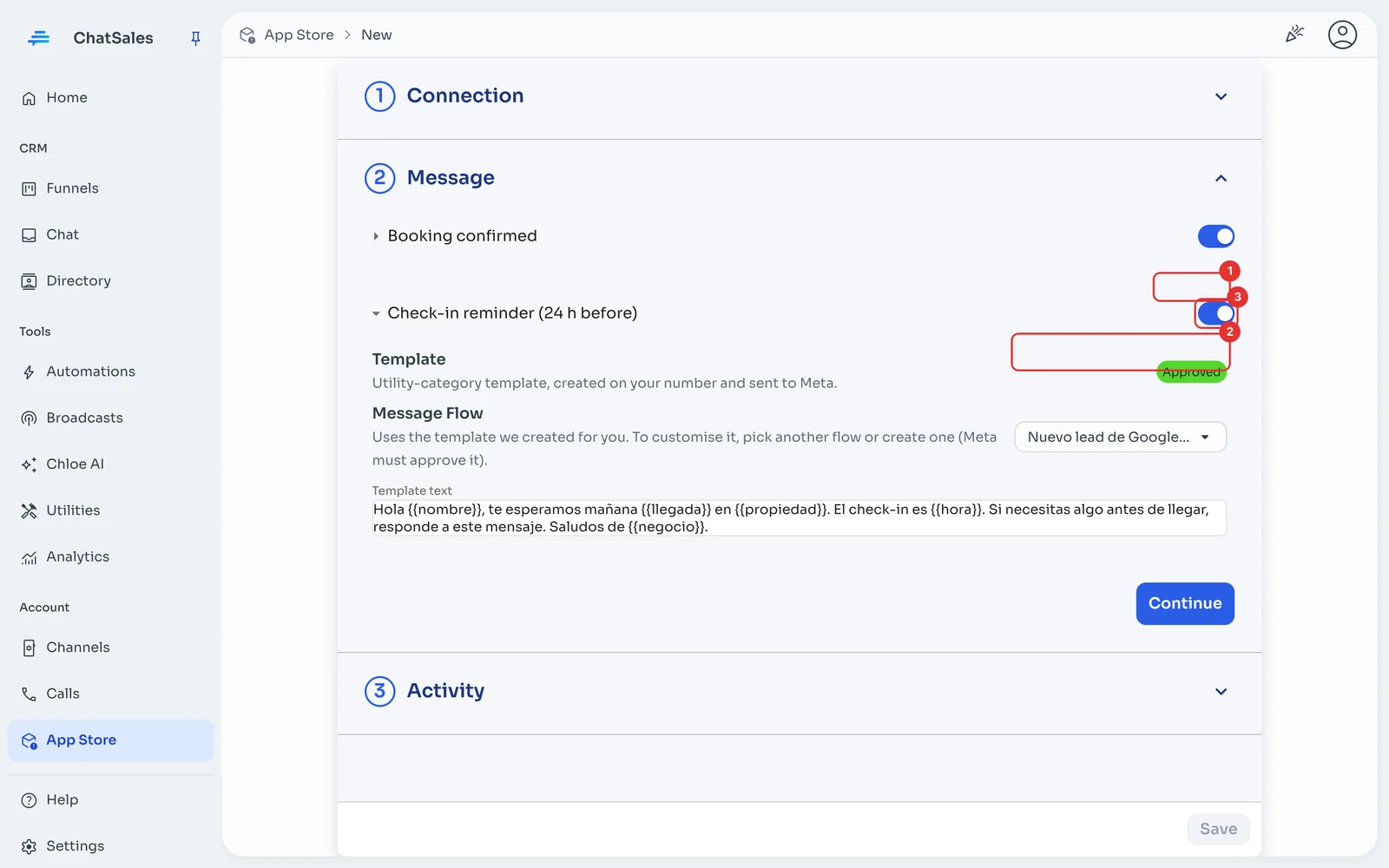
Under Message you see the template's status at Meta (1) and the text that is sent. To customise it, pick another flow or create one (2): Meta must approve it. The switch (3) turns it off. Click Save.
Rules that protect your number
Numbers without a country code: your guests come from many countries, so by default we only message numbers with "+code". If nearly all your guests are from Mexico, you can turn it on under Connection.
Find it later
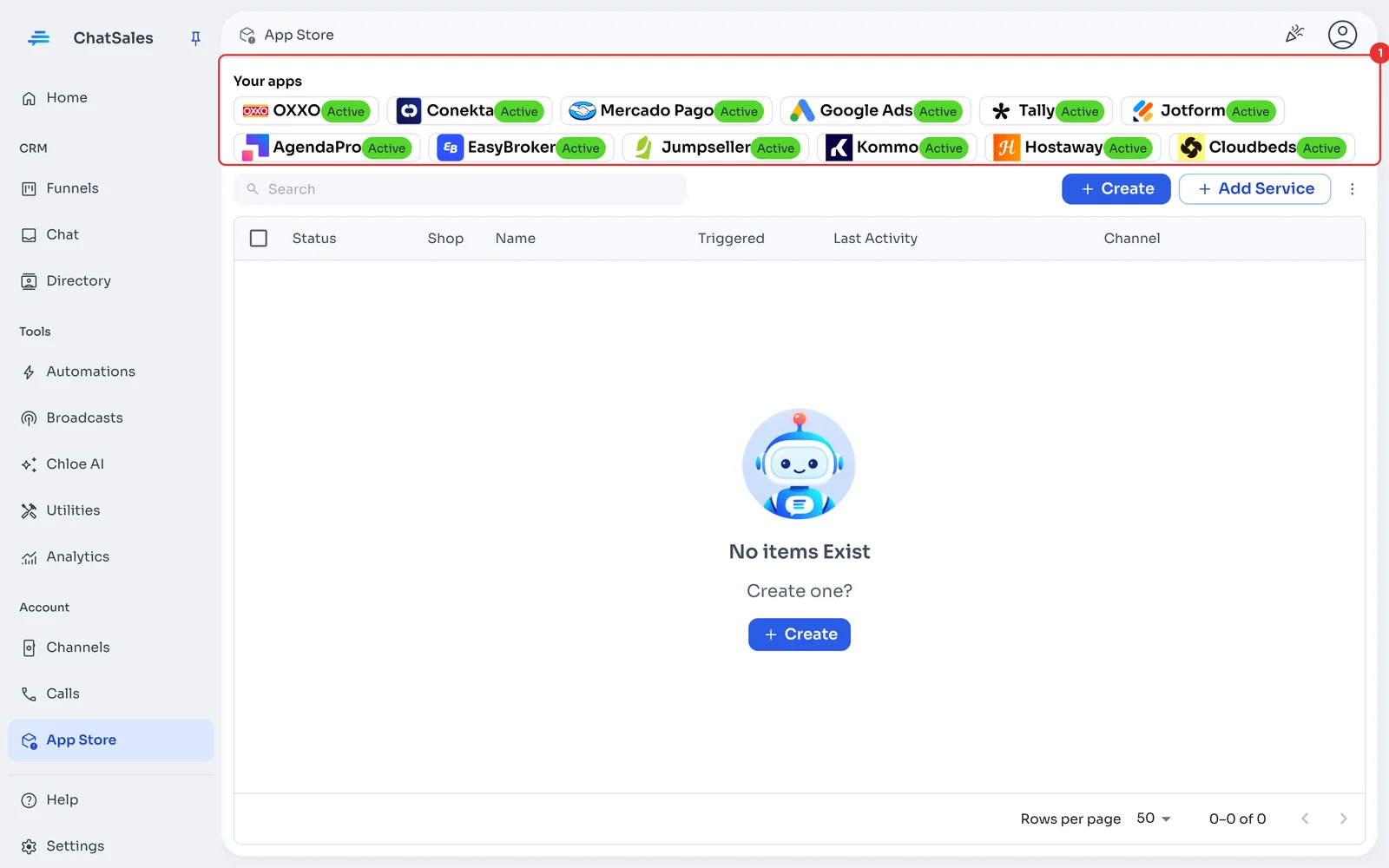
Your connected apps show at the top of the App Store, under Your apps (1), with what is left to do. Click Cloudbeds to open it.
Common problems
A guest got nothing. Only confirmed bookings with a phone get messages; some channels hide the guest's number. Unconfirmed, cancelled or no-show bookings get no messages.
Where does the check-in time come from? From your property's check-in policy in Cloudbeds. If you change it, the next message already says the new time.
I see "Cloudbeds refused the API key". If you deleted it, or it went unused for 30 days, create a new one, paste it under Connection and save. ChatSales uses it weekly so it doesn't expire.
I want to stop using it. Under Connection click Disconnect: the URL stops working and this app's activity is deleted.