OXXO payment reminders on WhatsApp
When a customer gets an OXXO voucher in your Stripe checkout, ChatSales reminds them on WhatsApp before it expires. If they already paid, nothing is sent. You set it up from the App Store; the Stripe part is step by step.
Before you start
You need three things:
- OXXO payments through your own Stripe account (for example the Stripe app on Shopify, or a Stripe checkout). If you take payments with Shopify Payments, this integration can't see your vouchers.
- A WhatsApp API number connected in ChatSales. If you don't have one yet, follow Connect your WhatsApp.
- To be an admin of your ChatSales team.
Open the App Store
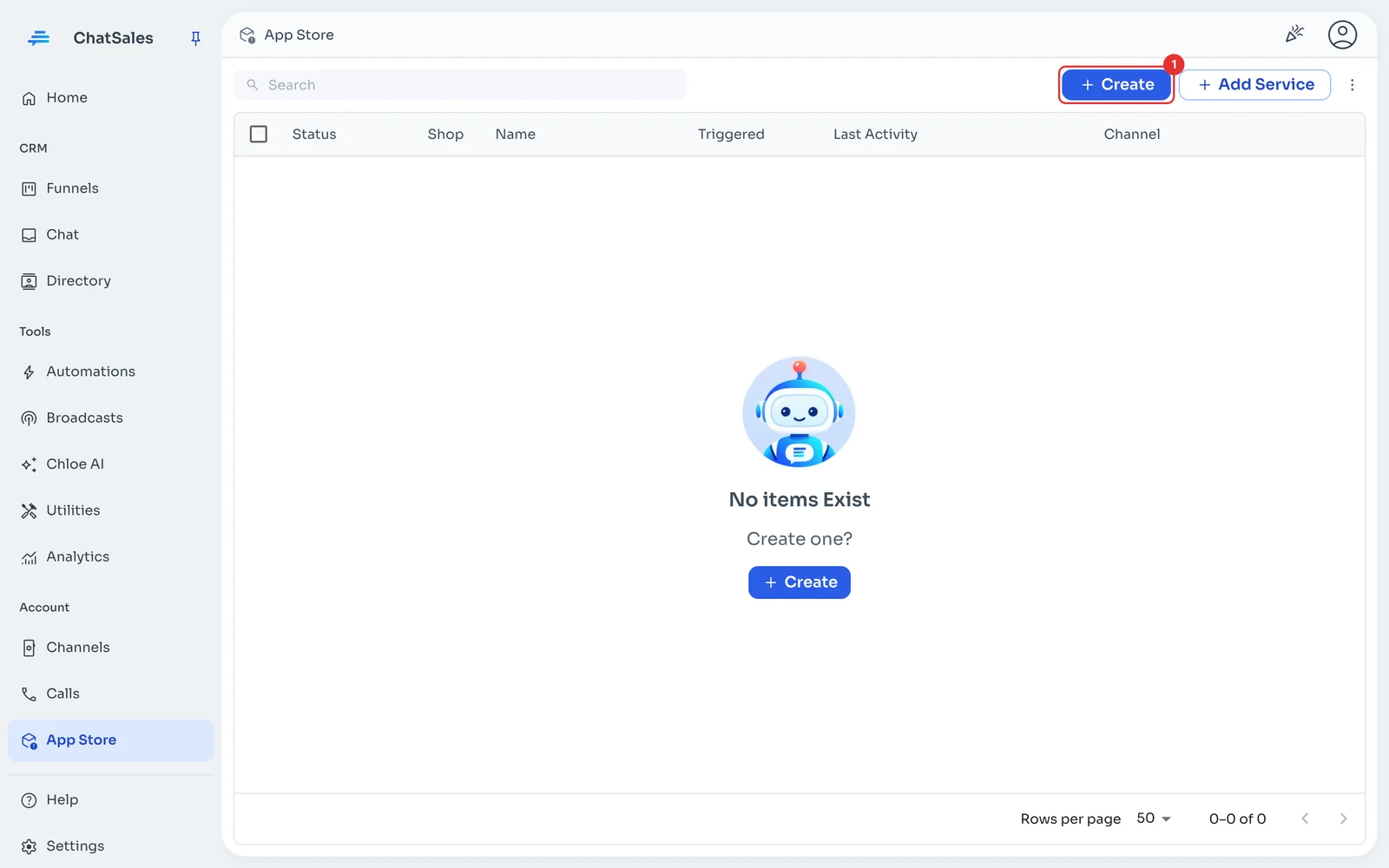
In the left menu, go to App Store and click Create (1).
Choose OXXO
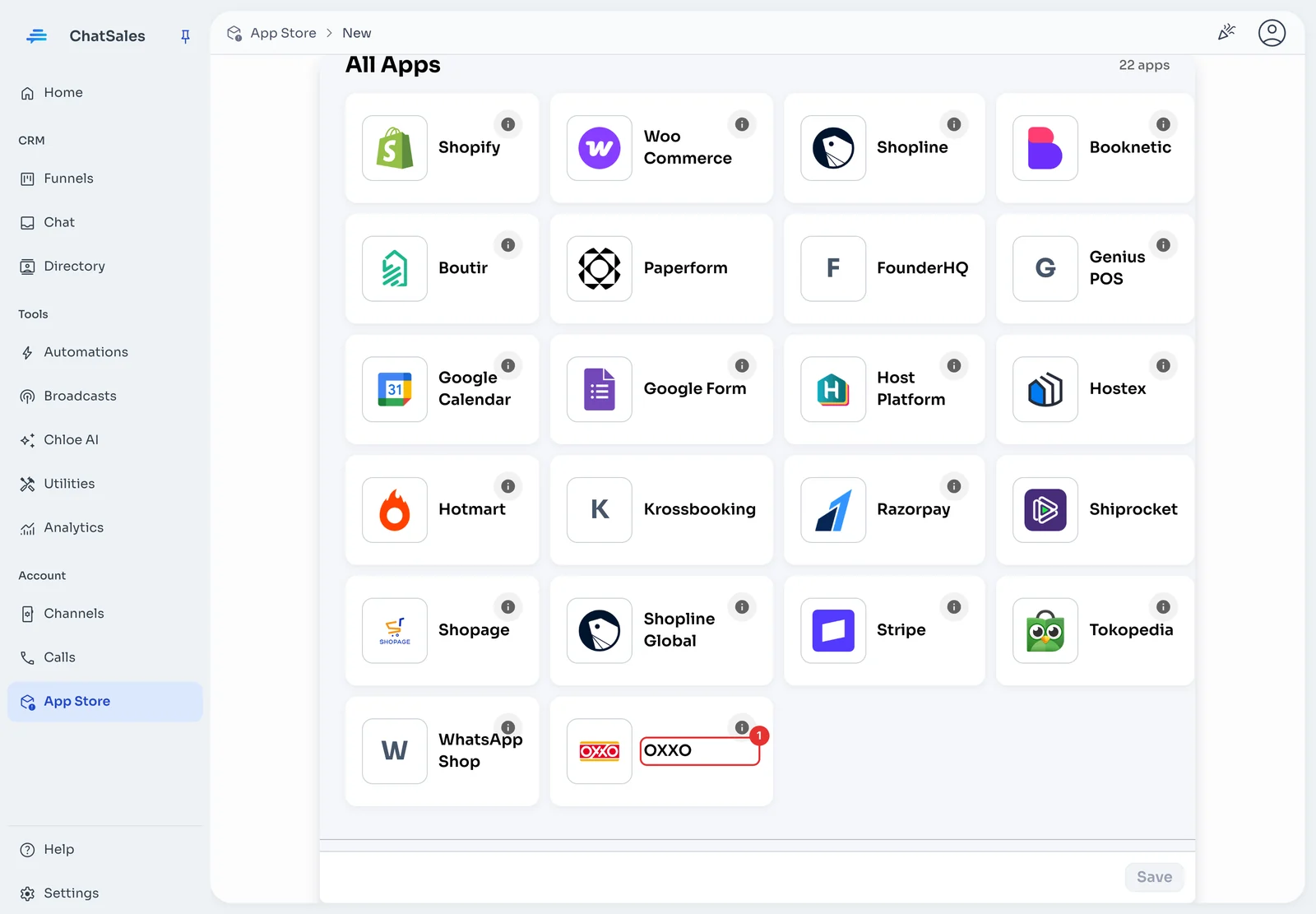
Under All Apps, find OXXO (1) and click its card. You can also find it with the Payment filter.
Stripe 1 · Open your live Stripe
In another tab, open dashboard.stripe.com and sign in with the Stripe account that takes your store’s payments.
Make sure you’re not in a test environment: if you see Sandbox or Test mode at the top, switch to your real account. Use a live key that starts with rk_live_; ChatSales doesn't accept test keys.
Stripe 2 · Open API keys
Go straight to dashboard.stripe.com/apikeys. You can also get there from Developers → API keys.
Stripe 3 · Click Create restricted key
Click Create restricted key. If Stripe asks how you’ll use the key or offers preset permissions, choose to start with no permissions so you give it only the ones it needs.
Stripe 4 · Name it
In Key name, type ChatSales OXXO so you recognise it later.
Stripe 5 · Give only these permissions
Scroll the resource list and change only these rows. Leave everything else on None:
| Resource | Permission |
|---|---|
| Payment Intents | Read |
| Customers | Read |
| Webhook Endpoints | Write |
| Payment Methods (recommended) | Read |
The first three are required. Payment Methods is optional but recommended: the phone the customer types at checkout is often stored there, and without it more vouchers may end up Not sent for lack of a phone.
With these permissions, ChatSales only reads your OXXO vouchers and the customer’s phone, and registers a webhook to hear when they’re paid. It can’t charge or move money.
Stripe 6 · Create the key
Click Create key. Stripe asks for a verification code (by SMS, email or your authenticator app): enter it.
Stripe 7 · Copy the key
Click the key to copy it. It starts with rk_live_.
Important: Stripe shows it only this once. If you lose it, just create another one the same way.
Stripe 8 · Finish in Stripe
In Add a note you can type “ChatSales”, then click Done. Now go back to ChatSales.
Paste the key and save
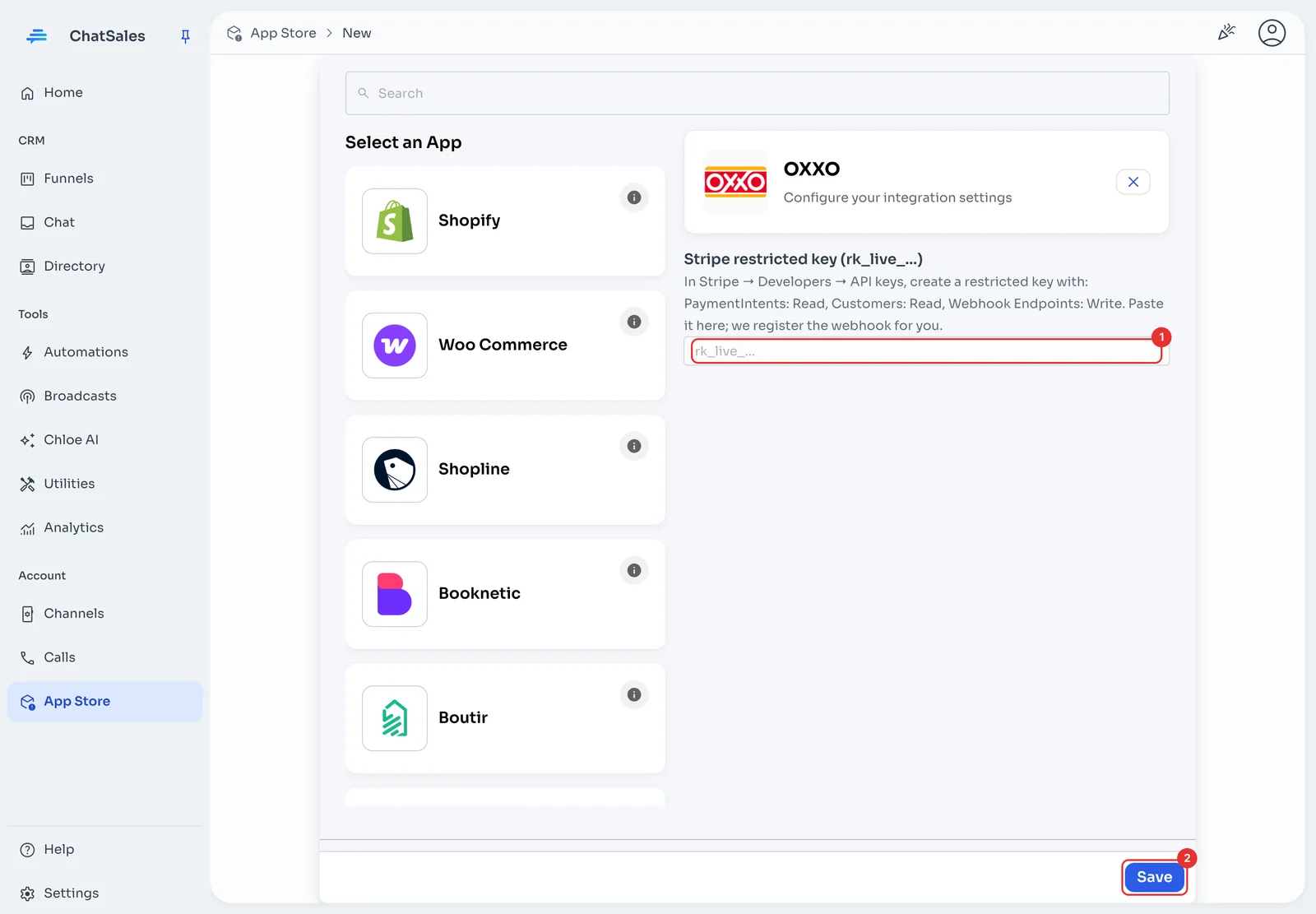
Back in ChatSales, paste the key into Stripe restricted key (rk_live_…) (1) and click Save (2).
ChatSales activates the app and registers the webhook in your Stripe for you. Nothing else to set up in Stripe.
Choose your WhatsApp number
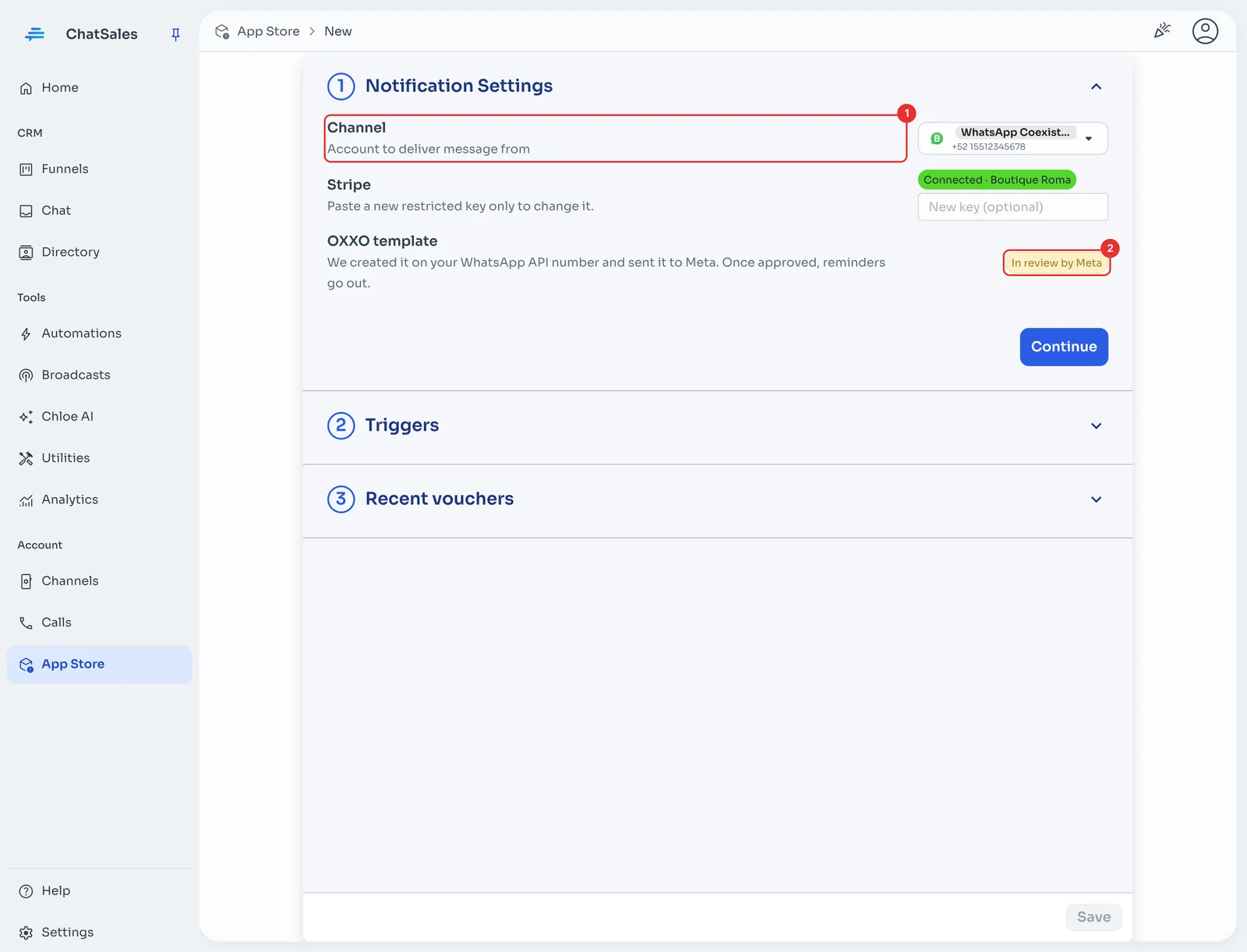
Under Notification Settings, pick in Channel (1) the WhatsApp API number reminders are sent from, and click Continue.
When you save at the end, ChatSales creates the reminder template and sends it to Meta. Its status then shows here, under OXXO template (2): In review by Meta, then Approved. While it's in review no reminders go out: vouchers wait and are sent once Meta approves it. If a voucher expires first, it shows as Not sent.
Turn on the reminders
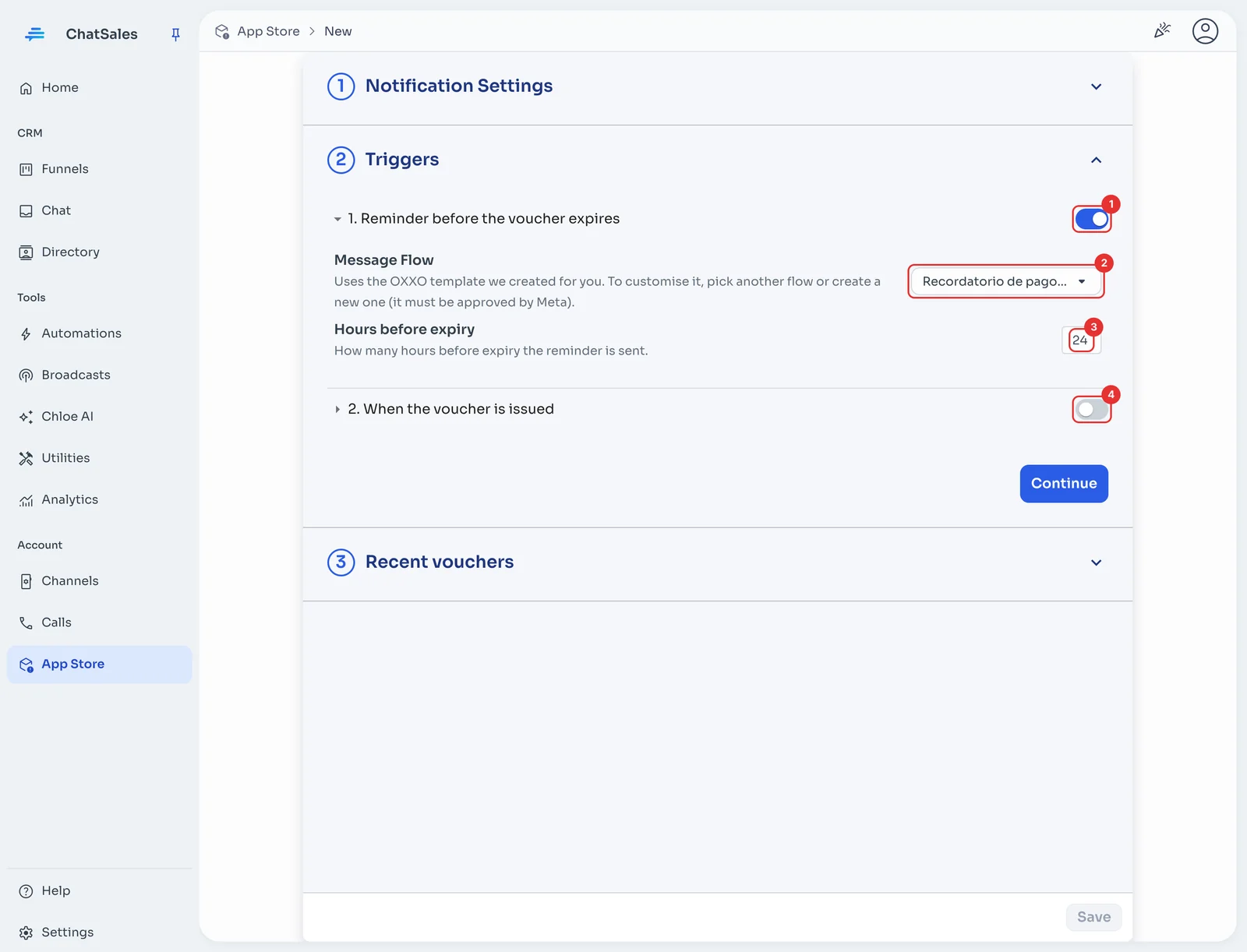
Under Triggers, open 1. Reminder before the voucher expires and switch it on (1).
Message Flow (2) already has the OXXO template. For a different message, pick another flow or create a new one from the list; Meta must approve it too.
In Hours before expiry (3), choose when the reminder is sent (24 hours before by default).
Optional: switch on 2. When the voucher is issued (4) to send the reference as soon as the customer gets their voucher. Click Save: ChatSales saves everything and creates the template.
Check your vouchers
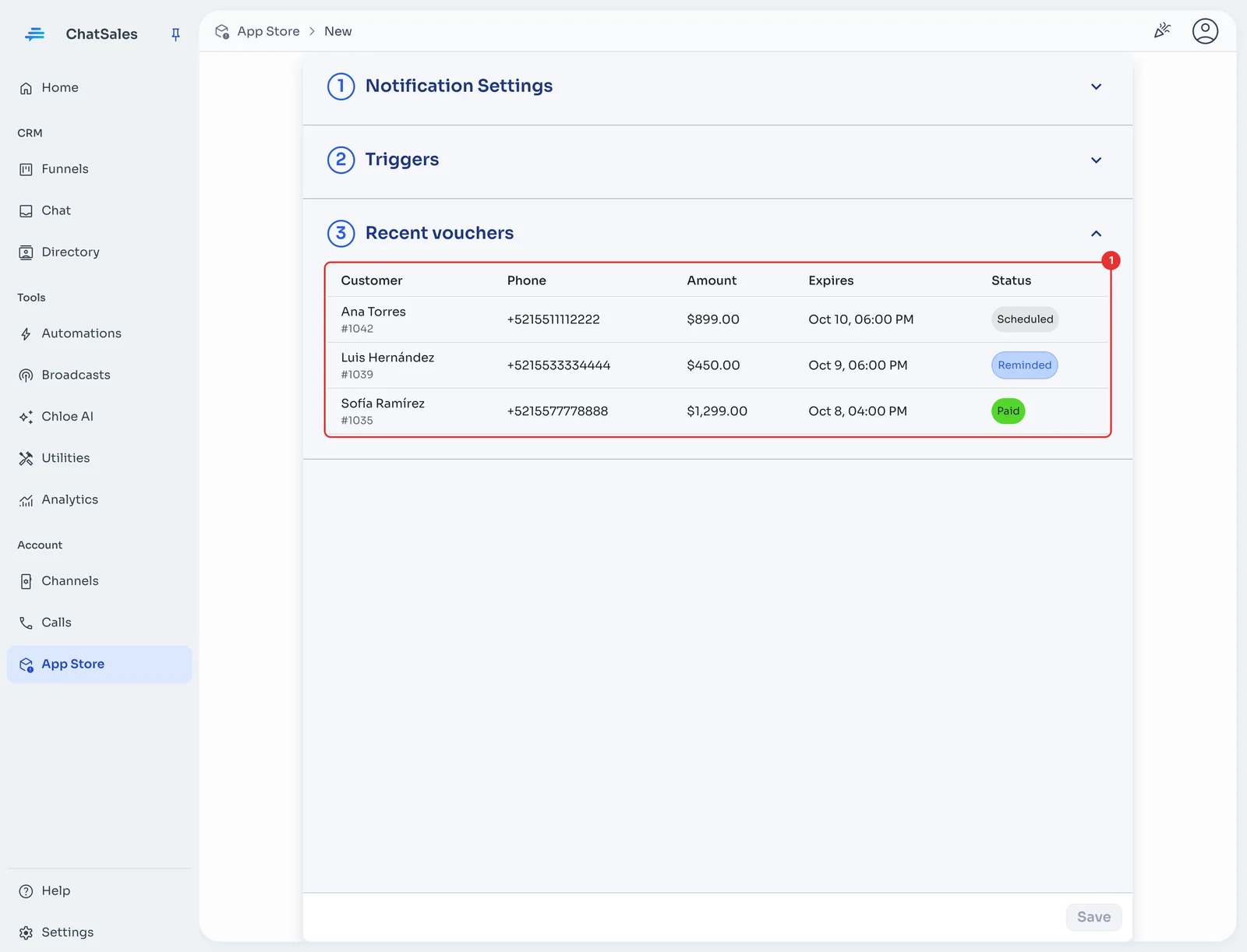
Under Recent vouchers (1) you see every OXXO voucher and what happened to it: Scheduled, Reminded, Paid, Expired or Not sent with the reason (for example, if Stripe has no phone for the customer).
Stripe can take until the next business day to confirm an OXXO payment. That's why the template ChatSales creates tells the customer to ignore it if they already paid. Before each reminder, ChatSales checks with Stripe that the voucher is still unpaid.