
Message every Google Ads lead on WhatsApp
A lead who gets a WhatsApp within minutes answers more than one you call the next day. With this integration every new lead from your Google Ads lead forms gets your message on WhatsApp from your number, and the conversation continues in your ChatSales inbox.
What it does and doesn't do
| ✅ It can | 🚫 It can't |
|---|---|
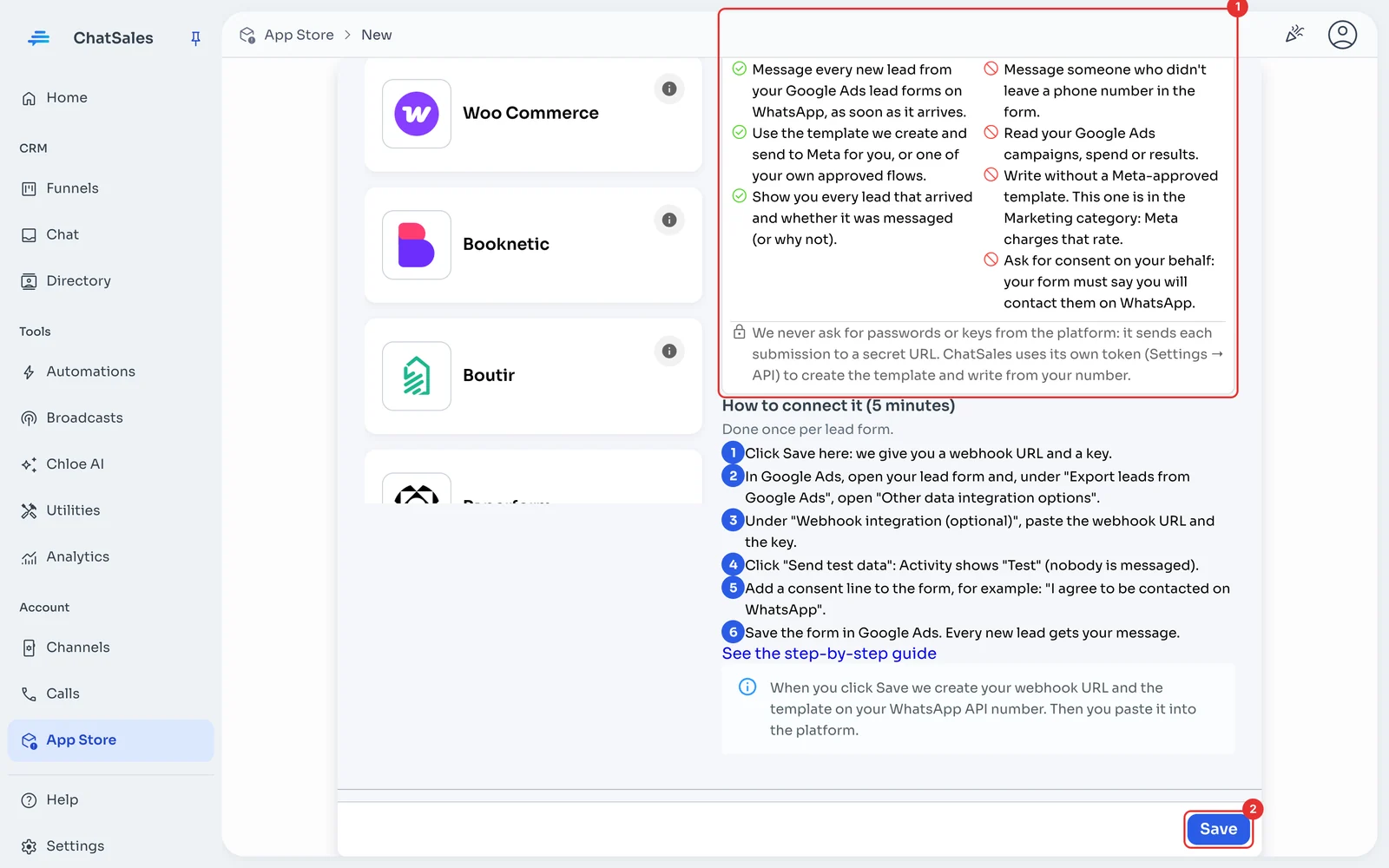
| Message every new lead from your Google Ads lead forms on WhatsApp, as soon as it arrives. | Message someone who didn't leave a phone number in the form. |
| Use the template we create and send to Meta for you, or one of your own approved flows. | Read your Google Ads campaigns, spend or results. |
| Show you every lead that arrived and whether it was messaged (or why not). | Write without a Meta-approved template. This one is in the Marketing category: Meta charges that rate. |
| Ask for consent on your behalf: your form must say you will contact them on WhatsApp. |
🔐 We never ask for passwords or keys from the platform: it sends each submission to a secret URL. ChatSales uses its own token (Settings → API) to create the template and write from your number.
Before you start
You need:
A WhatsApp API number connected in ChatSales (Connect your WhatsApp). These messages are the first contact with someone who has not written to you, so WhatsApp only allows them with a Meta-approved template.
To be an admin of your ChatSales team and have access to your Google Ads account.
Open the App Store
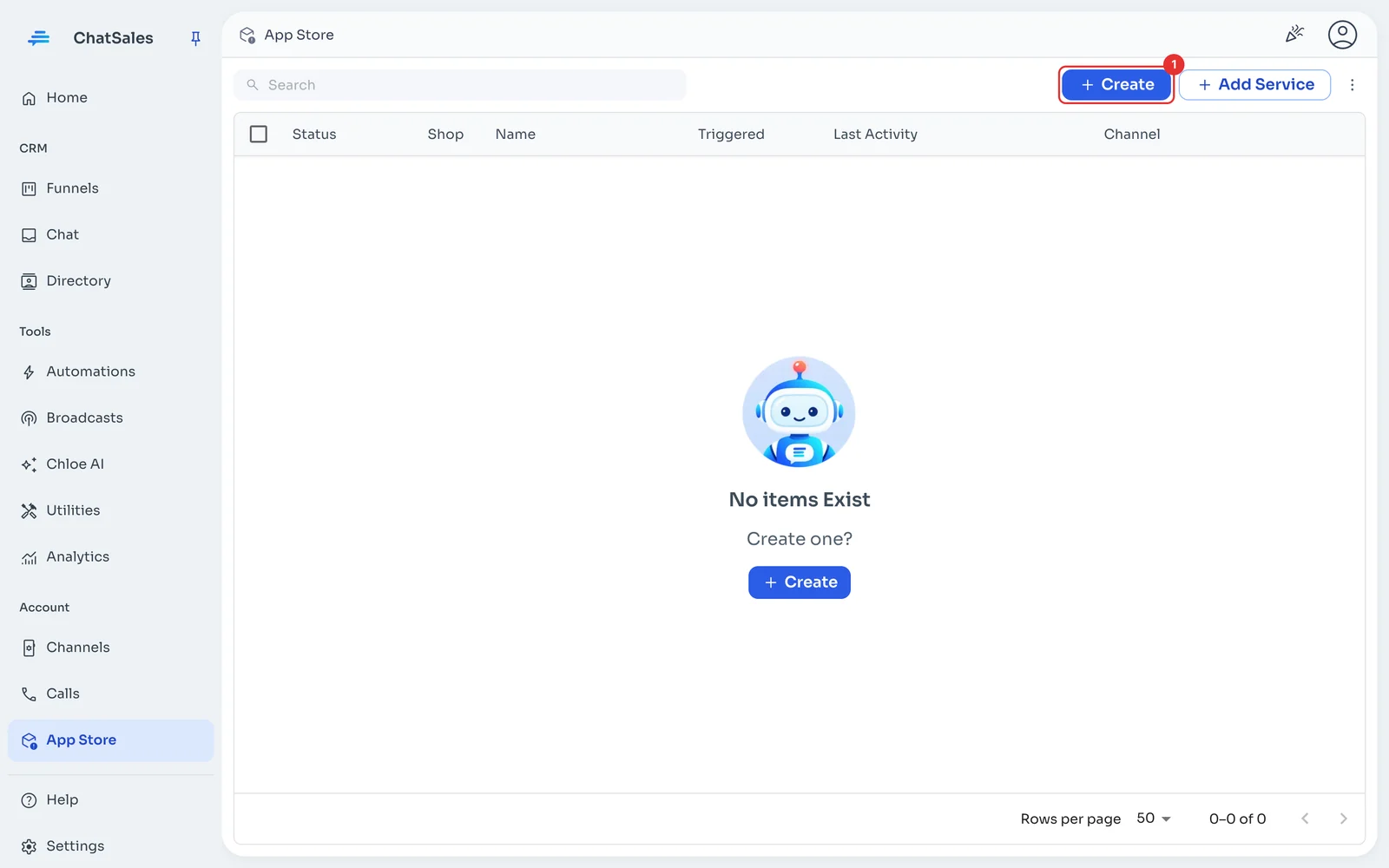
In the left menu go to App Store and click Create (1).
Choose Google Ads
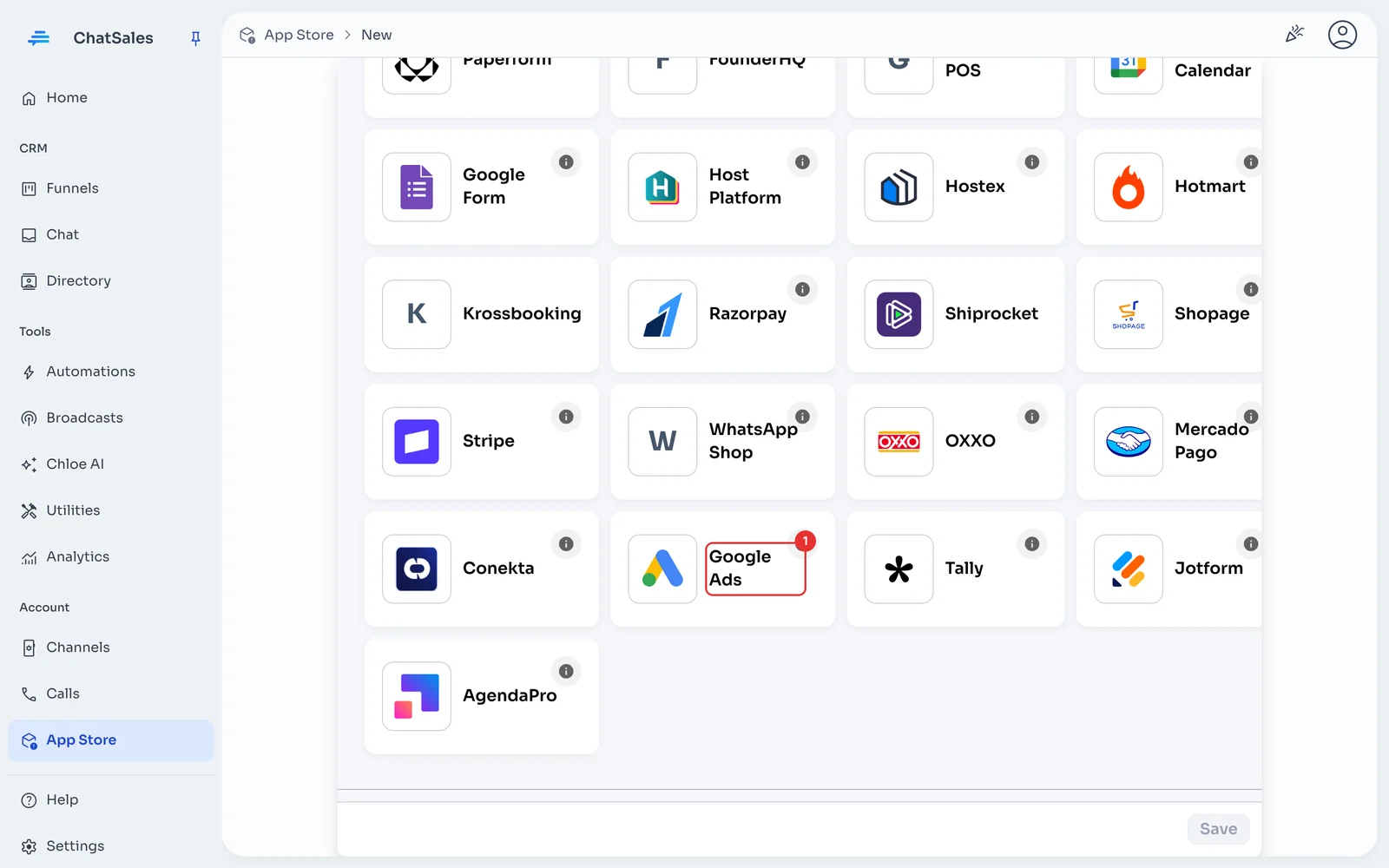
Find the Google Ads card (1) and click it. You can also find it with the Form filter.
Read what it does and save
ChatSales shows you what the integration can and can't do (1) and the steps in Google Ads. Click Save (2): we create your webhook URL and the template on your WhatsApp API number, and send it to Meta.
Copy what you will paste into Google Ads
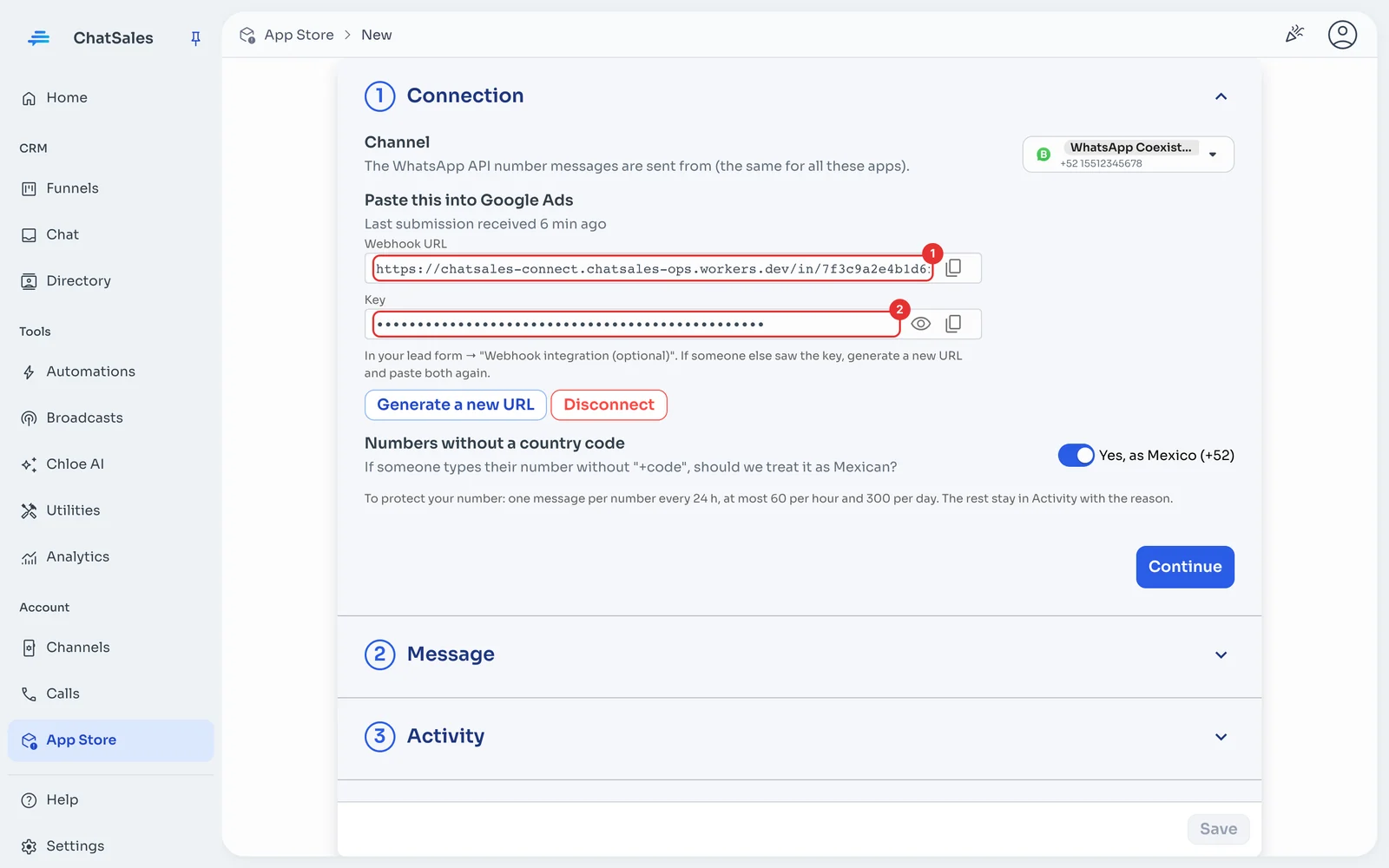
Under Connection you see the Webhook URL (1) and the Key (2). Copy them with the copy button.
In Google Ads
Now, in another tab:
- In Google Ads, open your lead form and, under "Export leads from Google Ads", open "Other data integration options".
- Under "Webhook integration (optional)", paste the webhook URL and the key.
- Click "Send test data": Activity shows "Test" (nobody is messaged).
- Add a consent line to the form, for example: "I agree to be contacted on WhatsApp".
- Save the form in Google Ads. Every new lead gets your message.
Check that it arrives
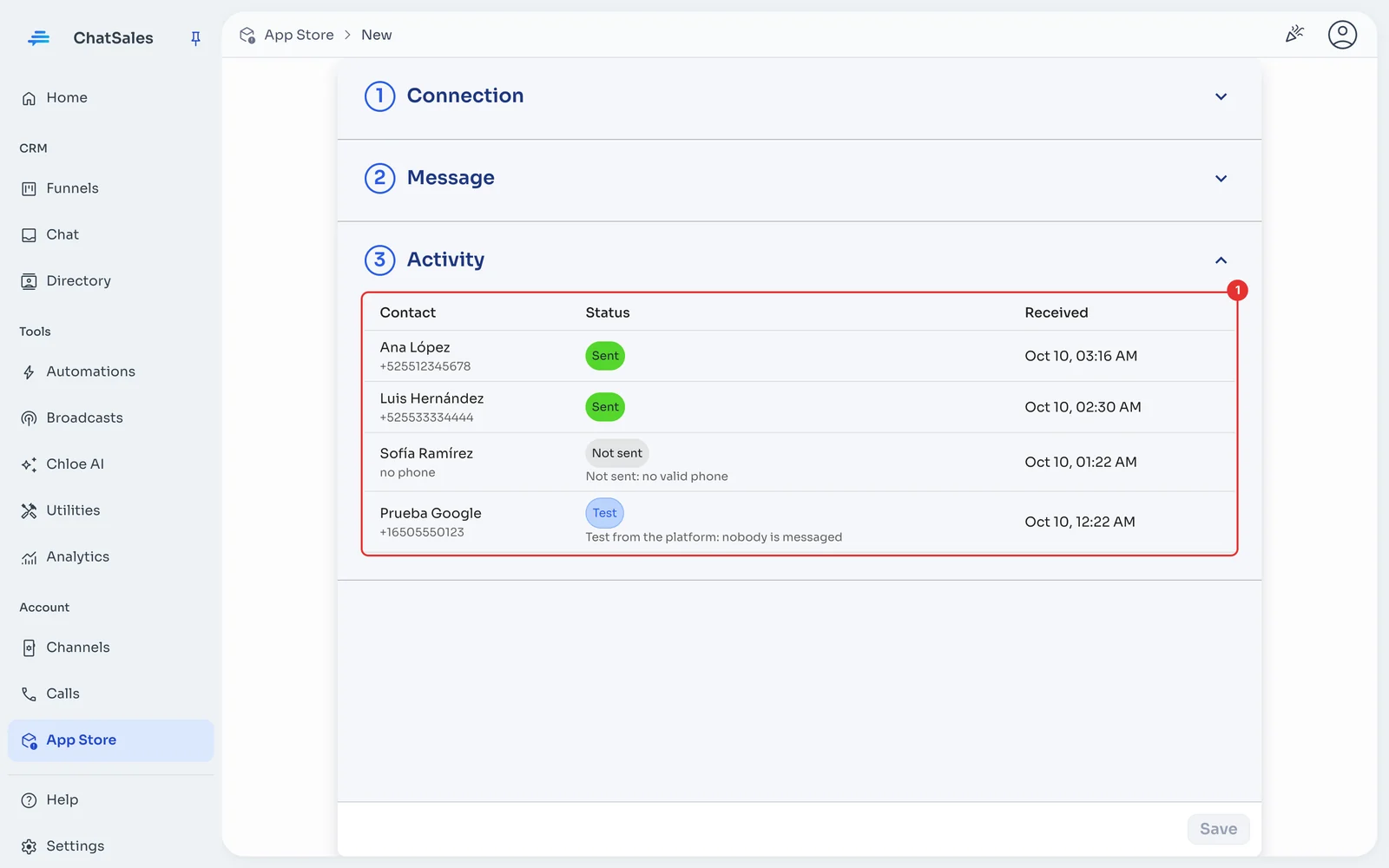
When you click Send test data in Google Ads, ChatSales shows a Test row in Activity (1): the connection works and nobody was messaged. Real leads show as Sent, or Waiting/Not sent with the reason.
The message (optional)
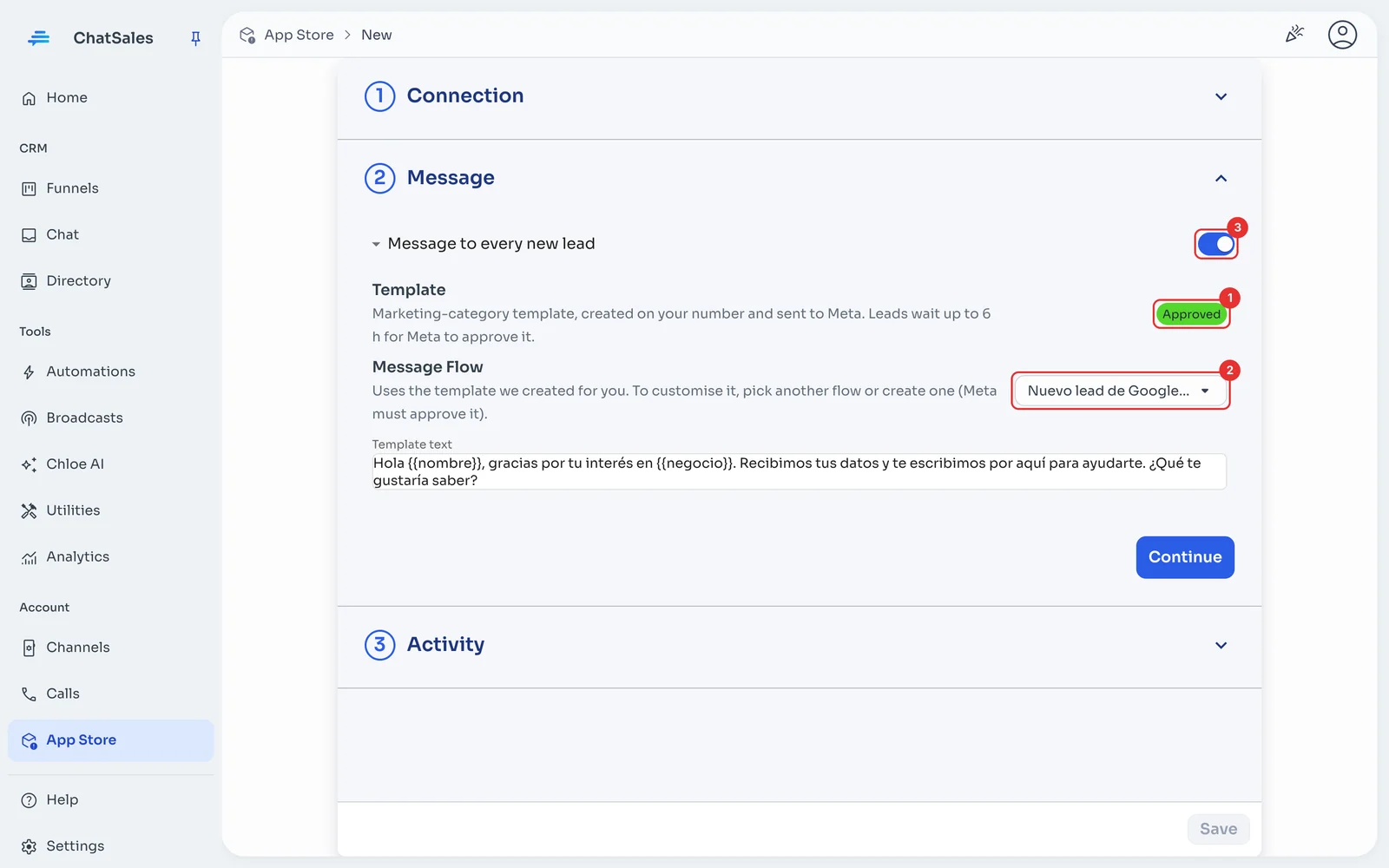
Under Message you see the template's status at Meta (1) and the text that is sent. To customise it, pick another flow or create one (2): Meta must approve it. The switch (3) turns it off. Click Save.
Rules that protect your number
So a public form can't be used to make your number write to strangers: one message per number every 24 h, and at most 60 per hour and 300 per day per app. Anything over the limit stays in Activity with the reason.
Numbers without a country code are treated as Mexican (+52) by default. If you get contacts from other countries, turn it off under Connection and we only message numbers with "+code".
Add a consent line to your form (for example "I agree to be contacted on WhatsApp"): WhatsApp requires people to agree to receive messages from your business.
Find it later
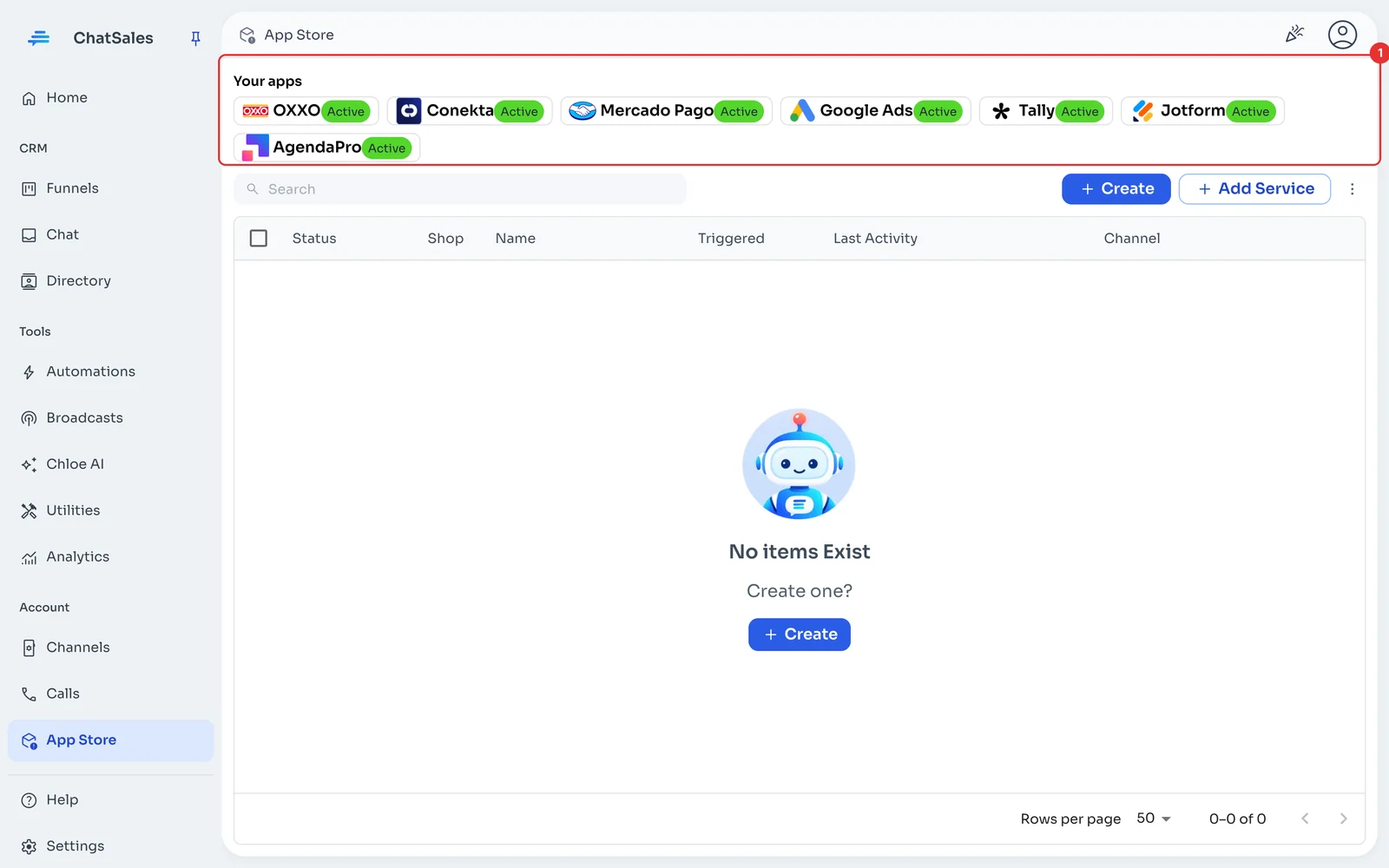
Your connected apps show at the top of the App Store, under Your apps (1), with what is left to do. Click Google Ads to open it.
Common problems
Activity says "Waiting: Meta is still reviewing the template". Normal in the first days: as soon as Meta approves it, it is sent. If too much time passes (6 h) it is marked "Not sent" so nobody is written to late.
"Not sent: no valid phone". The form had no phone, or had one without a country code and you turned off "Numbers without a country code".
"Waiting: ChatSales lost access". Someone deleted ChatSales' token in Settings → API. Open the app and click Save to reconnect.
I want to stop using it. Under Connection click Disconnect: the URL stops working and this app's activity is deleted.