Collect details with a form
A form groups several questions, for example size, city and payment method, and saves each answer to a field on the contact. You create it under Utilities and send it from a message in a flow.
Create a form
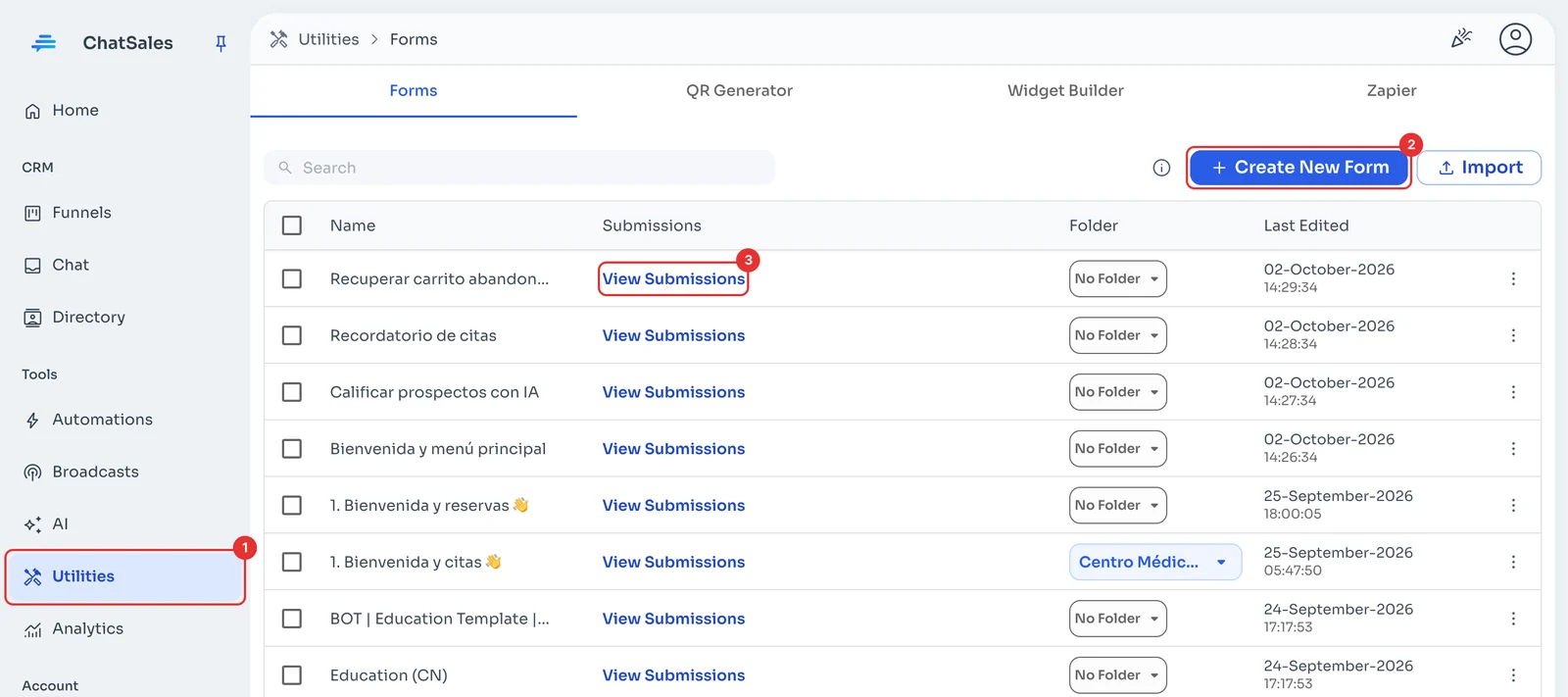
In the menu, go to Utilities (1). Under Forms, click Create New Form (2). To see what your customers have already answered, click View Submissions (3).
Write the questions
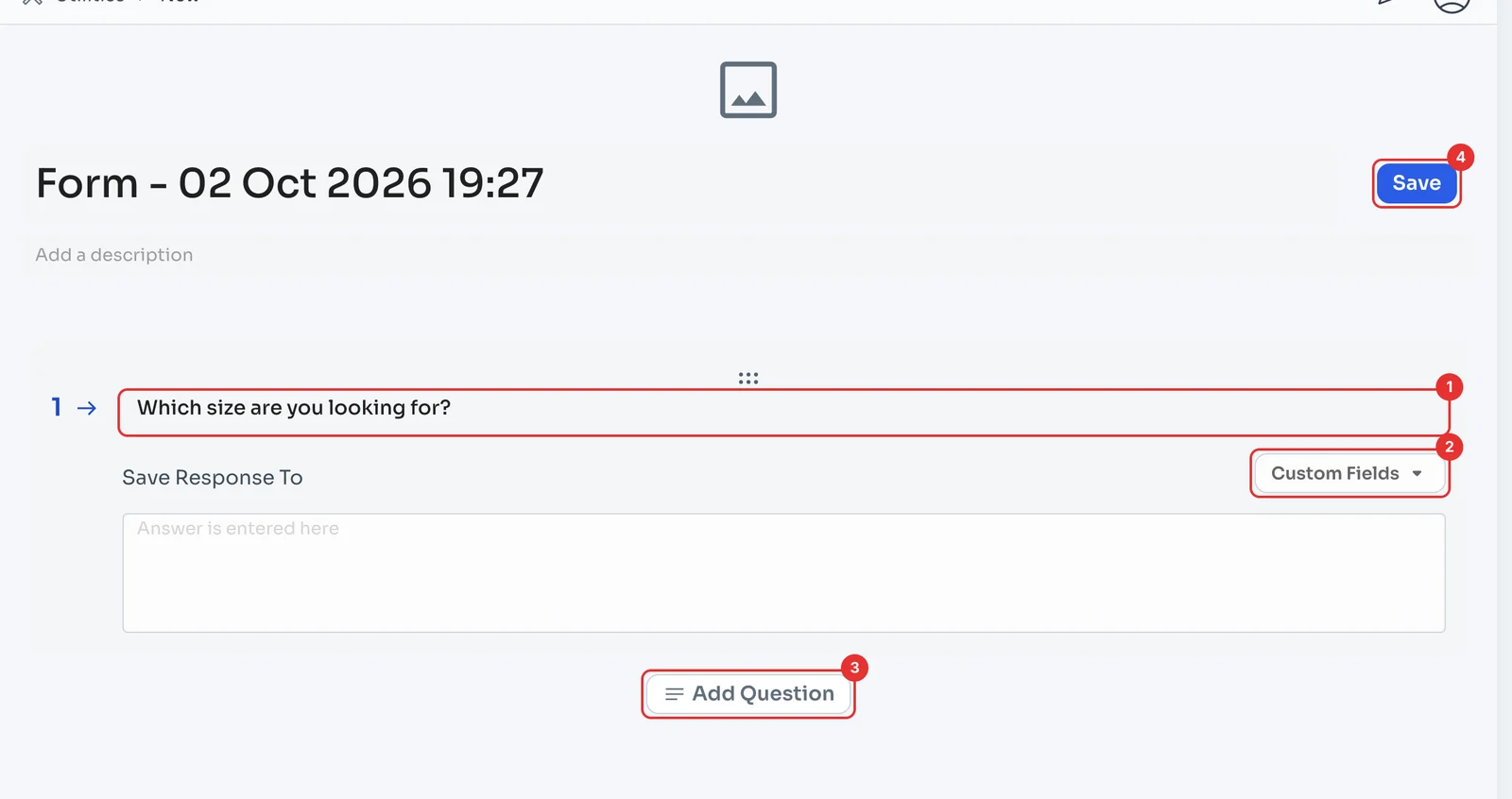
Type the first question (1). Under Save Response To, open Custom Fields (2) and pick the contact field the answer is saved to. If the list is empty, create the field first under Directory → Manage Custom Fields.
Add Question (3) adds more. Name the form at the top and click Save (4).
Send it from a flow
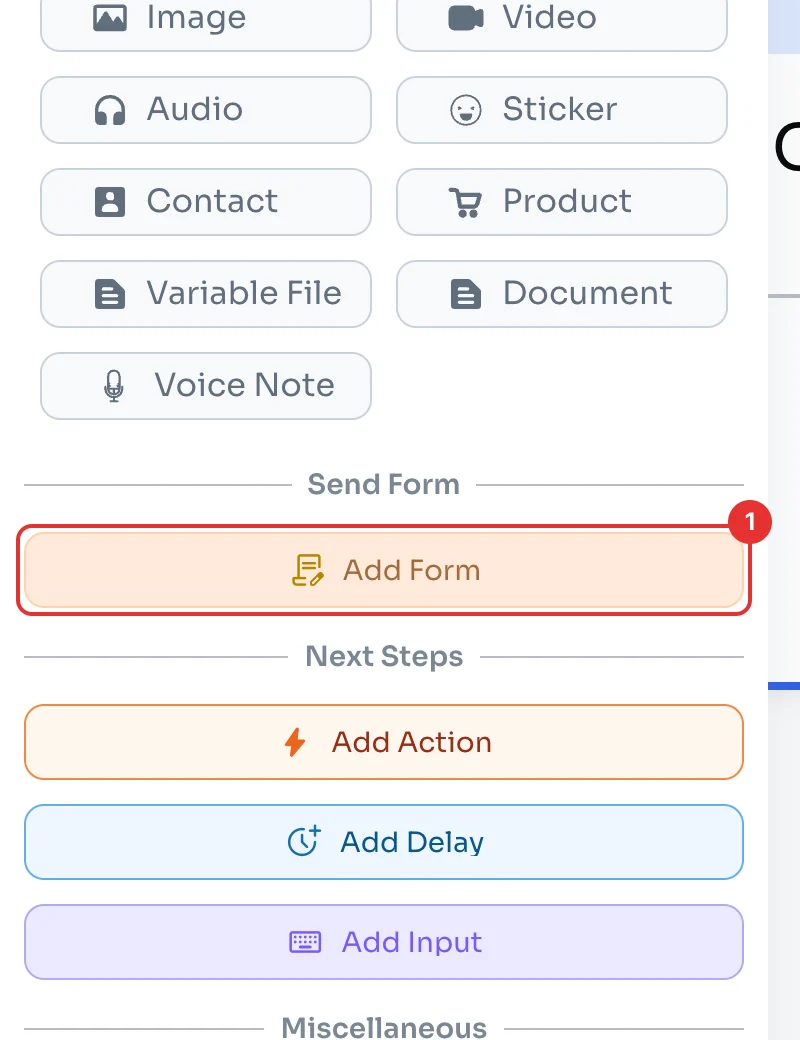
In a message in your flow (see Create your first message flow), scroll to Send Form and click Add Form (1). Pick your form and save the flow.