Split a flow with conditions
A condition checks something, for example whether the customer's message contains a certain word, and sends the flow down one path if it's true and another if not. One flow can then answer each customer differently.
Add a condition
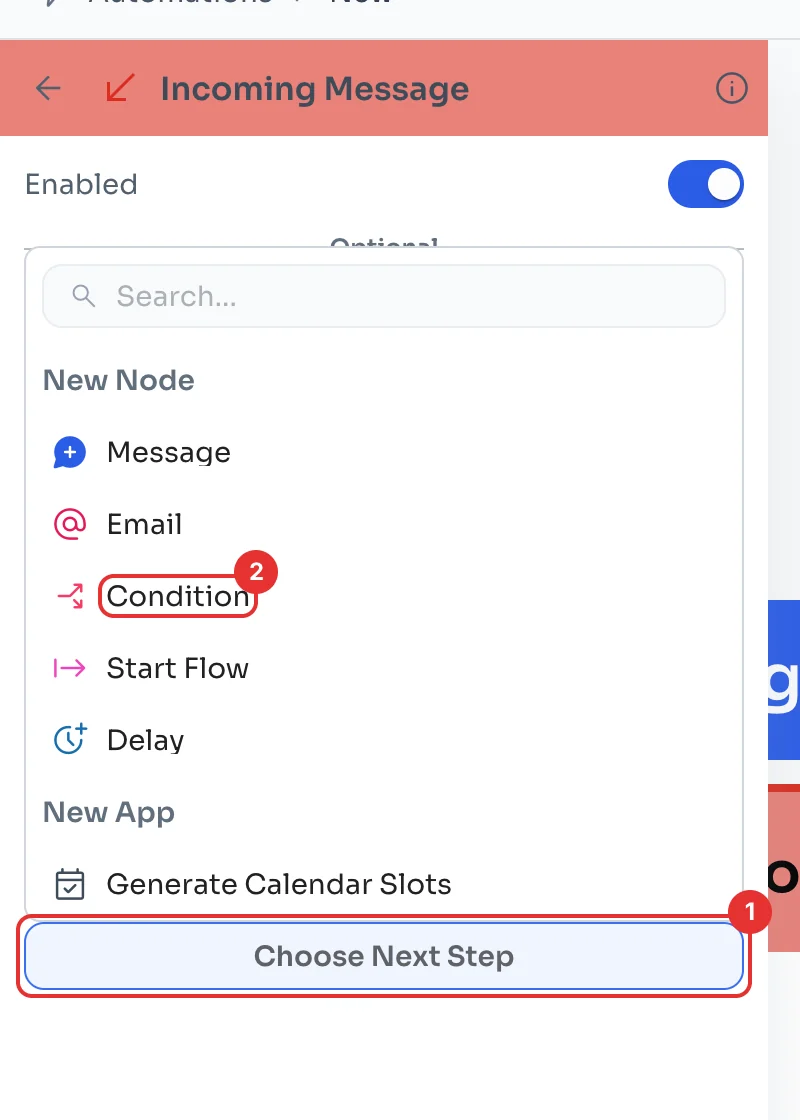
In a flow that starts with a trigger (see Create your first message flow), click the trigger card. In its panel, click Choose Next Step (1) and pick Condition (2).
Choose how it compares
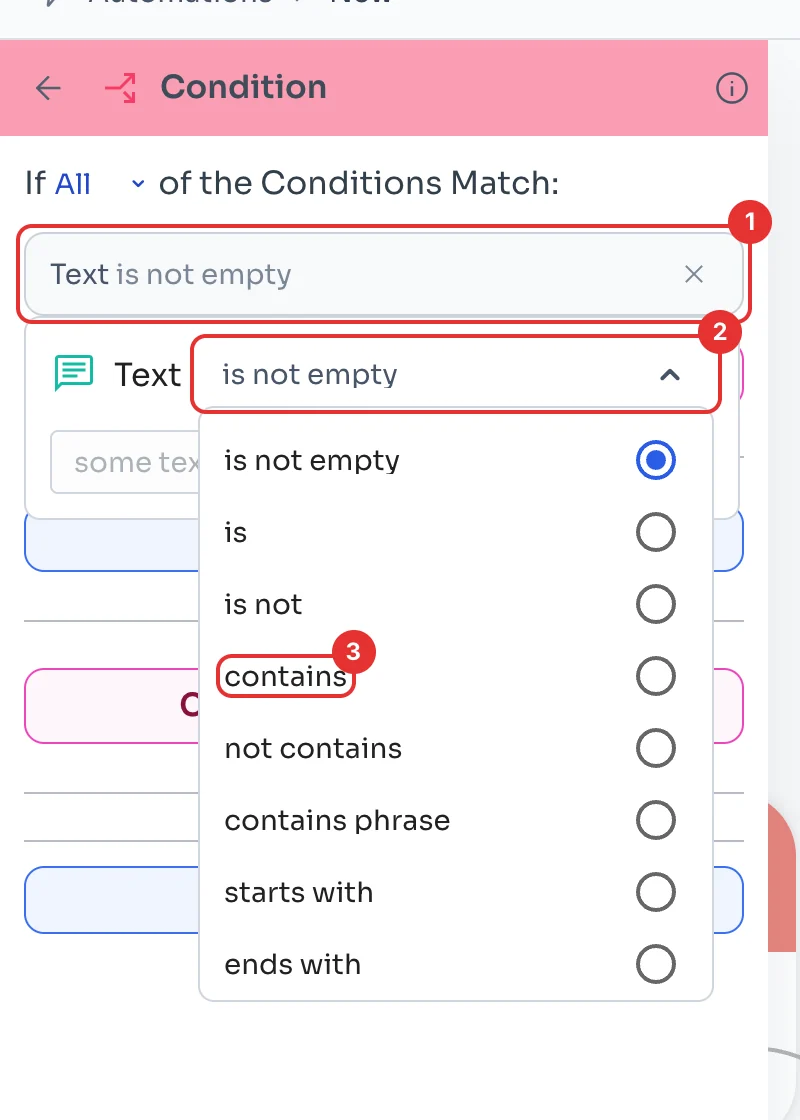
The condition comes with a sample rule. Click it (1) to edit it, open the comparison (2) and pick, for example, contains (3). You can also pick is, starts with, ends with and others.
Type the value
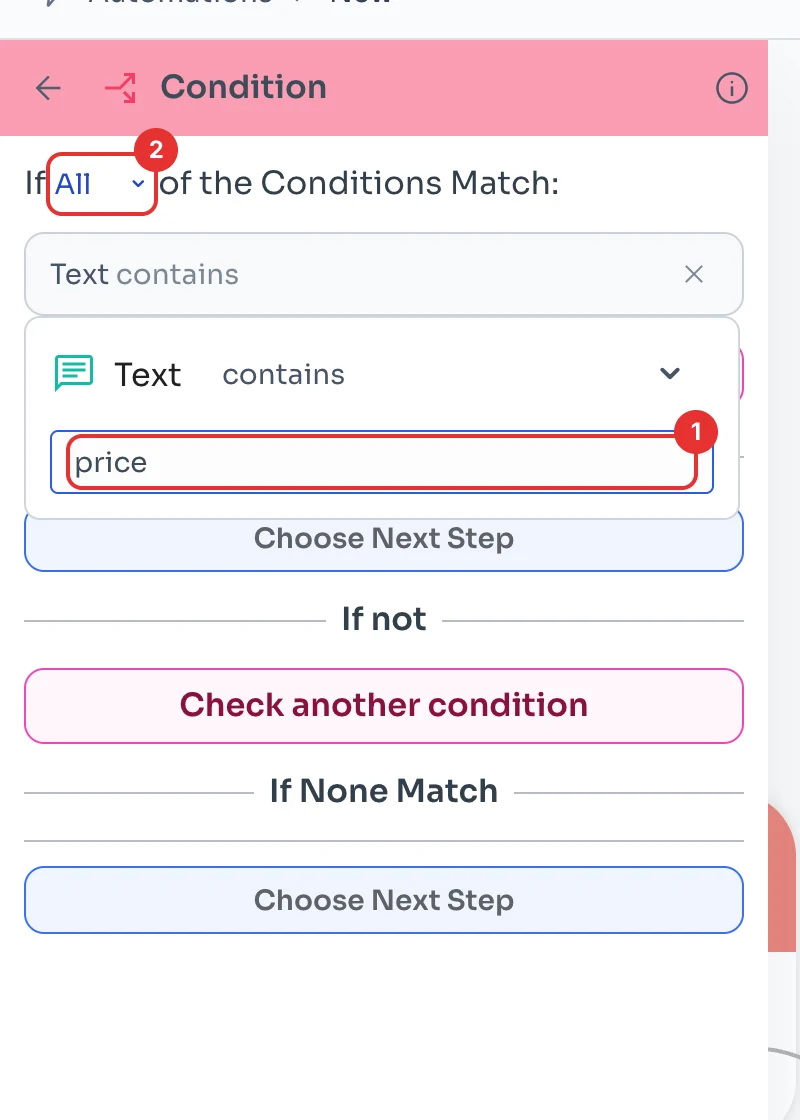
Type the word you are looking for (1), for example price. At the top (2) you choose whether All rules must match or Any of them.
Add more rules
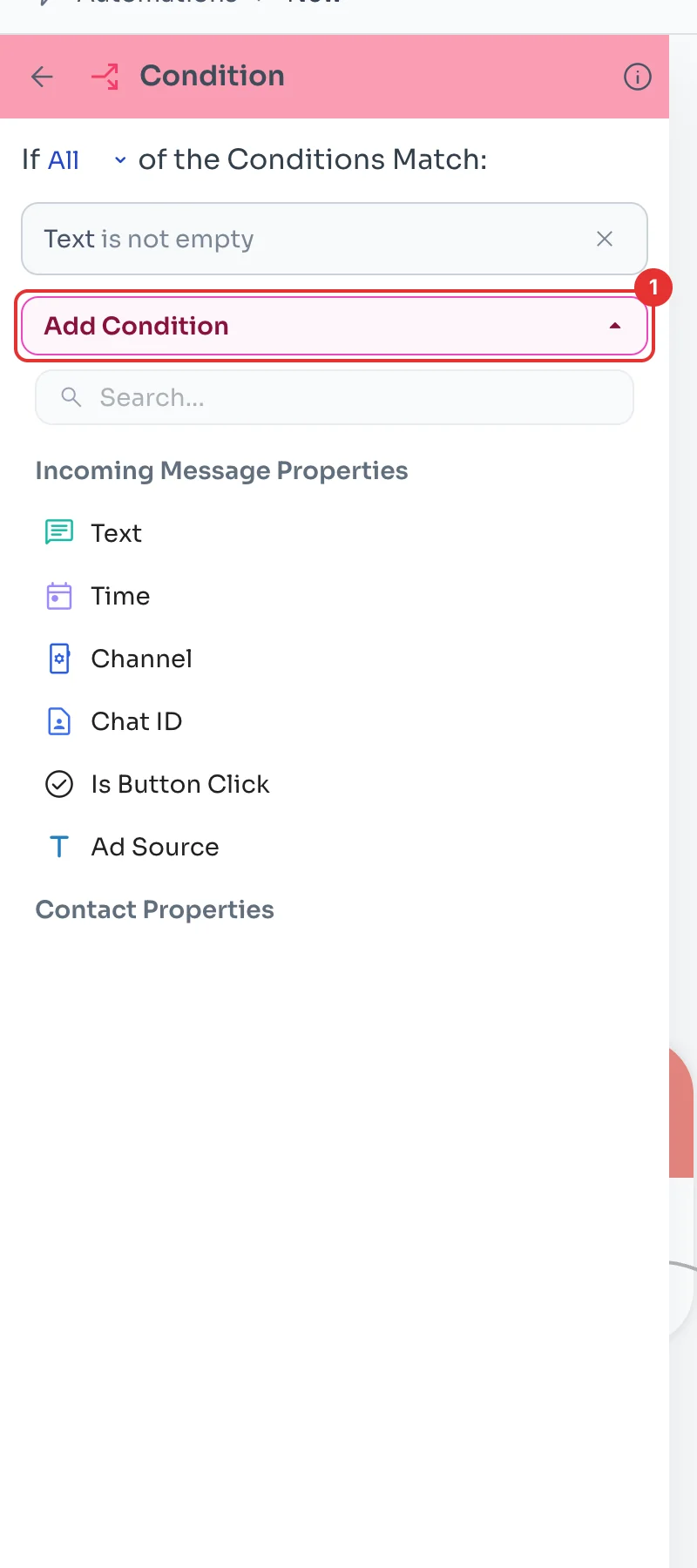
Add Condition (1) adds another rule. You can check details of the incoming message, like its text, time, channel or whether the customer tapped a button, and under Contact Properties, the contact's own details.
Choose what happens in each case
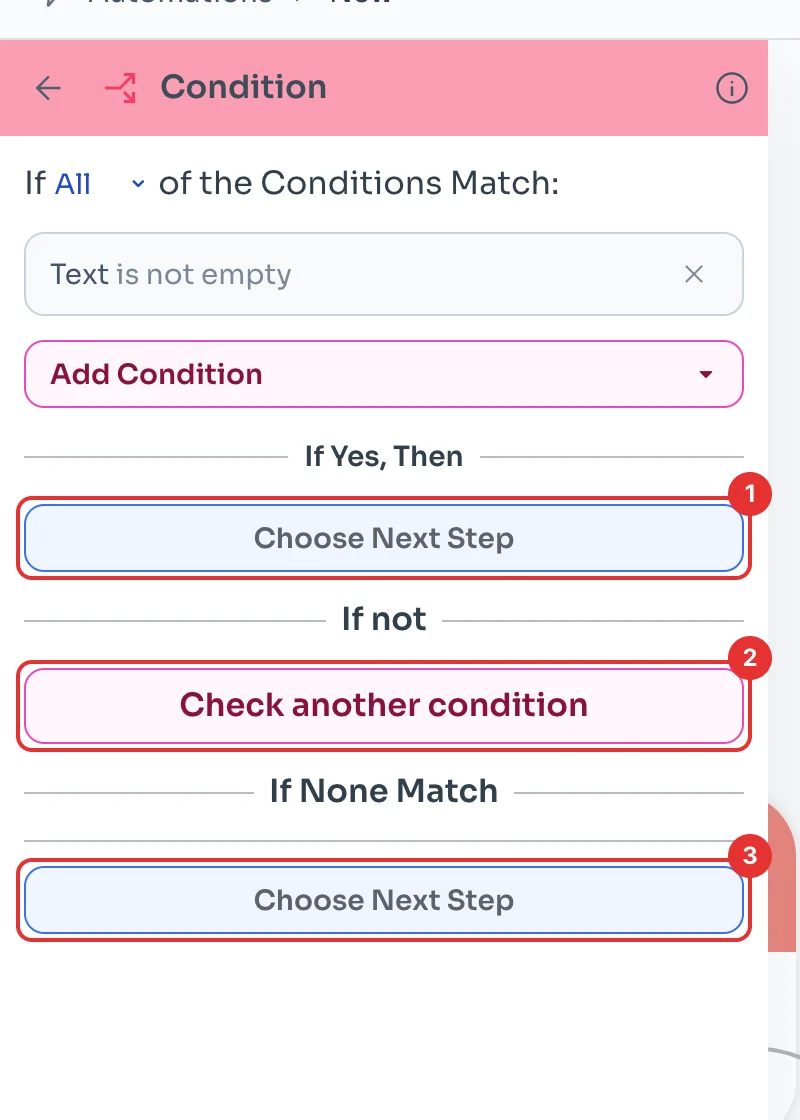
Under If Yes, Then, click Choose Next Step (1) for the path when the rule is true. Check another condition (2) adds another check if the first one is not true.
Under If None Match, pick the step for everyone else (3). Click Save when you are done.