
Charge with Mercado Pago from the chat
From any chat you create a Mercado Pago payment link and we send it to your customer in that same chat. When they pay, we tell them "pago recibido"; if they chose OXXO or a bank transfer, we remind them before it expires. You set it up once in the App Store.
What it does and doesn't do
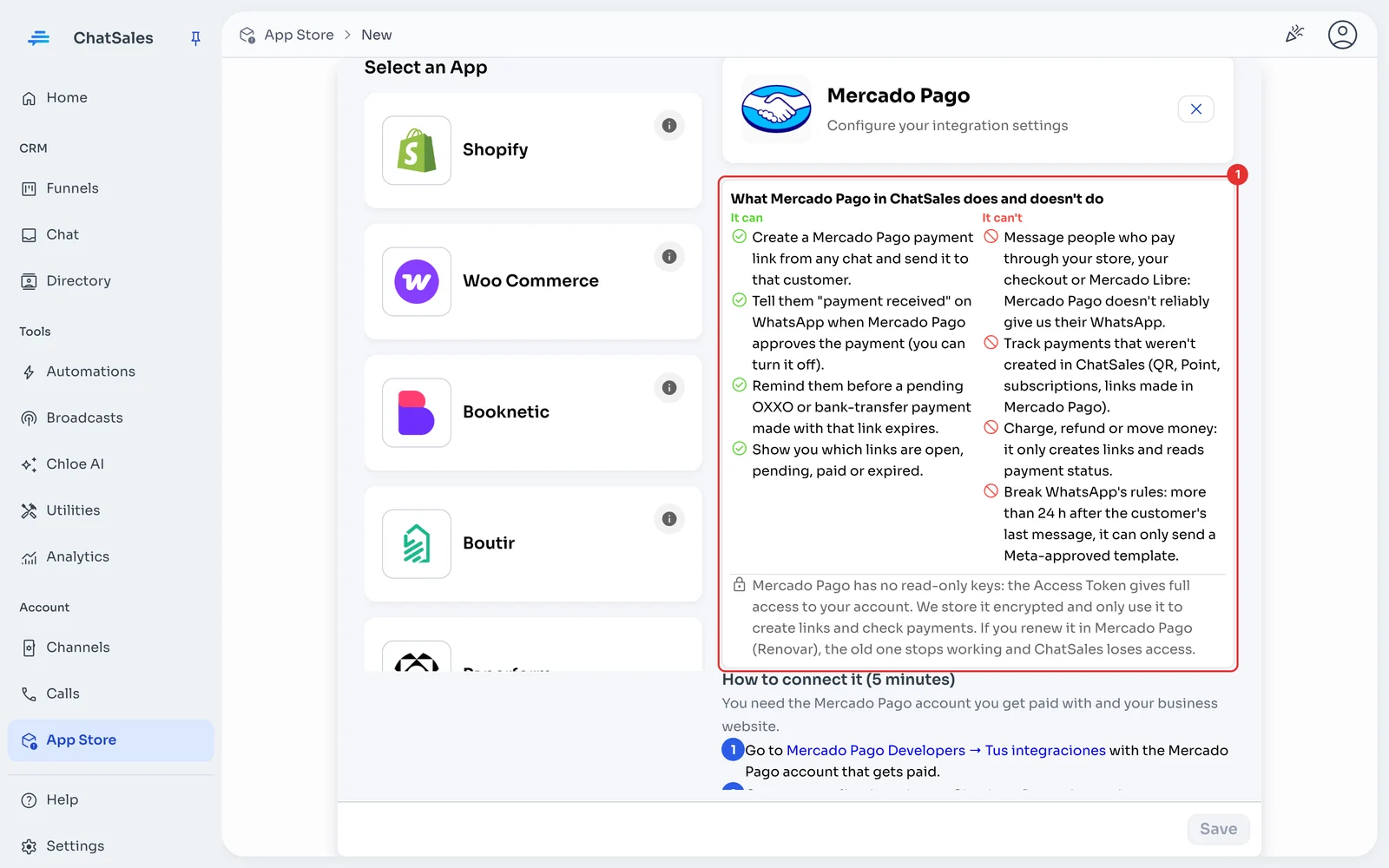
| ✅ It can | 🚫 It can't |
|---|---|
| Create a Mercado Pago payment link from any chat and send it to that customer. | Message people who pay through your store, your checkout or Mercado Libre: Mercado Pago doesn't reliably give us their WhatsApp. |
| Tell them "payment received" on WhatsApp when Mercado Pago approves the payment (you can turn it off). | Track payments that weren't created in ChatSales (QR, Point, subscriptions, links made in Mercado Pago). |
| Remind them before a pending OXXO or bank-transfer payment made with that link expires. | Charge, refund or move money: it only creates links and reads payment status. |
| Show you which links are open, pending, paid or expired. | Break WhatsApp's rules: more than 24 h after the customer's last message, it can only send a Meta-approved template. |
🔐 Mercado Pago has no read-only keys: the Access Token gives full access to your account. We store it encrypted and only use it to create links and check payments. If you renew it in Mercado Pago (Renovar), the old one stops working and ChatSales loses access.
Before you start
You need:
Your Mexico Mercado Pago account that you get paid with, and your business website (Mercado Pago asks for it to activate credentials).
To be an admin of your ChatSales team.
Recommended: a WhatsApp API number in ChatSales (Connect your WhatsApp). With it, messages go out as approved templates and arrive even after 24 h. Without it, they only go out within 24 h of the customer's last message.
Open the App Store
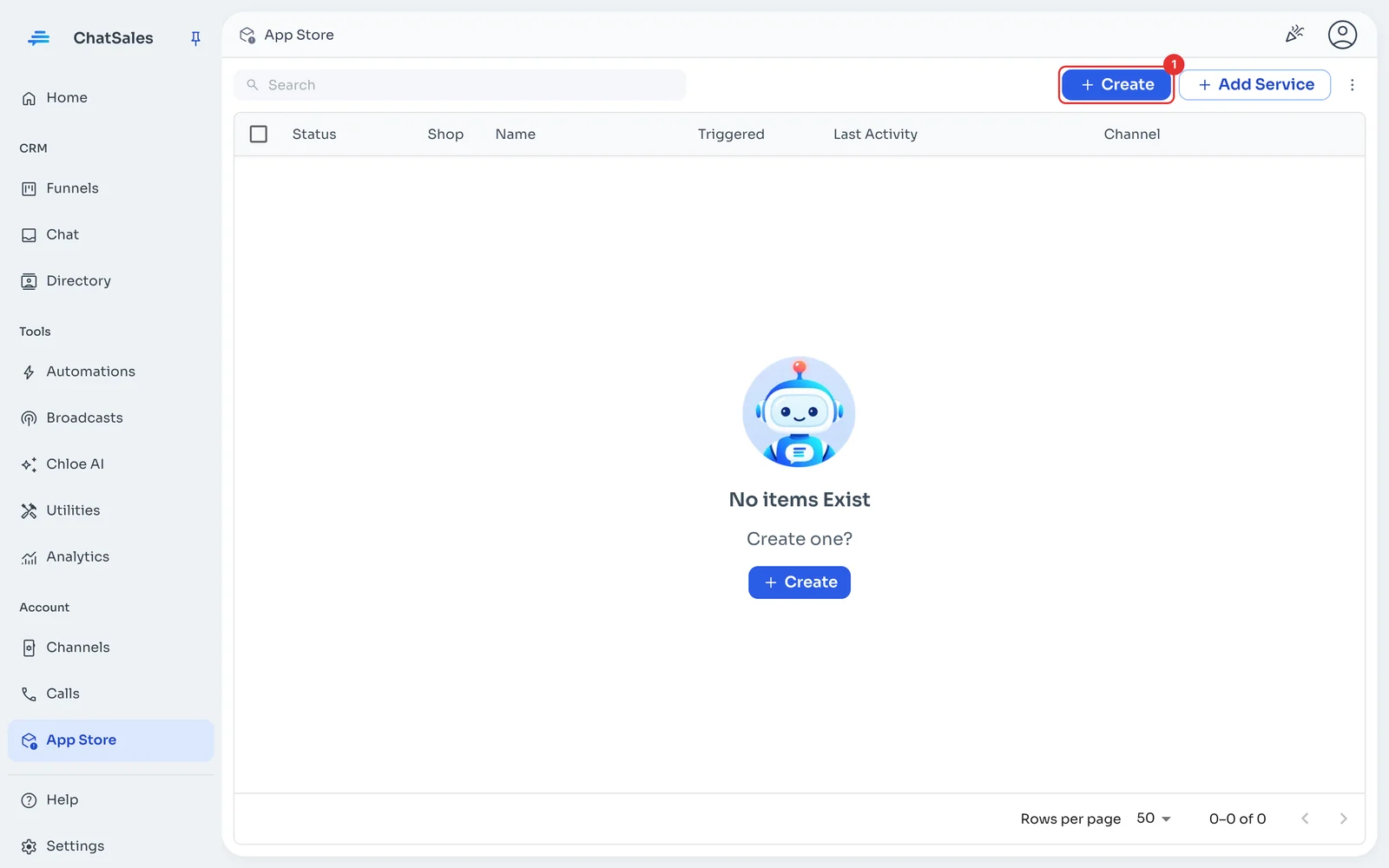
In the left menu go to App Store and click Create (1).
Choose Mercado Pago
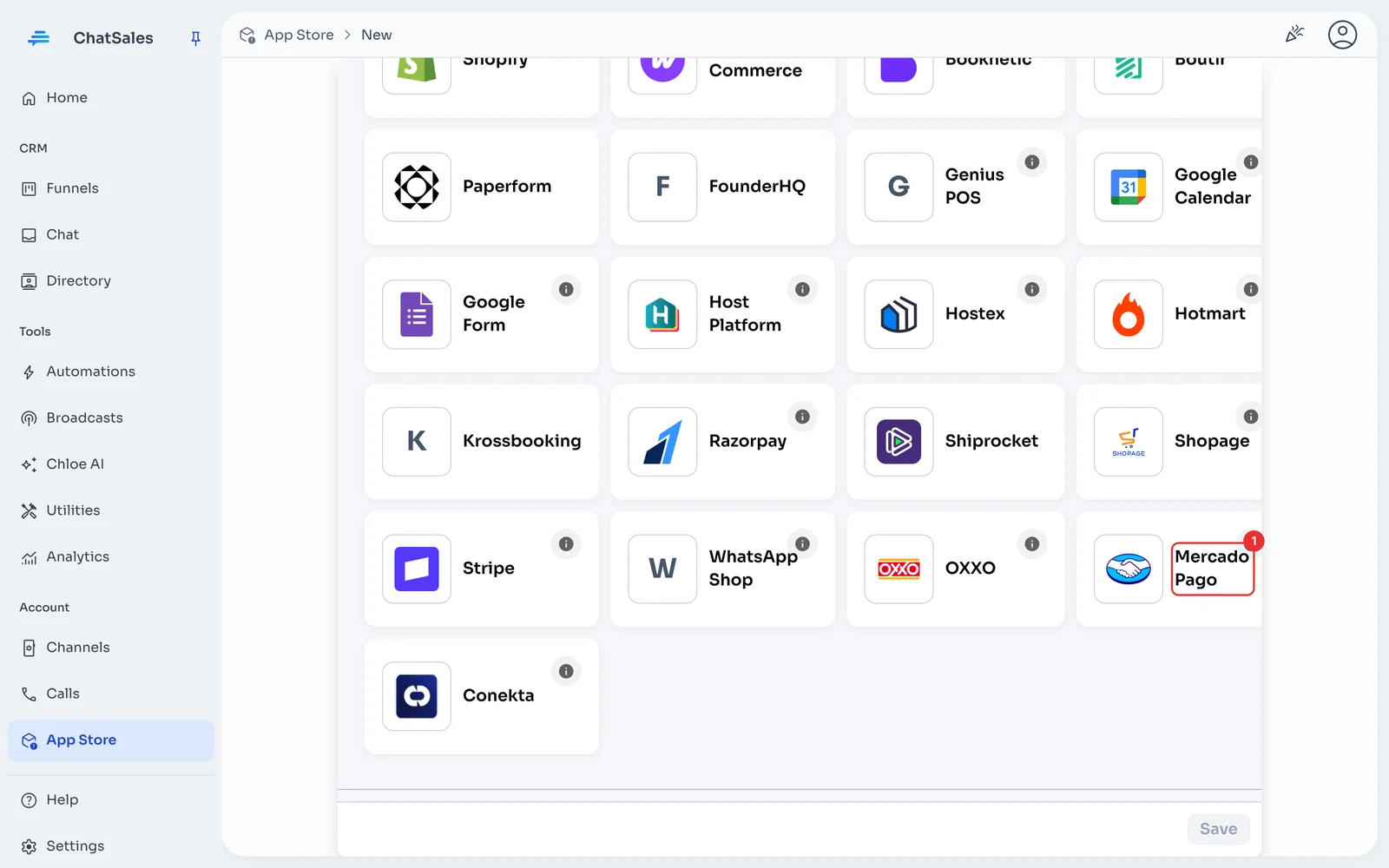
Find the Mercado Pago card (1) and click it. You can also find it with the Payment filter.
Read what it does and doesn't do
Before asking for anything, ChatSales shows what the integration can and can't do (1). Read it: the key point is that it only tracks charges you create from a ChatSales chat.
Mercado Pago 1 · Open Tus integraciones
In another tab open Mercado Pago Developers → Tus integraciones and sign in with the Mercado Pago account you get paid with.
Mercado Pago 2 · Create an application
Create a new application. When it asks what you'll integrate, choose Checkout Pro. Name it something you'll recognise, e.g. ChatSales, accept the terms and create it.
Mercado Pago 3 · Activate production credentials
Open the application → Datos de integración. Under Credenciales, choose Productivas and click Activar credenciales.
It asks for Industria (industry) and Sitio web (obligatorio) (website, required), the terms and a reCAPTCHA. Click Activar credenciales de producción.
Mercado Pago 4 · Copy the Access Token
You'll see two values. Copy the Access Token, not the Public Key:
| What it looks like | Paste in ChatSales? | |
|---|---|---|
| Access Token | Long, starts with APP_USR- | ✅ Yes |
| Public Key | Shorter, also starts with APP_USR- | 🚫 No (ChatSales warns you if you paste it) |
Paste the Access Token and save
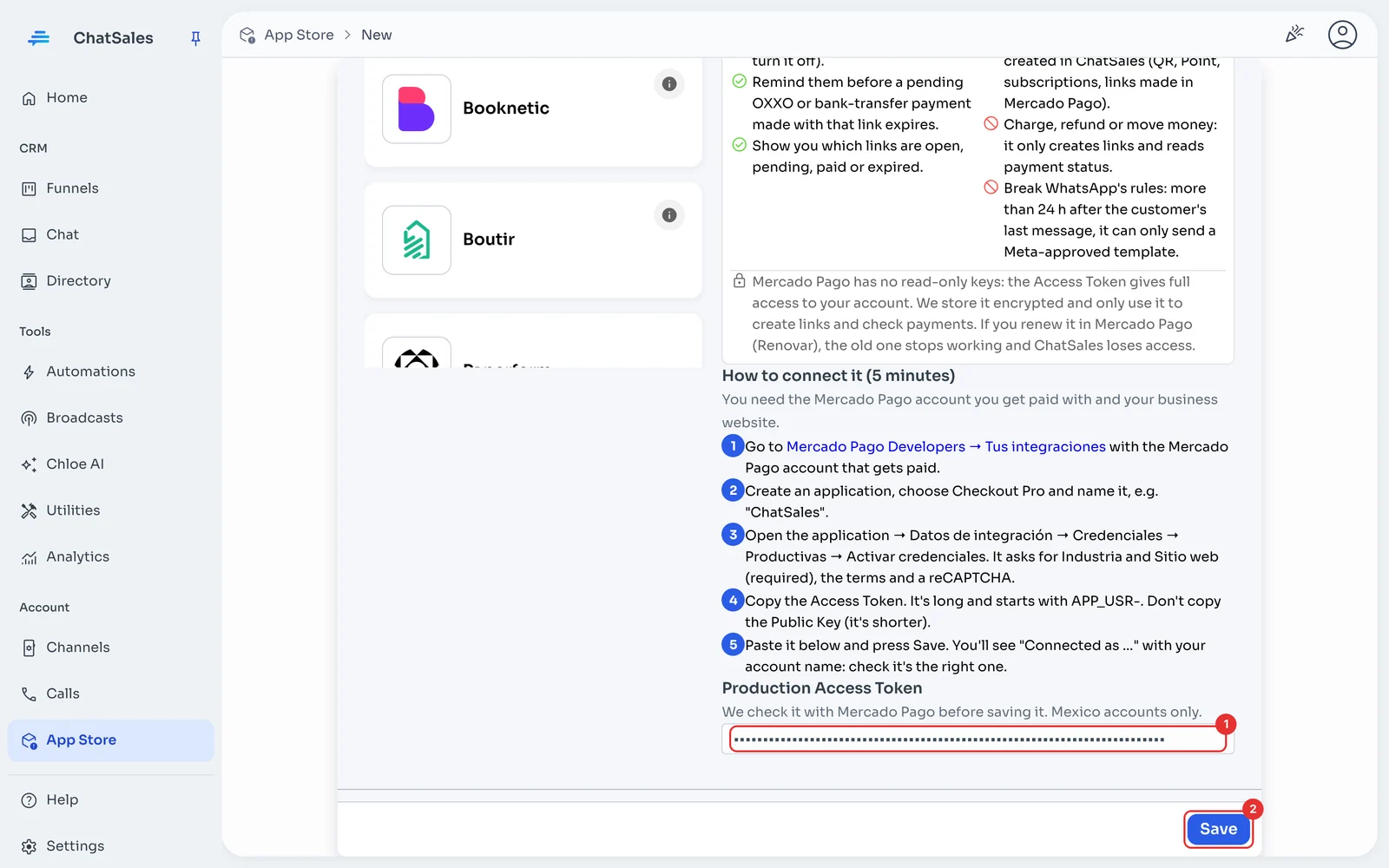
Back in ChatSales, paste it into Production Access Token (1) and click Save (2).
ChatSales checks it with Mercado Pago before saving. Only Mexico accounts are accepted.
Check it's your account
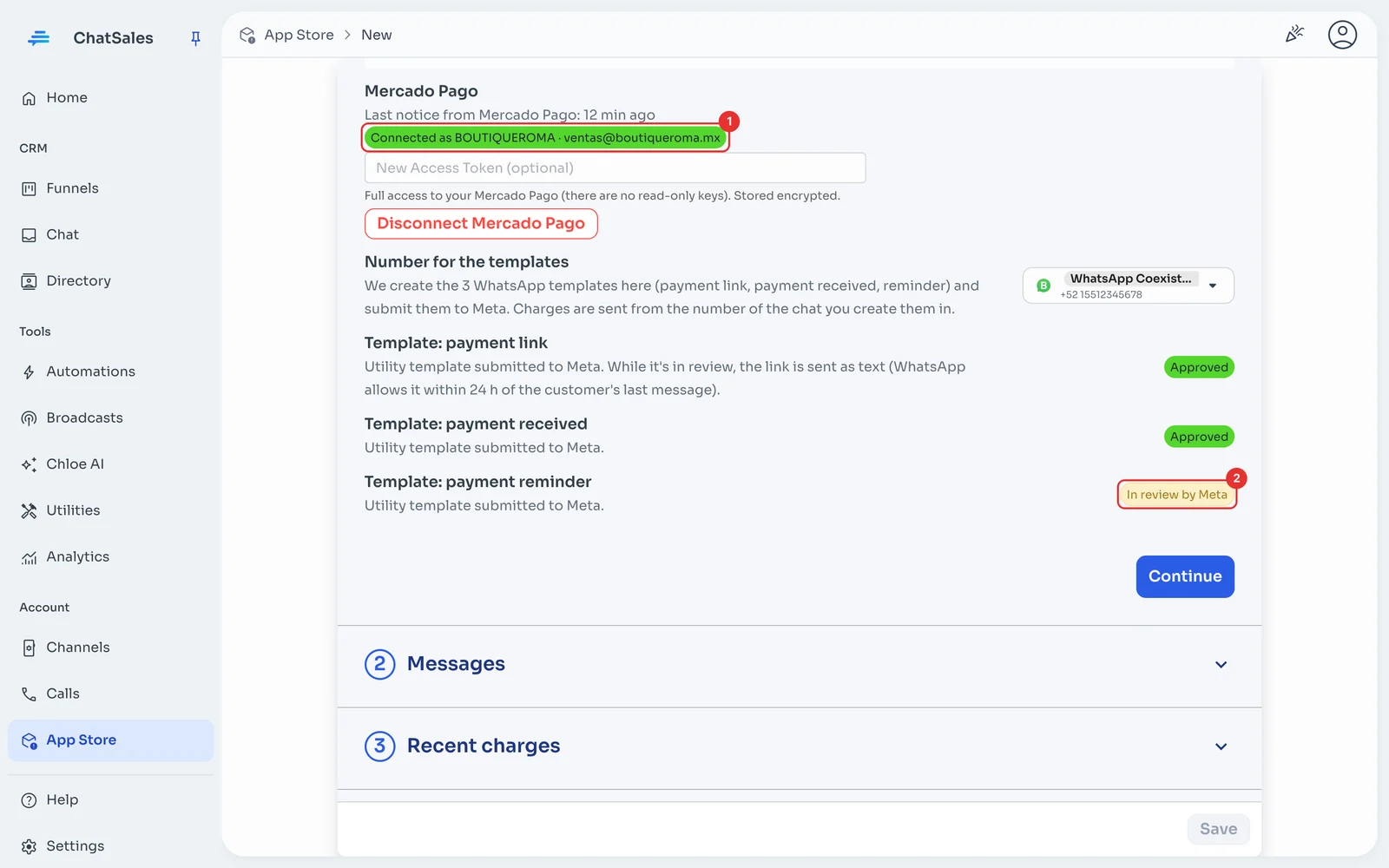
You'll see Connected as … (1) with your Mercado Pago account name and email: check it's the right one.
ChatSales creates 3 WhatsApp templates on your WhatsApp API number and submits them to Meta (2): payment link, payment received and payment reminder. While Meta reviews them, the link is sent as plain text (WhatsApp allows it within 24 h of the customer's last message).
Adjust the messages (optional)
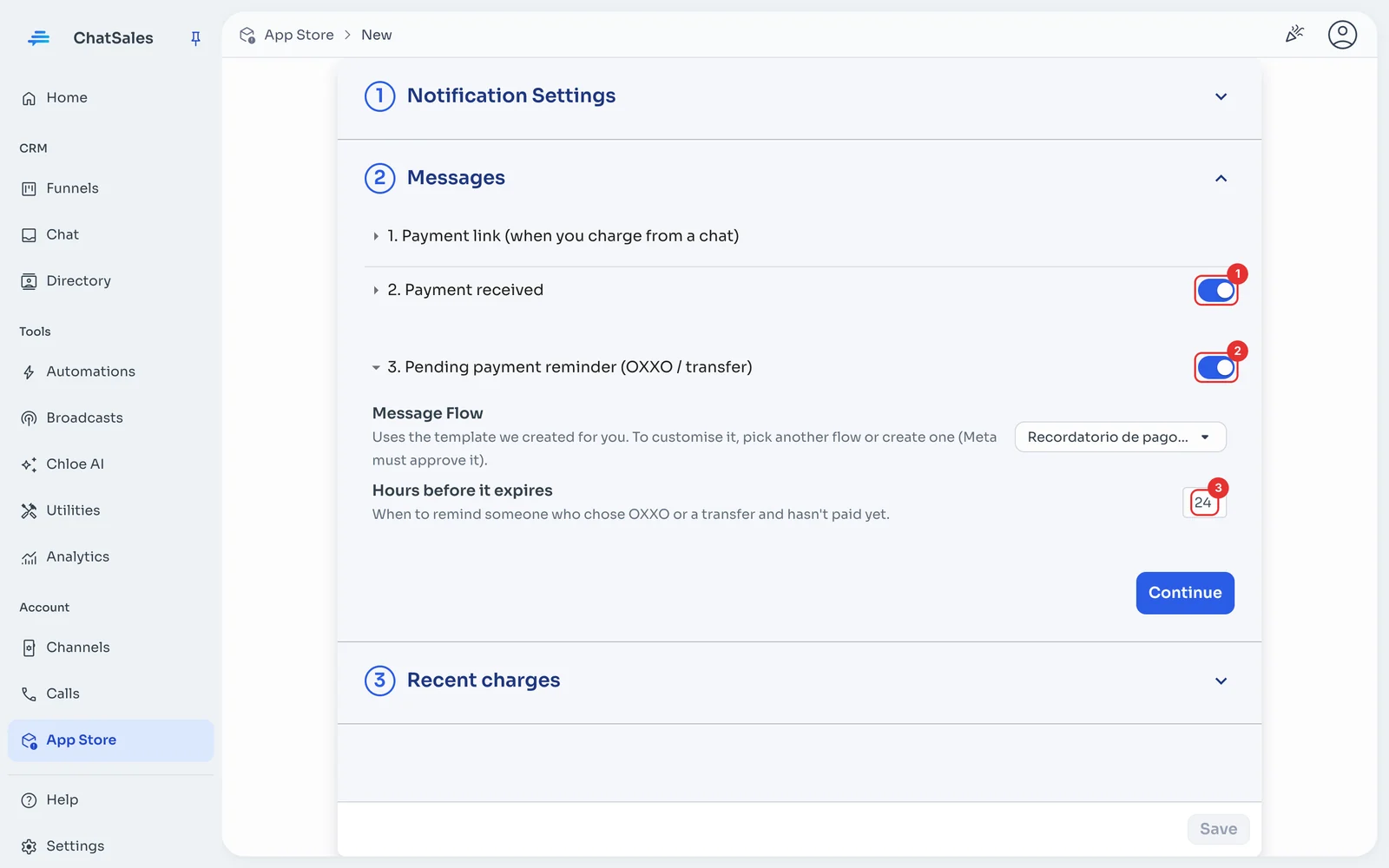
Under Messages, the switches turn the Payment received notice (1) and the Pending payment reminder (2) on or off. In Hours before it expires (3) you choose when to remind. Inside 1. Payment link is the Link validity (3 days by default). Click Save.
Charge from a chat
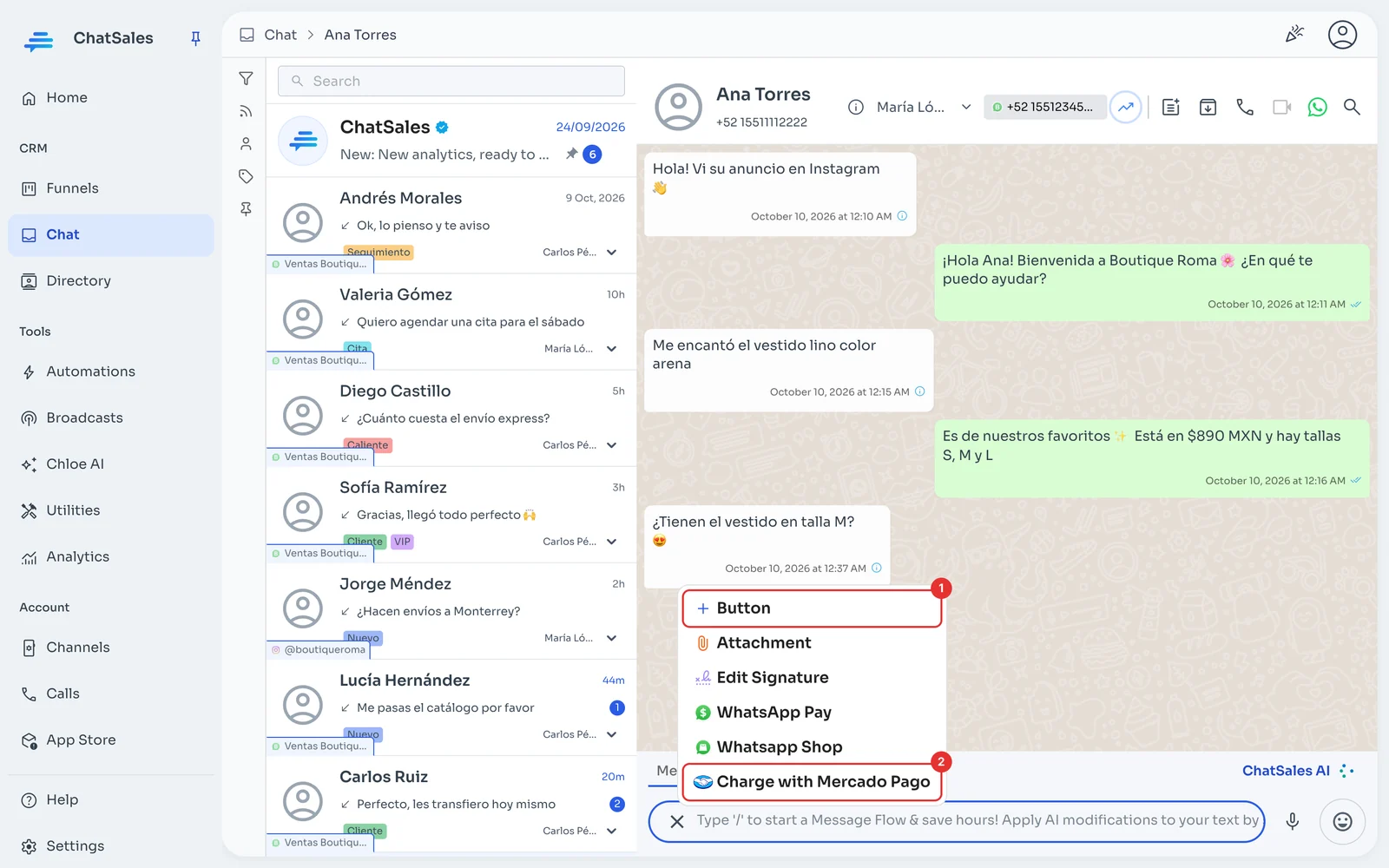
Open your customer's chat, click the + button next to the message box (1) and choose Charge with Mercado Pago (2).
Type the concept and amount
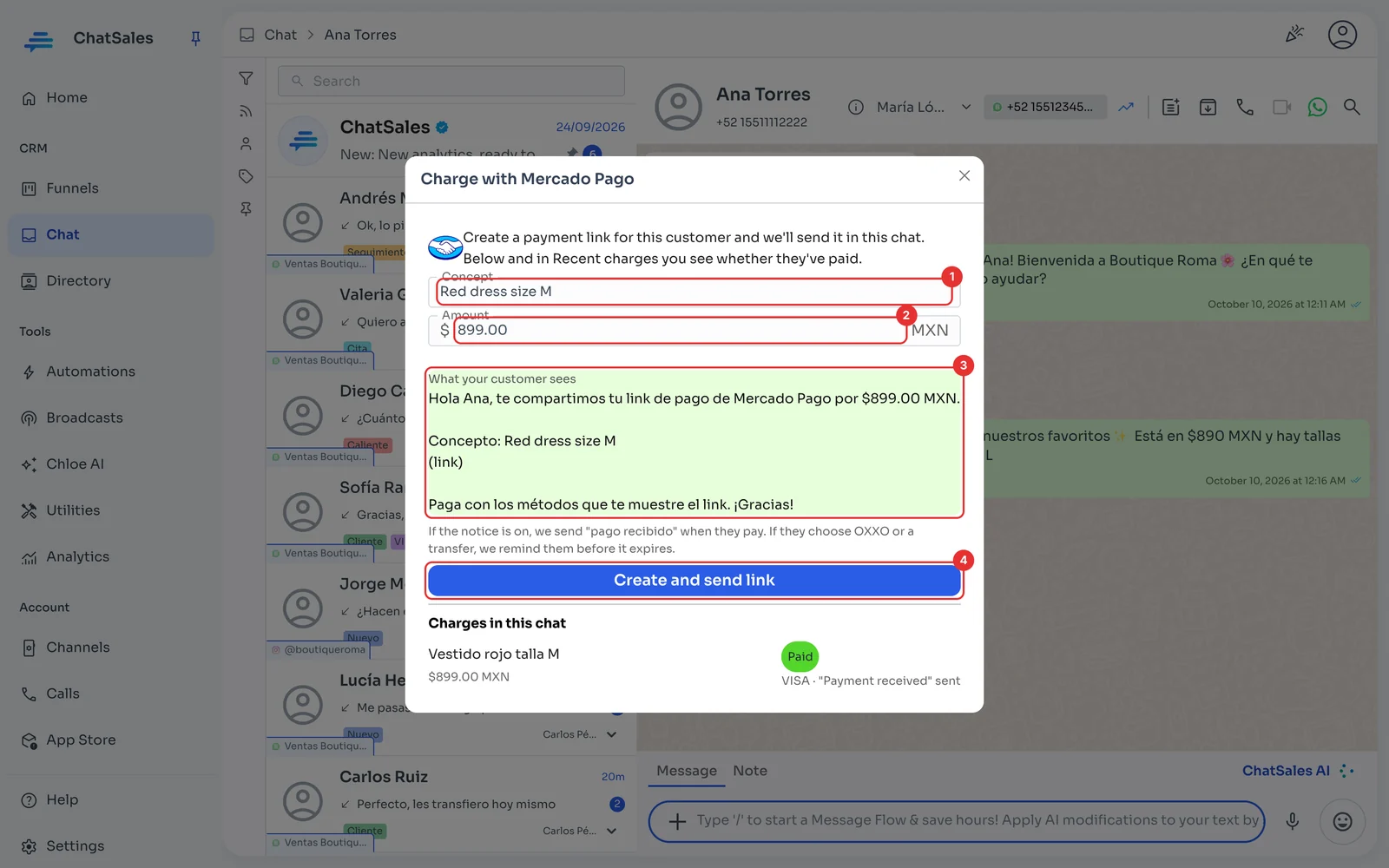
Type the Concept (1) and the Amount in pesos (2). Below you see exactly the message your customer will get (3).
Click Create and send link (4). If WhatsApp doesn't allow sending it, we still create the link and give it to you to copy.
What happens next
When the customer pays by card or balance, we send "pago recibido" (if you left that notice on). In the chat, + → Charge with Mercado Pago also shows whether they've paid.
If they chose OXXO or a bank transfer, the payment stays Payment pending until they complete it; we remind them before it expires, and re-check with Mercado Pago that it's still unpaid right before reminding.
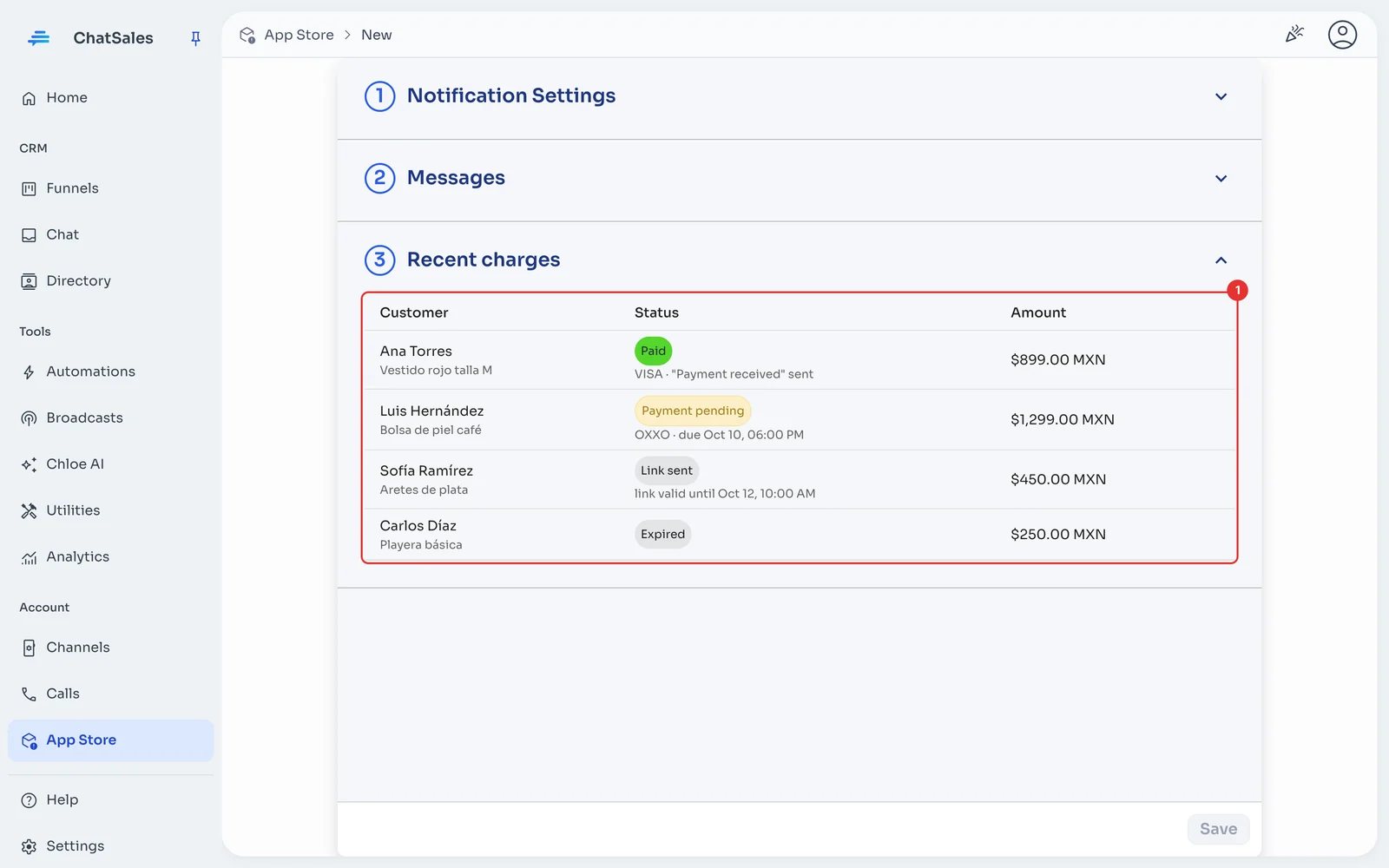
Under Recent charges (1) you see every charge: Link sent, Payment pending, Reminded, Paid, Expired, Refunded or Not sent with the reason.
Common problems
"That's the Public Key": you copied the short key. Copy the Access Token (the long one).
"That Mercado Pago account isn't from Mexico": for now it only works with Mexico accounts.
A customer paid in my store and got no message: that's expected. We only track charges created from a ChatSales chat.
I want to remove ChatSales' access: click Disconnect Mercado Pago in ChatSales and renew your credentials in Mercado Pago (Renovar). Links already sent can still be paid, but we stop notifying and reminding.