Ask a question and save the answer
A flow can ask something, like how many pieces the customer wants or a photo of their receipt, wait for the reply, check it's the right kind and save it on the contact.
Add an input to the message
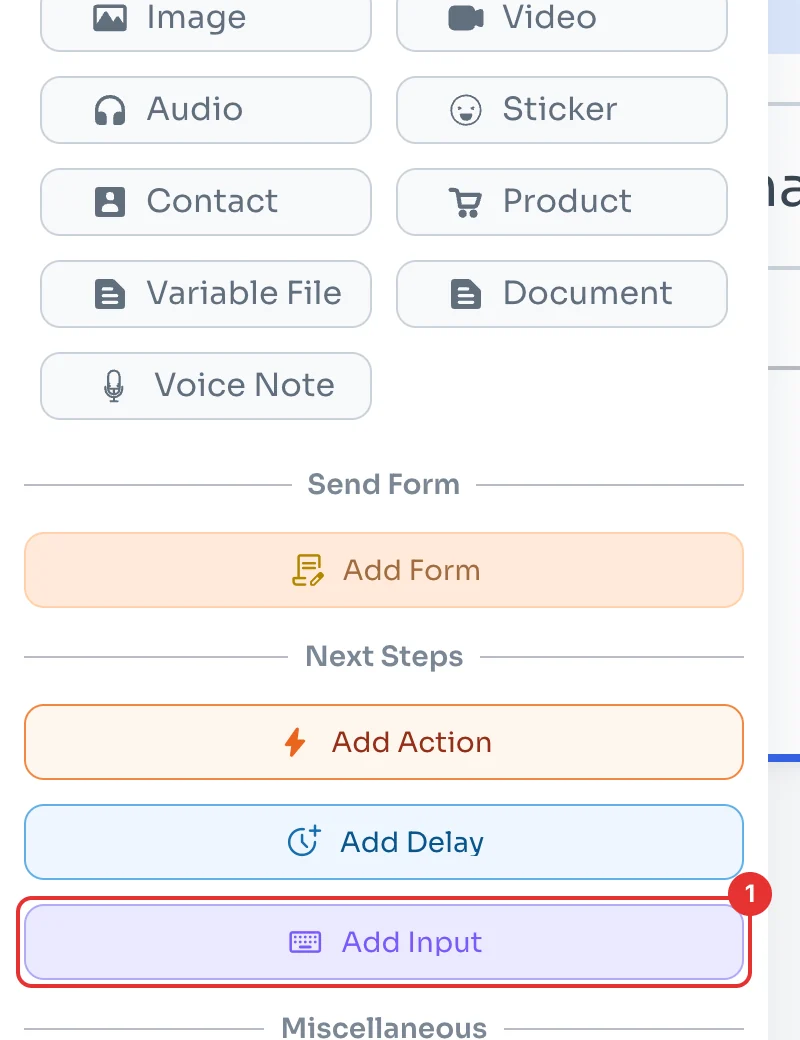
In your flow (see Create your first message flow), write the question in a message. In its panel, scroll down to Next Steps and click Add Input (1).
Check it's linked
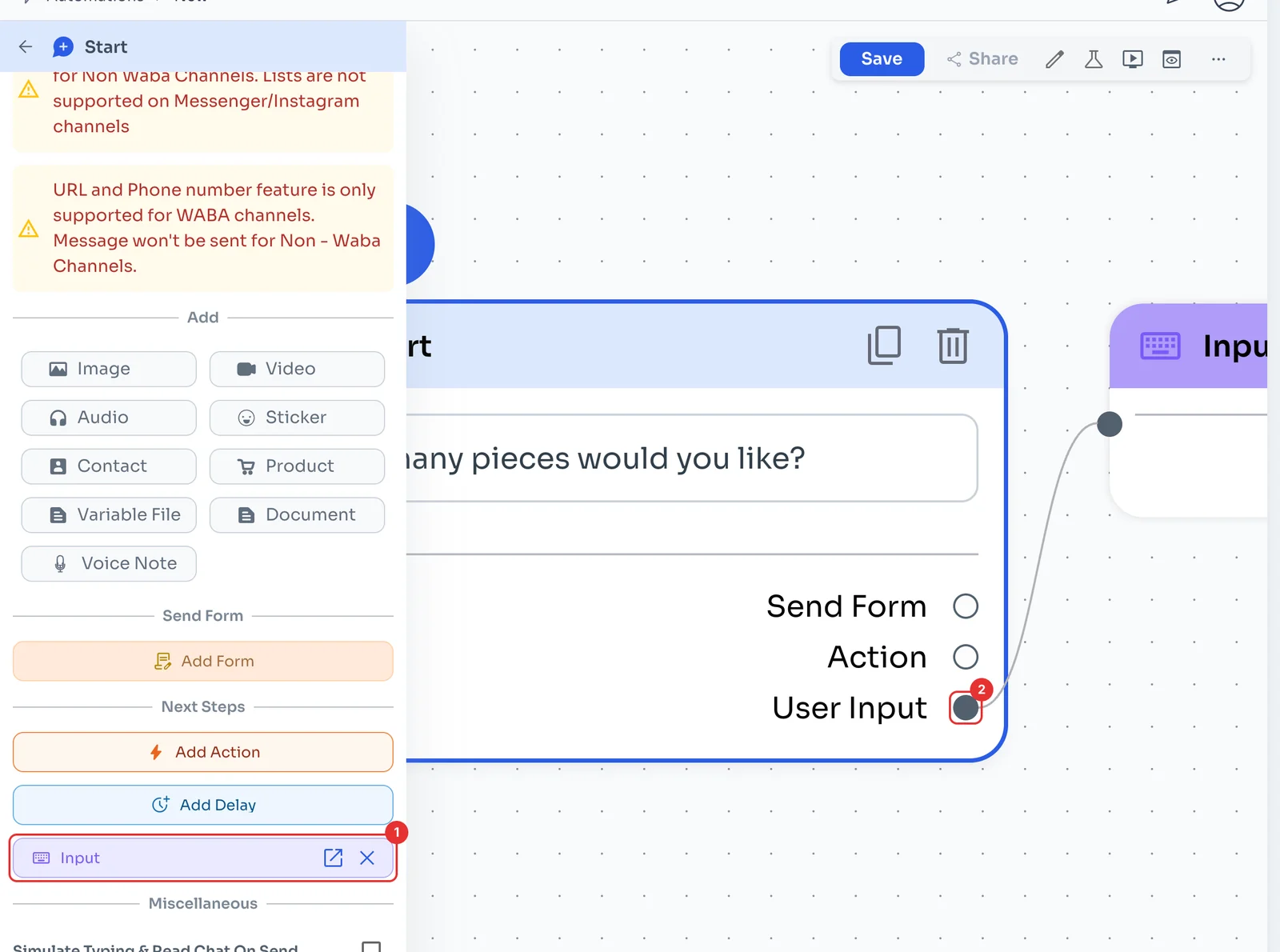
An Input step is created (1), linked to the message's User Input output (2). Click the input's open icon to set it up.
Choose the answer you expect
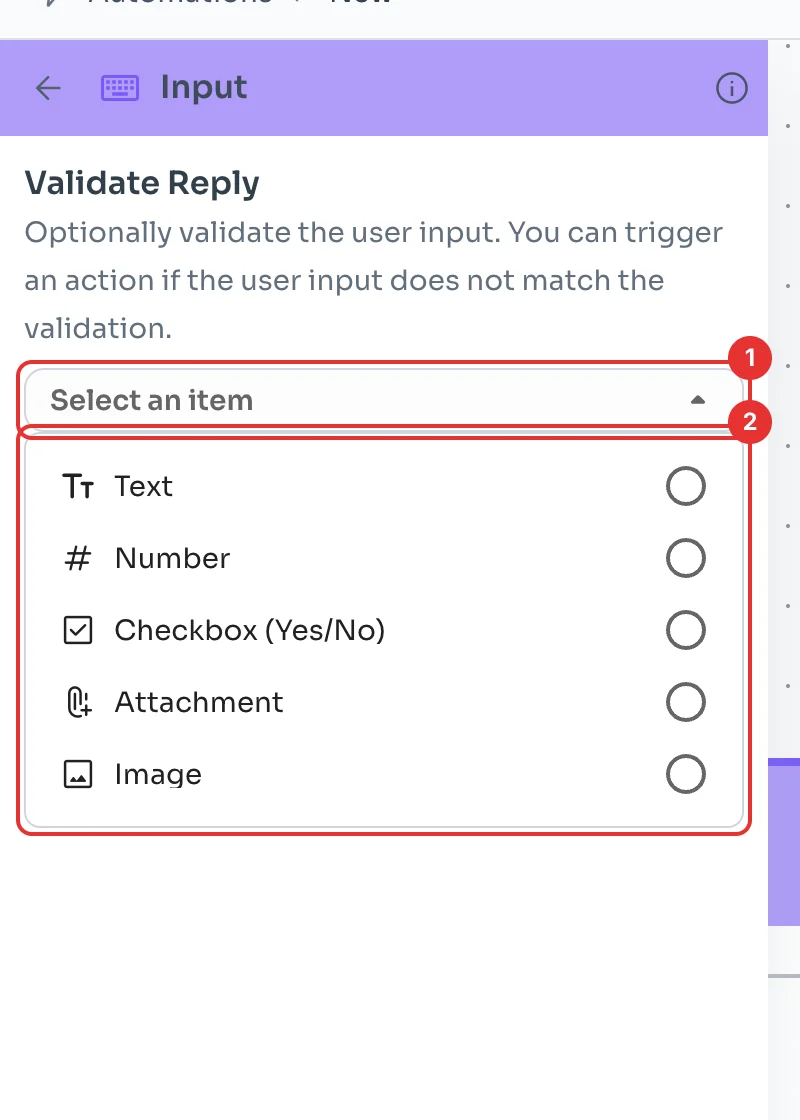
Open Validate Reply (1) and pick the type (2): Text, Number, Checkbox (Yes/No), Attachment or Image. If you pick none, any answer is accepted.
Save the answer and carry on
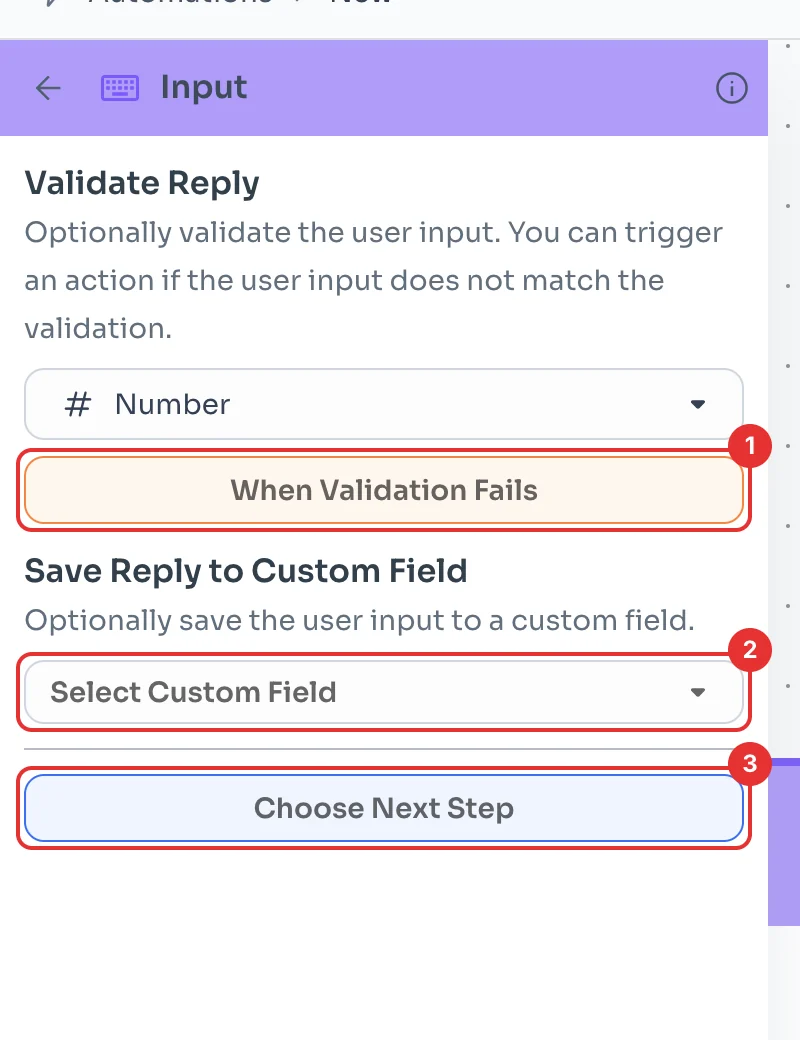
Once a type is picked, When Validation Fails appears (1): choose what happens if the customer replies with something else, for example asking again.
Under Save Reply to Custom Field (2) you choose where it is saved; the list shows the fields that match the type, so pick the type first. Choose Next Step (3) decides what comes next, then click Save.