Send a WhatsApp broadcast
A broadcast sends the same message to many contacts at once, personalised for each one. Choose whether you send it on the official API or WhatsApp QR and we show you only those steps.
Create a broadcast
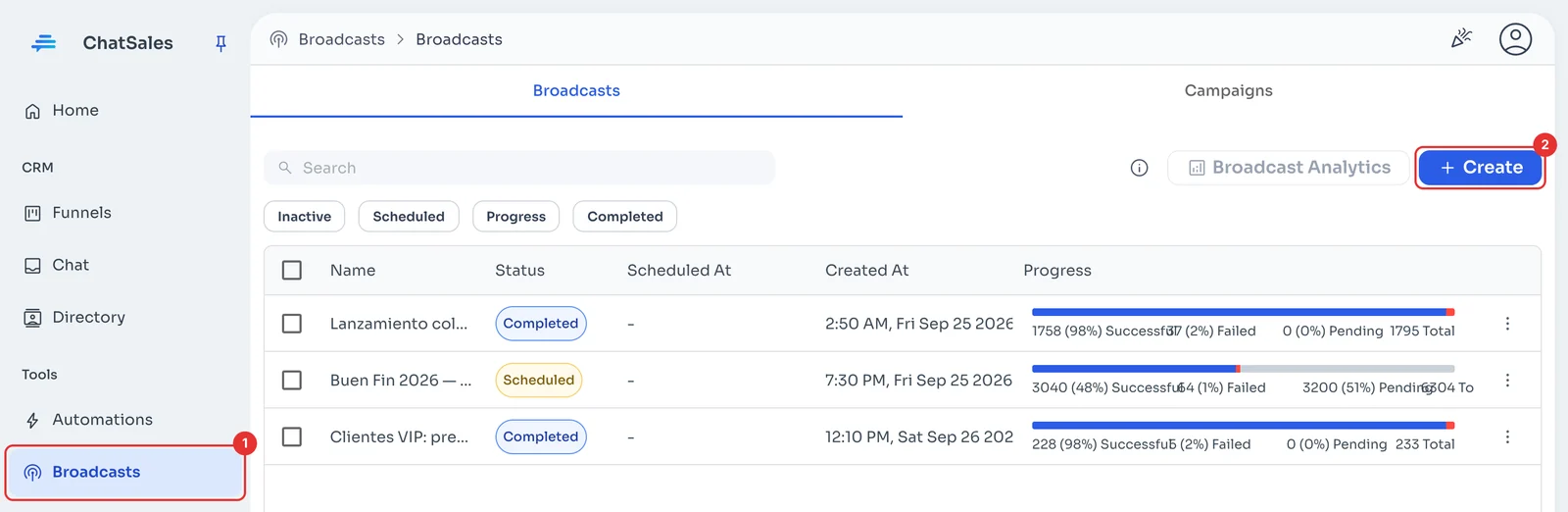
In the menu, go to Broadcasts (1) and click Create (2).
Choose who gets it
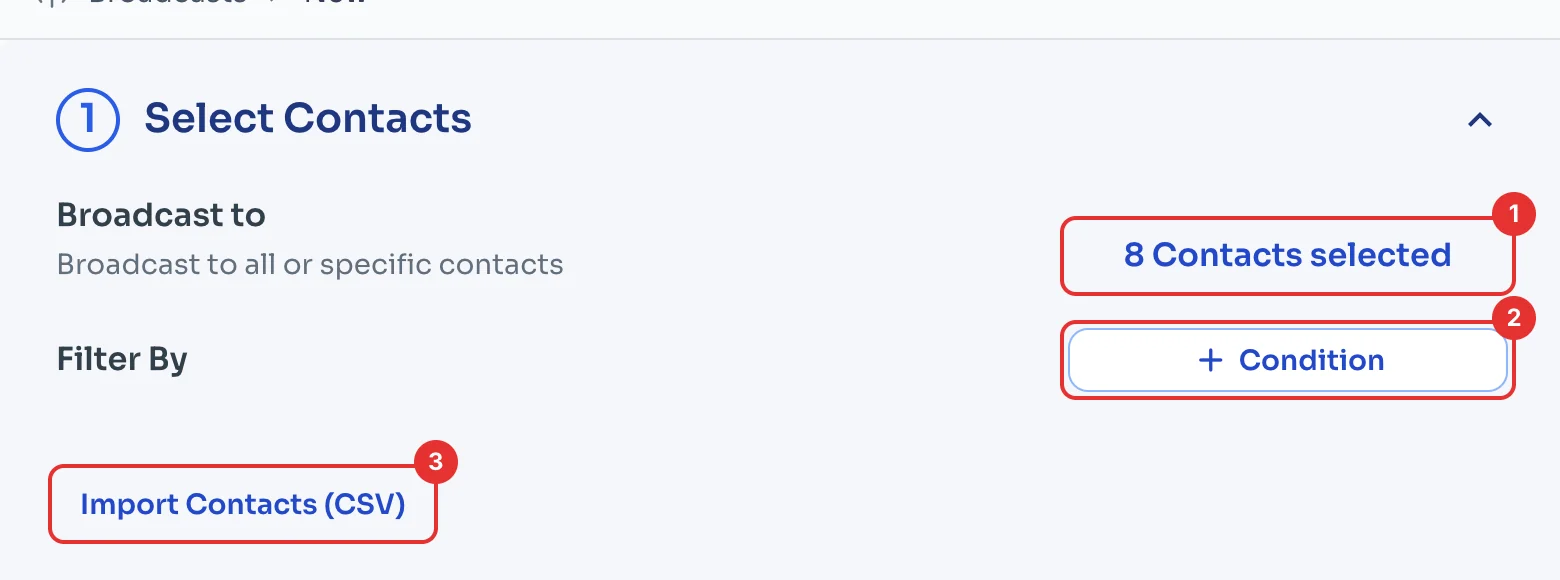
Under Select Contacts, all your contacts are included to start: click the contact count (1) to untick or pick people one by one.
With Condition (2) you filter by tag, agent, channel or custom fields. Got a separate list? Upload it with Import Contacts (CSV) (3).
Pick an approved template
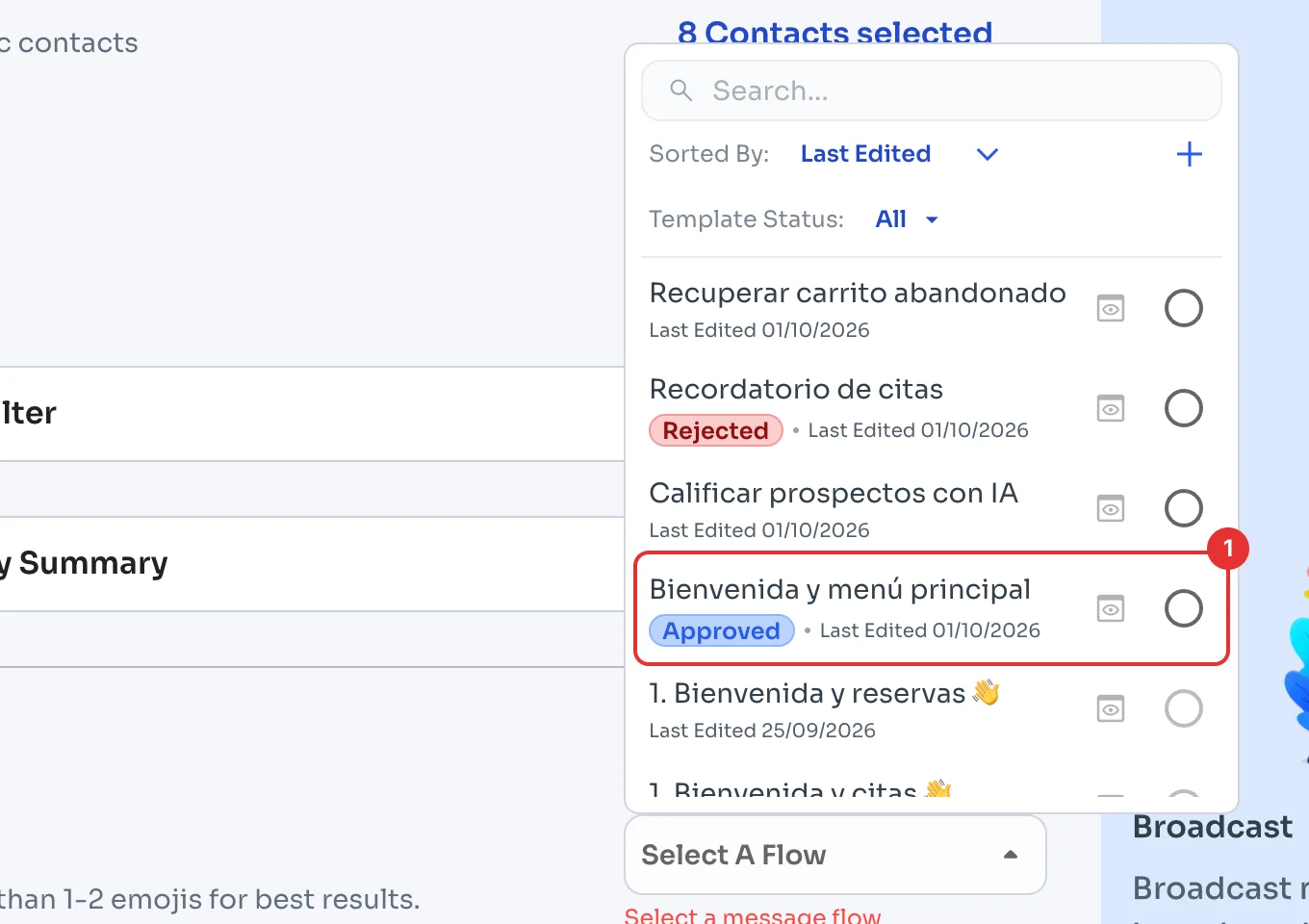
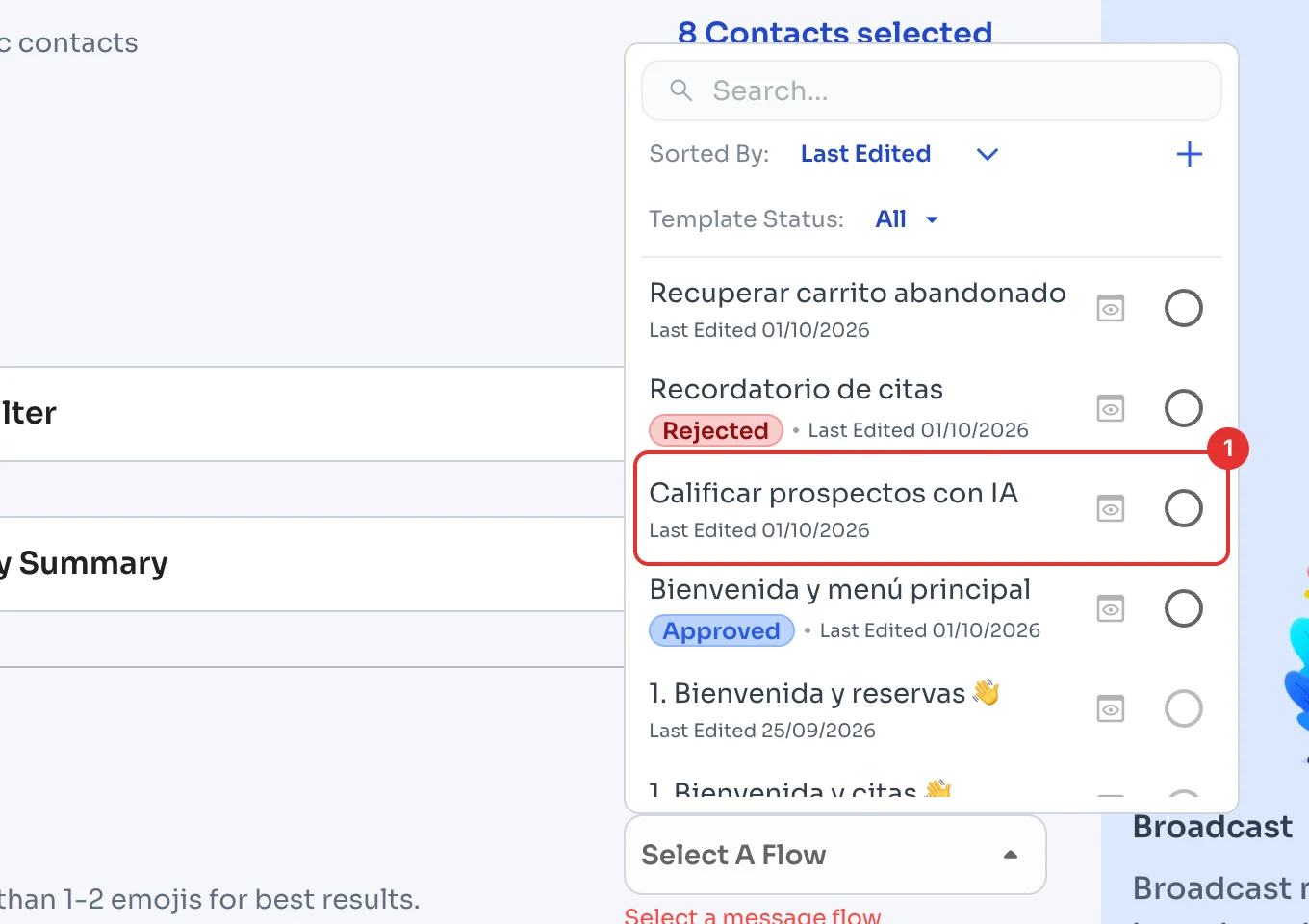
Under Select Message Flow, open the list and pick a template marked Approved (1). On the API, people who haven't written to you in the last 24 hours can only get templates approved by Meta (see Send your first message).
Meta charges for each template it delivers, by category and country: see how much the WhatsApp API costs.
Pick the message
Under Select Message Flow, open the list and pick the message you want to send (1). Use no more than 1–2 emojis.
Send now or schedule it
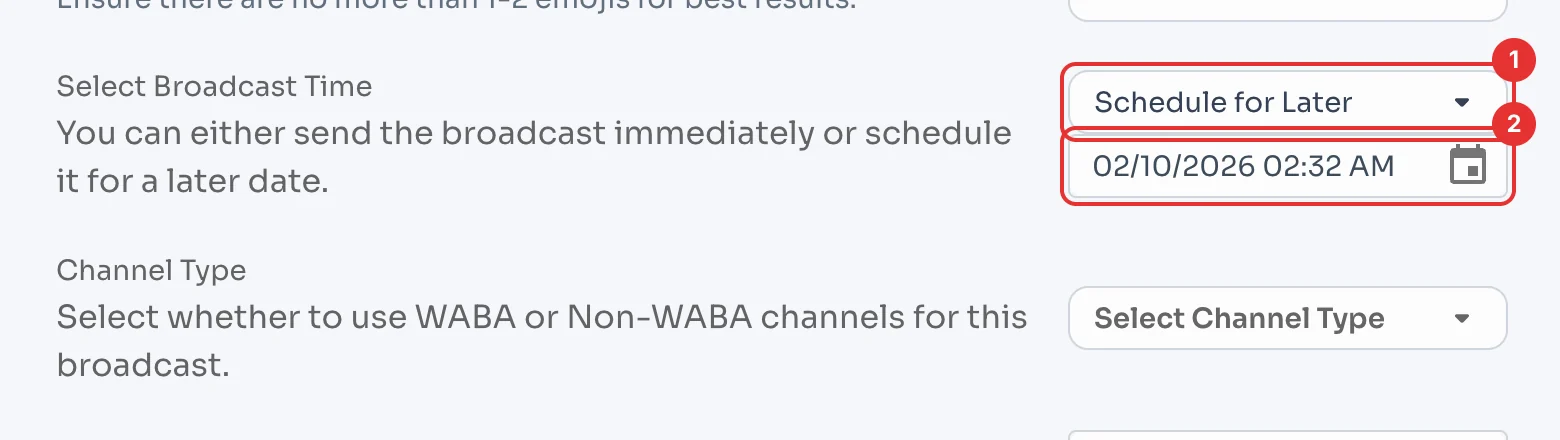
Under Select Broadcast Time (1) choose Send Now or Schedule for Later; if you schedule it, pick the date and time (2).
Choose WABA Channel and your number
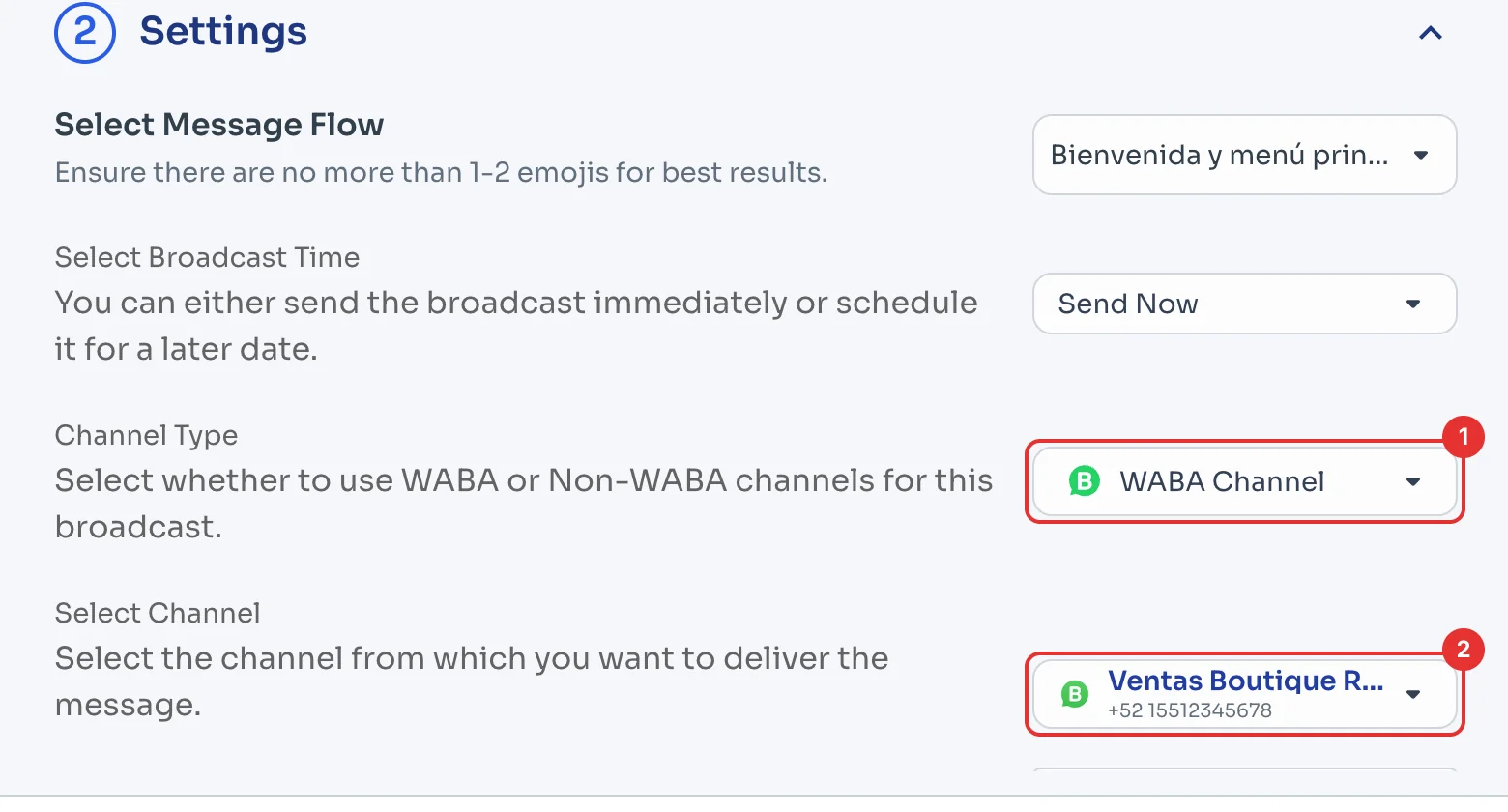
Under Channel Type pick WABA Channel (1). Then under Select Channel, tick the number it goes out from (2). If you only have one channel connected, these two fields don't appear: the broadcast goes out on that channel.
If you pick more contacts than your number's daily WhatsApp Business API limit allows, ChatSales warns you: the ones over the limit go out in the next 24 hours.
Choose Non-WABA Channel and your number
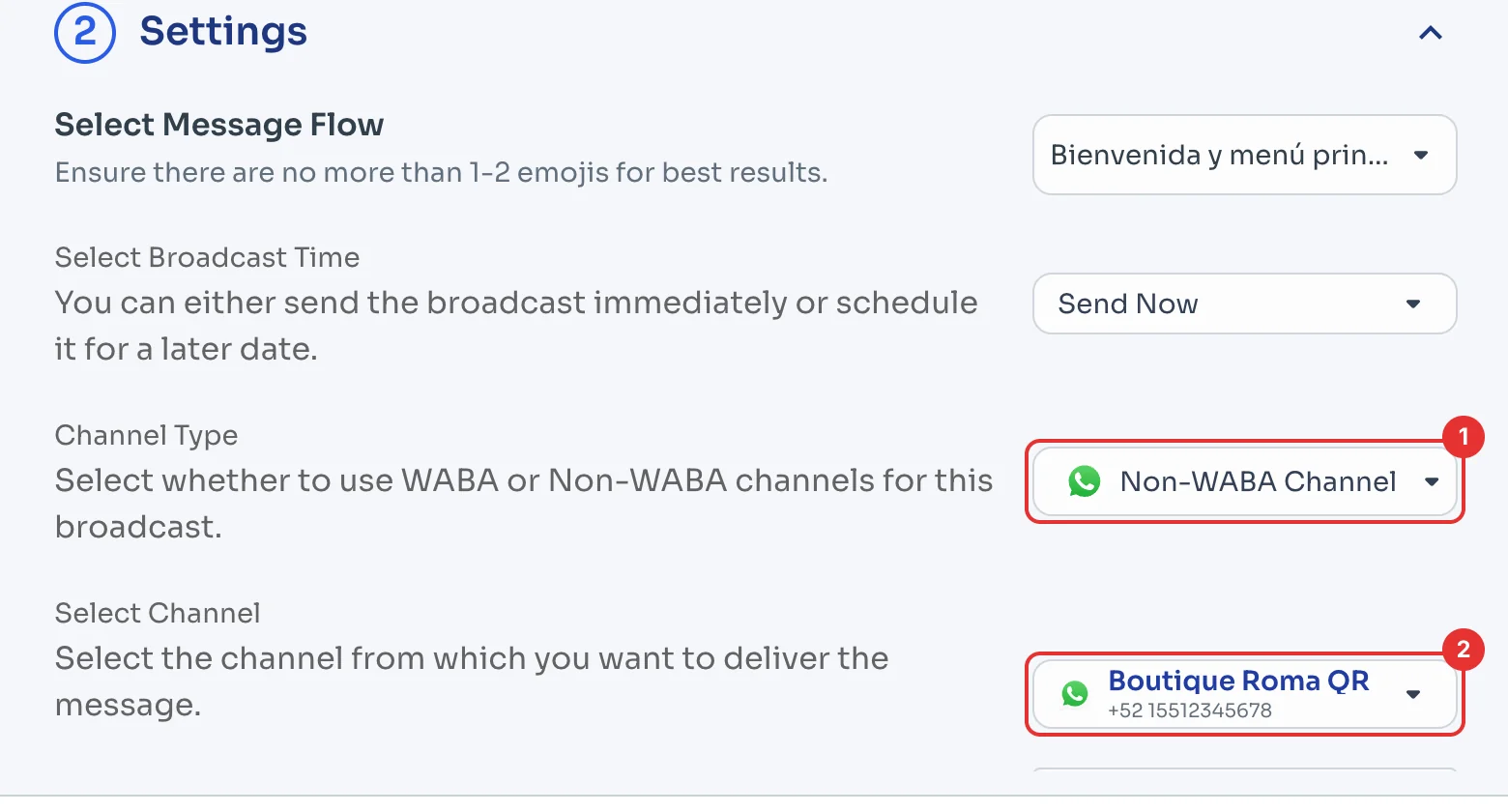
Under Channel Type pick Non-WABA Channel (1). Then under Select Channel, tick your WhatsApp QR number (2). If you only have one channel connected, these two fields don't appear.
On WhatsApp QR, send only to contacts who have written to you before and leave the sending speed on Normal, as it comes: mass or unwanted messages can get your number banned.
Save and confirm
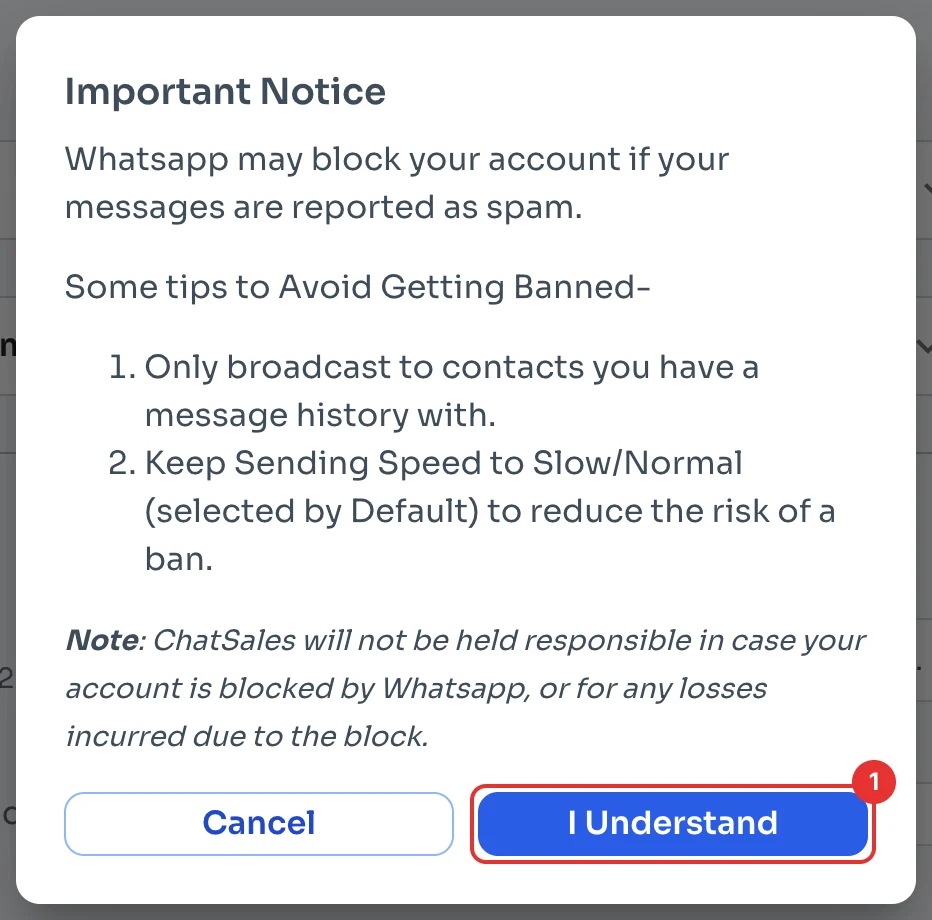
Click the button at the bottom: it says Save, or Save & Schedule In… if you scheduled it. ChatSales reminds you how to avoid bans: send only to contacts you already have a conversation with, and keep the sending speed slow or normal.
Click I Understand (1) and the broadcast goes out, or is scheduled.
Check the results
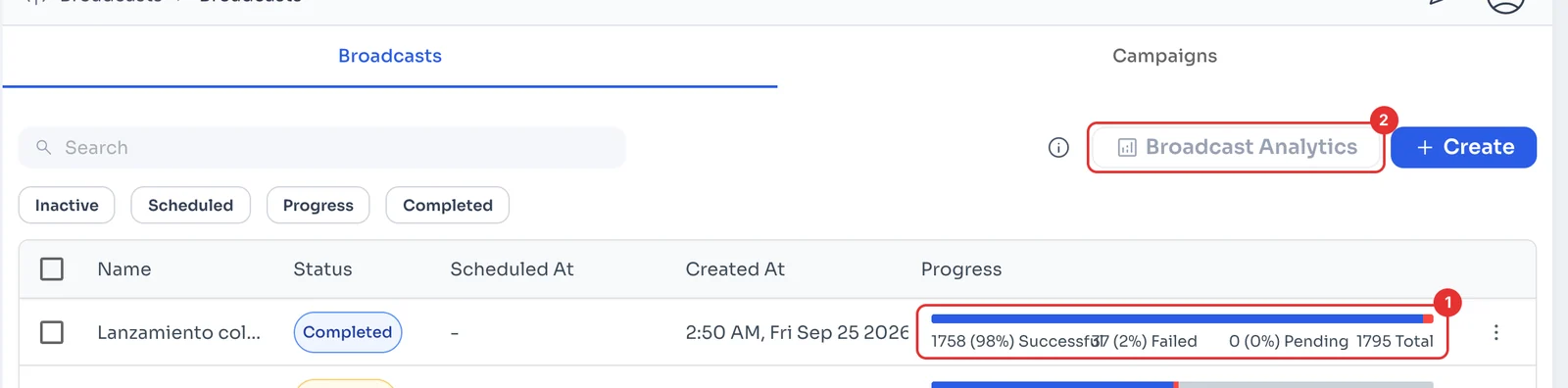
In Broadcasts, each broadcast shows how many messages went out, failed or are still pending (1). For more detail, click Broadcast Analytics (2).